Let AI agents control computers#
AI agents can operate your hosts the way you do: view the screen, move the mouse, type, and work in apps. Through MCP, Jump CLI Beta lets agents such as Claude Code or Codex connect to the hosts in your Jump Desktop account. In Mission Control, you can monitor each session and take control.
For example:
- A developer has a coding agent test their app on a Windows or Mac host.
- An operations lead assigns a repetitive task on an office computer to an agent and monitors it in Mission Control.
AI agents act on your hosts
An agent has the same permissions as the signed-in user on the host, so it can, for example, delete files or change settings. Agents make mistakes, and text on a host's screen can contain instructions that mislead them. Monitor agents in Mission Control, limit which hosts they can reach, and do not let them work on hosts where a mistake would be costly.
Applies to#
- Jump CLI Beta on Windows, macOS, or Linux, installed on the same computer as the MCP client.
- Hosts running Jump Desktop Connect on Windows, macOS, or Linux Alpha, in a personal account or a team.
- On a Mac host, someone at the Mac grants Connect its macOS permissions. Without Screen Recording and Accessibility, the agent cannot view the screen or control the mouse and keyboard.
- An MCP client, such as Claude Code or Codex CLI.
Connect an agent#
- Install Jump CLI and sign in.
- Add Jump CLI to your agent as an MCP server. See Set up.
- Ask the agent to list your computers and connect to one.
To add a computer to your account first, see Set up a computer for remote access.
A host in sleep mode cannot accept the agent's connection, so configure the host not to sleep. On a team's Windows and Mac hosts, an administrator on the Enterprise plan can use Sleep Override.
What the agent can do#
The agent can:
- List your computers and connect to up to 8 simultaneously.
- Take screenshots.
- Use the mouse and keyboard.
- Read and set the clipboard.
- Change displays, including creating virtual displays.
For details, see What an agent can do.
Virtual display limits also apply to agents. More than one virtual display requires the Jump Desktop for Teams Enterprise plan. On a Windows or Mac host, only one connection at a time can create virtual displays, so an agent's session and your own session can block each other. See Virtual displays.
Watch and take over#
Mission Control is a local web dashboard that shows every agent session live.
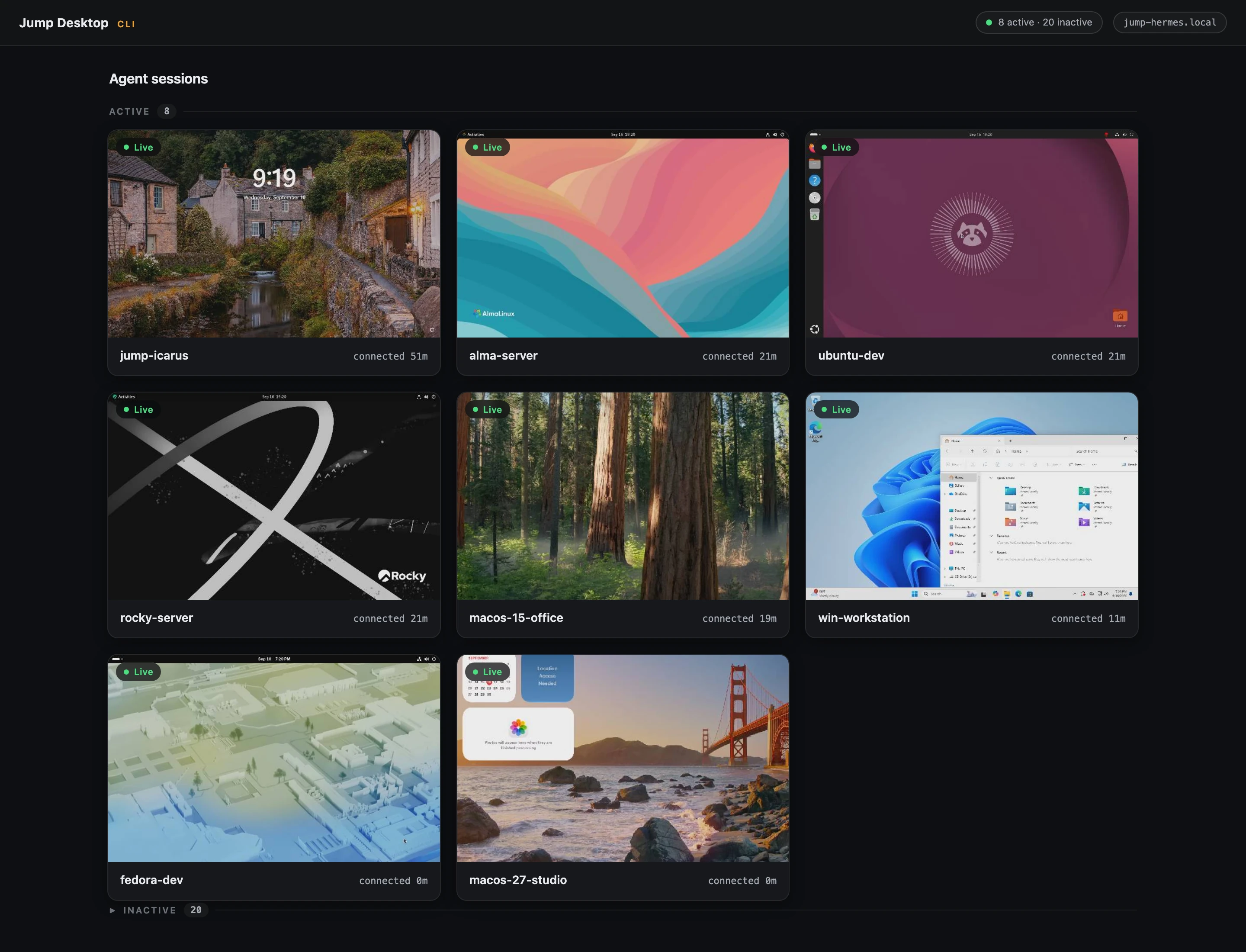
- Activity on a session's page lists each action the agent takes.
- When the agent needs sign-in credentials, enter them in Mission Control, not in chat. Credentials entered in Mission Control are not sent to the agent.
- To use the host yourself, click Take control. When you finish, click Give back control.
See Mission Control.
To check an agent's work from Jump Desktop instead, see Check in on AI agents and long-running work.
Limit what the agent can reach#
An agent connected through Jump CLI has the same permissions as the signed-in user on the host. Before you connect an agent, complete the following checklist. For the commands and details for each item, see MCP server security.
- Use only a viewer token for agents.
- Limit what the account can reach, for example with a separate Jump Desktop account or, on a team, Access Groups.
- Treat host content as untrusted.
- Do not give passwords to the agent in chat.
- Keep Mission Control on this computer and its URL private.
- Revoke access when you finish.
Check that it worked#
The agent lists your computers and connects to one, and Mission Control shows its session.