Configure computers with Connect Configurations#
A Connect Configuration is a named set of Connect settings enforced on computers or Access Groups. Use Connect Configurations to apply the same settings to many computers from the Teams dashboard and to prevent local users from changing them. For example, enable a watermark for every computer in an Access Group, or route a site's connections through your own relay servers.
Applies to#
- Jump Desktop for Teams Enterprise plan.
- Team administrators.
- Hosts running Jump Desktop Connect on Windows, macOS, or Linux Alpha.
Create a configuration#
- In the Teams dashboard, open your team. Under Tasks, click Connect Settings.
- Click New Configuration.
-
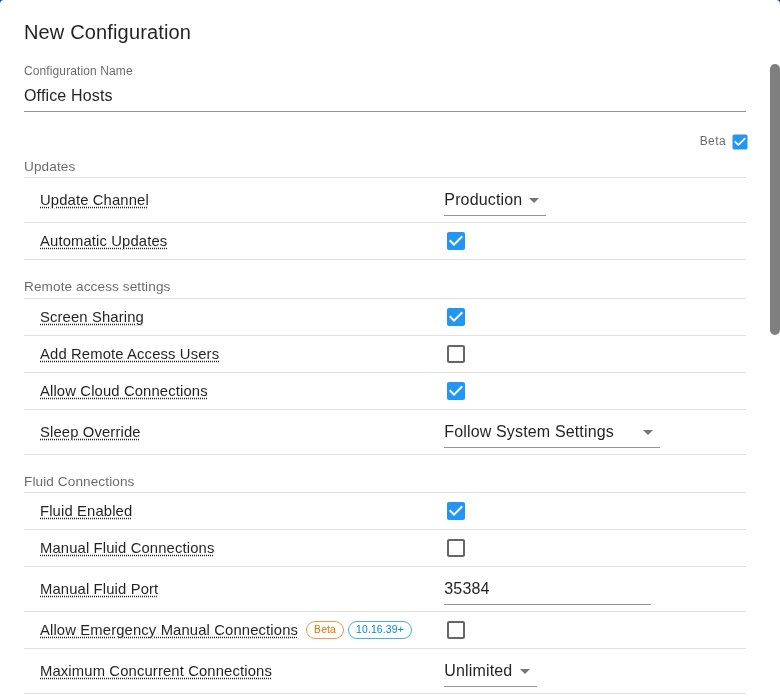
Enter a Configuration Name and set the required values. To view a setting's description, hover over its name.

-
Click Save. The assign dialog opens.
Settings are grouped by category. For the default and effect of each setting, see the Connect Configuration settings reference.
| Category | Examples |
|---|---|
| Updates | Update Channel, Automatic Updates |
| Remote access settings | Screen Sharing, Add Remote Access Users, Allow Cloud Connections, Sleep Override |
| Fluid Connections | Fluid Enabled, Manual Fluid Connections, Maximum Concurrent Connections, Allow Emergency Manual Connections Alpha (see Emergency manual connections) |
| Fluid Settings | Clipboard Sharing, Disable Background Logins, Local Authentication Restrictions, Allow Expired Passwords Alpha, Unattended Login Alpha, Watermark, Idle Timeout, Max Session Duration, codec and color settings (see Codecs and hardware encoding), and bandwidth limits (see Get the best performance) |
| Virtual Displays | Allow Virtual Displays, Fixed Virtual Displays, Persistent. See Set virtual displays for a team. |
| Disconnect Hotkey Alpha | Disconnect Session Hotkey, Default Hotkey, Allow Changing Hotkey. See Disconnect session hotkey. |
| USB and Devices Settings | USB Device Redirection, Allow HID Devices, Allow Game Controllers, Allow Security Keys (FIDO), Windows WebAuthn Apps Alpha, Allow Other USB Devices Alpha. See Turn on USB redirection for the host. |
| Networking | Direct Connections Only, Allowed Viewer Subnets and Allowed Host Subnets Alpha, Connection Port Range, On Premise Relay Servers. See Choose a connectivity option, Network requirements, and On-premises relay servers. |
| Advanced protocol settings | RDP Enabled, VNC Enabled and their ports |
| Misc | Cloud Connection History, Local Configuration Changes, Send anonymous crash reports |
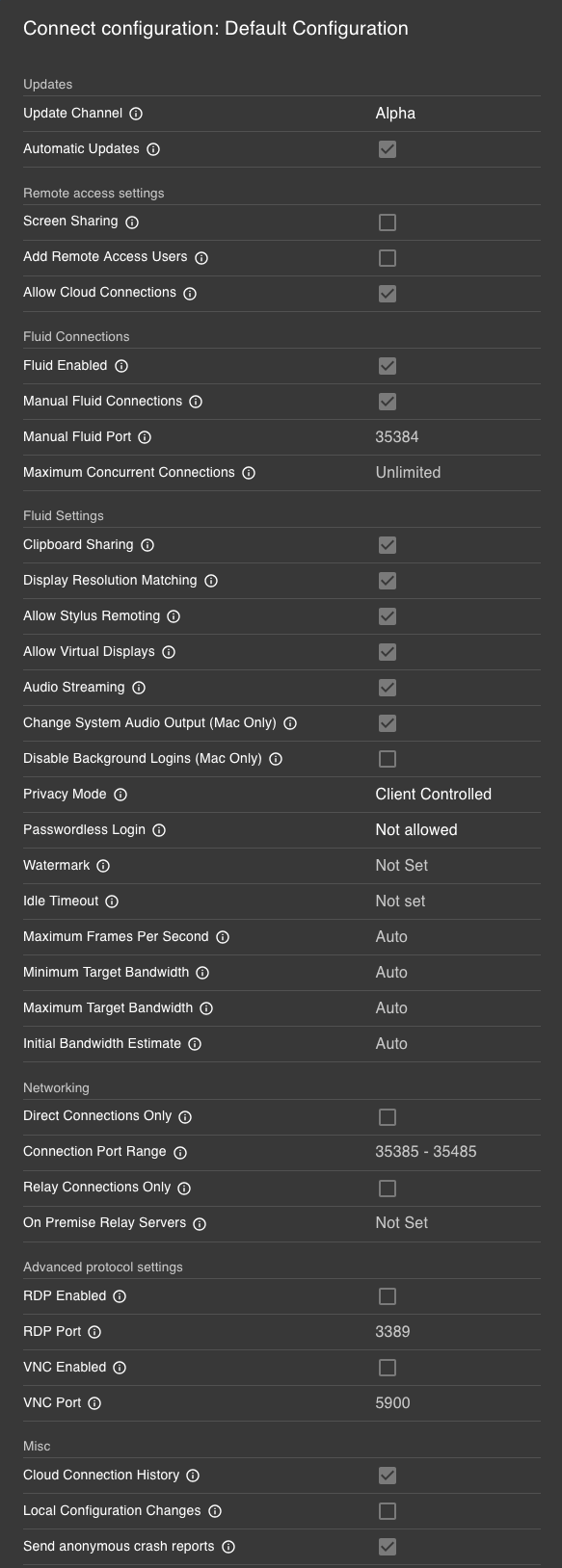
Settings can show a platform label, such as Mac or Windows, and a minimum Connect version, such as 10.16.71+; hover over a label for its description. Check the host-version requirements in the sections below and on each feature's page before assigning a configuration.
Settings for Connect 10.16 Alpha#
The settings for Jump Desktop Connect 10.16 carry a Beta label and are hidden until you select the Beta check box at the top right of the configuration editor (its tooltip reads Show beta settings). They take effect only on hosts running Connect 10.16 or later; hosts running Connect 10.15 ignore them.
Keep hosts awake#
Sleep Override (Connect 10.5 or later) is a setting that prevents Windows and Mac hosts from sleeping. A sleeping host cannot accept connections, so this setting keeps hosts available, for example overnight or while an AI agent works on them.
| Value | What it does |
|---|---|
| Follow System Settings (default) | The host sleeps according to its own power settings. |
| Always Keep Awake | The host does not sleep. |
| Keep Awake on AC Power | The host does not sleep while on AC power. On battery power, it follows its own power settings. |
Limit session length#
Max Session Duration (Connect 10.5 or later) is the maximum length of a Fluid session, in seconds. A session that reaches this length is disconnected. To apply no limit, leave the value at 0 (Not set, the default). For example, enter 3600 to end sessions after one hour. To disconnect idle sessions instead, set Idle Timeout.
Restrict who can sign in to hosts#
By default, any user with a local account on the host can sign in to the host with that account's username and password. On Windows, the account must also be a member of the Administrators or Users group and, with Connect 10.15.28 or later, must hold the Allow log on locally right; without that right, a correct password is still refused. Local Authentication Restrictions (Connect 10.5 or later) is a setting that limits local account sign-in to the users and groups you list. The restriction applies to every sign-in with a local account, whether the connection is routed through Jump's cloud or through Cloudless Fluid.
- While editing a configuration, under Fluid Settings, click Configure next to Local Authentication Restrictions.
- Select Restrict to allowed users and groups.
- Under Users and Groups, add names as they appear on the host. Click Save.
- Save the configuration.
A user matching either list can sign in; all other users are denied.
Warning
If restrictions are enabled and both lists are empty, no one can sign in with a local account.
| Host | Users | Groups |
|---|---|---|
| Windows | alice or DOMAIN\alice |
Remote Desktop Users |
| macOS | Short username, such as alice |
admin, staff |
| Linux Alpha | Local username, such as alice |
sudo, wheel |
Restrict connections by subnet Alpha#
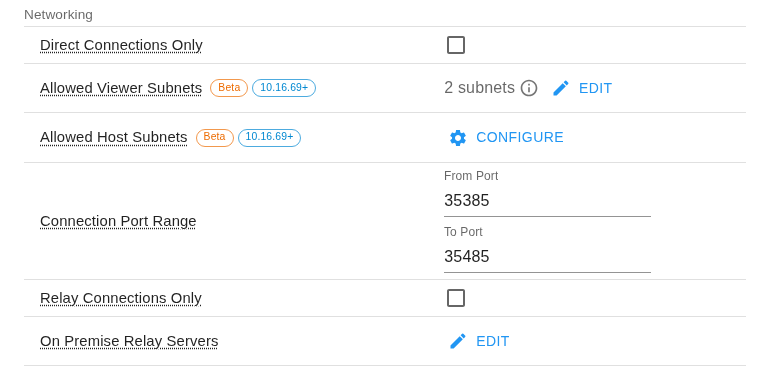
Allowed Viewer Subnets and Allowed Host Subnets (Connect 10.16 or later, under Networking) are settings that restrict Fluid connections to the networks you list. Use them, for example, to accept connections only from an office or VPN network.
| Setting | What it does |
|---|---|
| Allowed Viewer Subnets | Only viewers whose address is in one of the listed subnets can connect. A relayed connection comes from the relay server's address, so add your relay servers too. |
| Allowed Host Subnets | Connect uses only the host's own network interfaces with an address in one of the listed subnets. It does not limit which viewers can connect. |
- While editing a configuration, under Networking, click Configure next to the setting.
- Select Only allow viewers from these subnets (or Only use the host's network interfaces in these subnets).
- Enter an IPv4 or IPv6 address or subnet, such as
192.0.2.0/24or198.51.100.5, and click Add. A single address is saved as a/32(IPv4) or/128(IPv6) subnet. Host names and ports are not accepted. - Click Save, and then save the configuration.
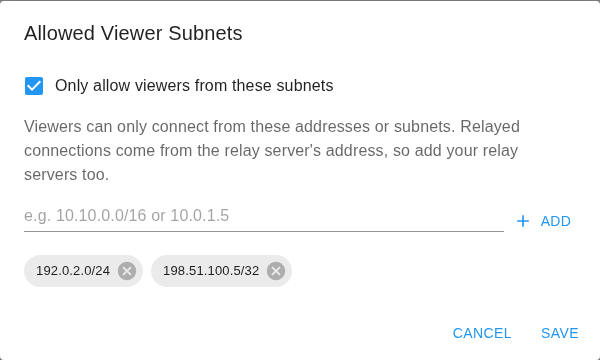
A configured setting shows the number of subnets and Edit; a setting that is not configured shows Not Set and Configure.
Warning
A host that cannot apply a subnet list refuses the connection. With Allowed Viewer Subnets turned on and no relay server in the list, relayed connections are refused. Test a configuration on one host before assigning it widely.
A viewer outside the allowed subnets cannot connect; Jump Desktop reports that the connection could not be established.
Refuse sign-in while someone else is at the host Alpha#
Unattended Login (Connect 10.16 or later, under Fluid Settings) is a setting that controls whether a user can sign in to the host with a local account while a different user is signed in at the host. Use it to prevent remote sign-ins from interrupting the person working at the host.
| Value | What it does |
|---|---|
| Always allowed (default) | A user can sign in with a local account whether or not someone is signed in at the host. |
| Only when no one is at the computer | Sign-in with a local account is refused while a different user is signed in at the host. The same user can still sign in. If the host cannot determine who is signed in, sign-in is refused. |
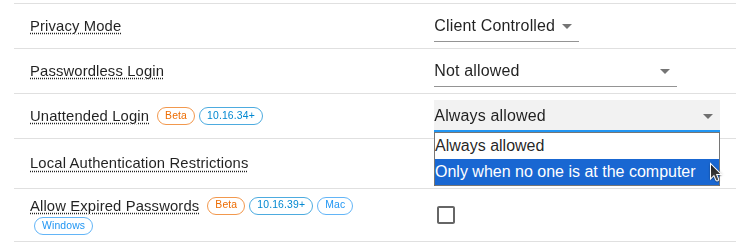
When sign-in is refused, Jump Desktop shows Computer is in use ("Someone is currently signed in at this computer and its policy does not allow unattended logins while it is in use. You can ask the signed-in user to share their screen instead."), or Computer may be in use when the host cannot determine whether anyone is signed in. Screen sharing is still offered; see Ask to share screen.
Hosts running Connect earlier than 10.16.34 ignore this setting and still allow unattended sign-in. The At Computer column in Computers shows who is signed in at each host running Connect 10.16 or later.
Allow sign-in with an expired password Alpha#
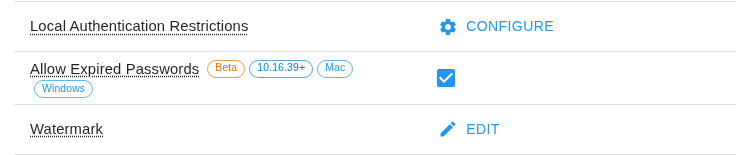
Allow Expired Passwords (Connect 10.16 or later, Windows and Mac hosts, under Fluid Settings) is a setting that lets users sign in to a host with a correct password that has expired. The host then asks them to change the password. It is off by default: a correct but expired password is refused, and Jump Desktop shows Password change required ("Your password has expired or must be changed. Change it on the remote computer or contact your administrator, then try connecting again.").
Disconnect session hotkey Alpha#
The Disconnect Hotkey group (Connect 10.16 or later) controls the keyboard shortcut that a person at the host presses on the host's keyboard to disconnect the current session. See Disconnect Session Shortcut.
| Setting | Default | What it does |
|---|---|---|
| Disconnect Session Hotkey | On | Turns the shortcut on or off on the host. Only a Connect Configuration can turn it off. On Linux Alpha hosts, the shortcut works in X11 sessions only. |
| Default Hotkey | Empty: Ctrl+Alt+Shift+D on Windows and Linux, Cmd+Option+Shift+D on Mac | The shortcut hosts use unless a different one is chosen in Connect's settings. Enter Ctrl, Alt, or Win with a letter, a number, or F1 to F12, joined with +, such as Ctrl+Alt+Shift+D. Win is Command on a Mac and Super on Linux; Alt is Option on a Mac. |
| Allow Changing Hotkey | On | When off, hosts always use the default hotkey, and it cannot be changed in Connect's settings, even on hosts where it was changed before. |

Choose the apps that use Windows Hello / Security Keys Alpha#
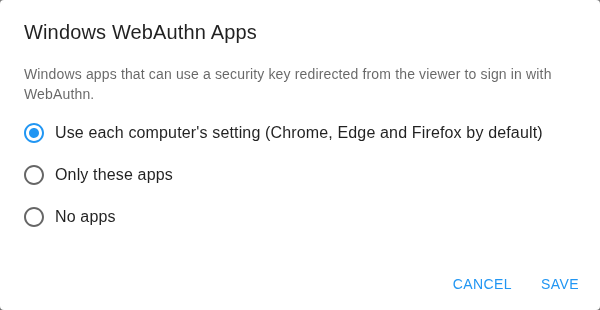
On a Windows host, only allowed apps can use Windows Hello / Security Keys. By default, the allowed apps are chrome.exe, msedge.exe, and firefox.exe. To change the list for team computers, a team administrator opens the configuration, selects the Beta check box, and sets Windows WebAuthn Apps under USB and Devices Settings:
| Option | Allowed apps |
|---|---|
| Use each computer's setting (Chrome, Edge and Firefox by default) | The host's own list, which is Chrome, Edge, and Firefox unless changed on the host. |
| Only these apps | The apps you enter, as file names ending in .exe, such as chrome.exe, with no folder path or wildcards. You can enter up to 128 apps. |
| No apps | None. Windows Hello / Security Keys cannot be used on the host. |
A changed list applies to new connections. An app that was already running when it was removed from the list can still use the redirected key until you restart it.
Assign a configuration#
- On the Connect Configurations page, click Assign configuration next to the configuration.
- Select computers on the Computers tab, or groups on the Access Groups tab.
- Click Assign.
To assign a configuration from a computer's or Access Group's page, click the value next to Connect settings (Not assigned if no configuration is assigned). If a configuration is shown, click Assign. Choose a configuration and click Assign.
To stop enforcing a configuration, click Remove configuration next to it, select the computers or groups, and click Remove.
Edit, copy, or delete#
Use the buttons next to a configuration:
- Edit configuration: changes apply to every computer and Access Group the configuration is assigned to.
- Create Duplicate: creates an unassigned copy with " - Copy" appended to the name.
- Export to another team: copies the configuration without assignments to another team you administer.
- Delete configuration: removes the configuration from every computer and Access Group it is assigned to.
Which configuration applies#
- A computer or Access Group has at most one configuration. Assigning another configuration replaces the existing one.
- A configuration assigned directly to a computer overrides a configuration inherited from an Access Group.
- If a computer belongs to several Access Groups with different configurations, only one of those configurations applies, and you cannot control which one. The dashboard may show a configuration other than the one applied. Avoid this situation, or assign a configuration to the computer directly.
- A computer with no direct or group configuration uses the settings chosen in Connect on that computer.
Warning
If a computer with its own configuration is added to an Access Group that has a configuration, the computer's own assignment is removed and the computer inherits the group's configuration. If no other computer or Access Group uses the removed configuration, the removed configuration is deleted.
The Connect Settings column in Computers and a computer's Connect settings field show its configuration. An inherited configuration shows "(inherited from" followed by the group name. To change an inherited configuration, remove the computer from the group or assign a configuration to the computer directly.
Result#
- Online computers receive changes within about 20 seconds. Offline computers receive changes the next time Connect connects to Jump.
- Connect applies every value in the configuration, not only the values you changed. Connect is also set to start automatically.
- Unless the configuration enables Local Configuration Changes, Connect's Settings window shows Settings are managed by your team's administrator and most settings cannot be edited.
- When a configuration is removed or deleted, the computer reverts to the settings chosen in Connect on that computer.
Related#
-
Clone computers with Connect: remove leftover registration data and enroll each restored host separately.
- Connect Configuration settings reference: every Connect Configuration setting, with its default and effect.
- Jump Desktop Connect settings: a description of each setting.
- Add and manage computers: select a configuration when you create an installer.