Computer shows as offline#
A host shows as offline when Jump Desktop Connect on the host is not connected to Jump's cloud. Jump Desktop then reports that the computer is not online.
Safe checks#
Perform these checks in order. None of them change Connect's settings.
- Check the status.
- Personal account: in Jump Desktop on Windows or macOS, choose View > as List. The Status column shows Online or Offline. In Jump Desktop on Android Beta, an offline host's icon is gray, and connecting to the host shows The computer appears to be offline.
- Team: in the Teams dashboard, open your team, click Computers, and check Status and Last Online.
- Check that the host is on and awake. Connect disconnects from Jump's cloud while the host sleeps.
- Check the host's internet connection.
- Open the Connect window on the host. If the window is hidden, click the Connect icon in the menu bar or system tray and choose Show Jump Desktop Connect. Note what the window shows.
-
Check that the Connect service is running.
In Services, Jump Desktop Connect Service should show Running.
In Terminal, run:
It should show
state = running. This check works even when Connect's window and menu bar icon are not showing, which is normal on a Mac after a restart until the first connection.If the Connect window is stuck on Initializing..., see Mac: stuck on Initializing.
What the result means#
| You see | Likely cause | Fix |
|---|---|---|
| Dashboard Status is Inaccessible | You do not have access to this computer, so its status is hidden. | Add yourself as a remote access user, or grant yourself access with Access Groups. |
| Connect window: Connecting to Jump Desktop's cloud service... | Connect cannot reach Jump's cloud. | Check the internet connection, firewall, and proxy configuration. See Network requirements. |
| Connect window: Cloud connections are disabled. | Connect on this computer was configured not to use Jump's cloud. Team settings, including Allow Cloud Connections in Connect Configurations, do not cause this state. | Ask the person who configured Connect on the computer to turn cloud connections back on, or reset Connect and add the computer again. |
| Connect window: Add a remote access user and no users | The computer has not been added to an account or team. A team computer lists its team (labeled Team Account) instead of individual team members. | Add a remote access user, or add the computer to a team with a Connect Code. |
| Connect window: stuck on Initializing..., or the service is not running | The Connect service is not running. | On a Mac, see Mac: stuck on Initializing. On Windows, start Jump Desktop Connect Service in Services. On Linux, run sudo systemctl start jump-connect. If the service does not start, reinstall Connect. |
| Offline after a restart, after sleep, or after someone quits Connect | Start Jump Desktop when my computer starts is off, so Connect goes online only when someone opens it and does not reconnect after sleep. | In Connect, click the Settings (gear) button, select General, and turn on Start Jump Desktop when my computer starts. This setting is on by default. |
| Mac offline after a restart, even with Start Jump Desktop when my computer starts on | FileVault locked the disk. | See Mac: offline after a restart. |
For unattended use, also set up unattended access and prevent the host from sleeping.
Mac: stuck on Initializing#

macOS must allow Connect to run in the background. macOS lists Connect's background item under the developer name PhaseFive Systems, not under Jump Desktop; with Connect 10.16 Alpha, it is listed as Jump Desktop Connect instead. Someone at the Mac performs these steps:
- Open System Settings > General > Login Items & Extensions (Login Items on older macOS versions).
-
Under App Background Activity (Allow in the Background on older versions), turn on PhaseFive Systems (Jump Desktop Connect with Connect 10.16).

With Connect 10.16:

Mac: offline after a restart#
With FileVault on, a Mac's disk remains locked after a restart until someone signs in at the Mac. No software runs before that sign-in, including Connect.
To check FileVault status, open System Settings > Privacy & Security > FileVault, or run fdesetup status in Terminal.
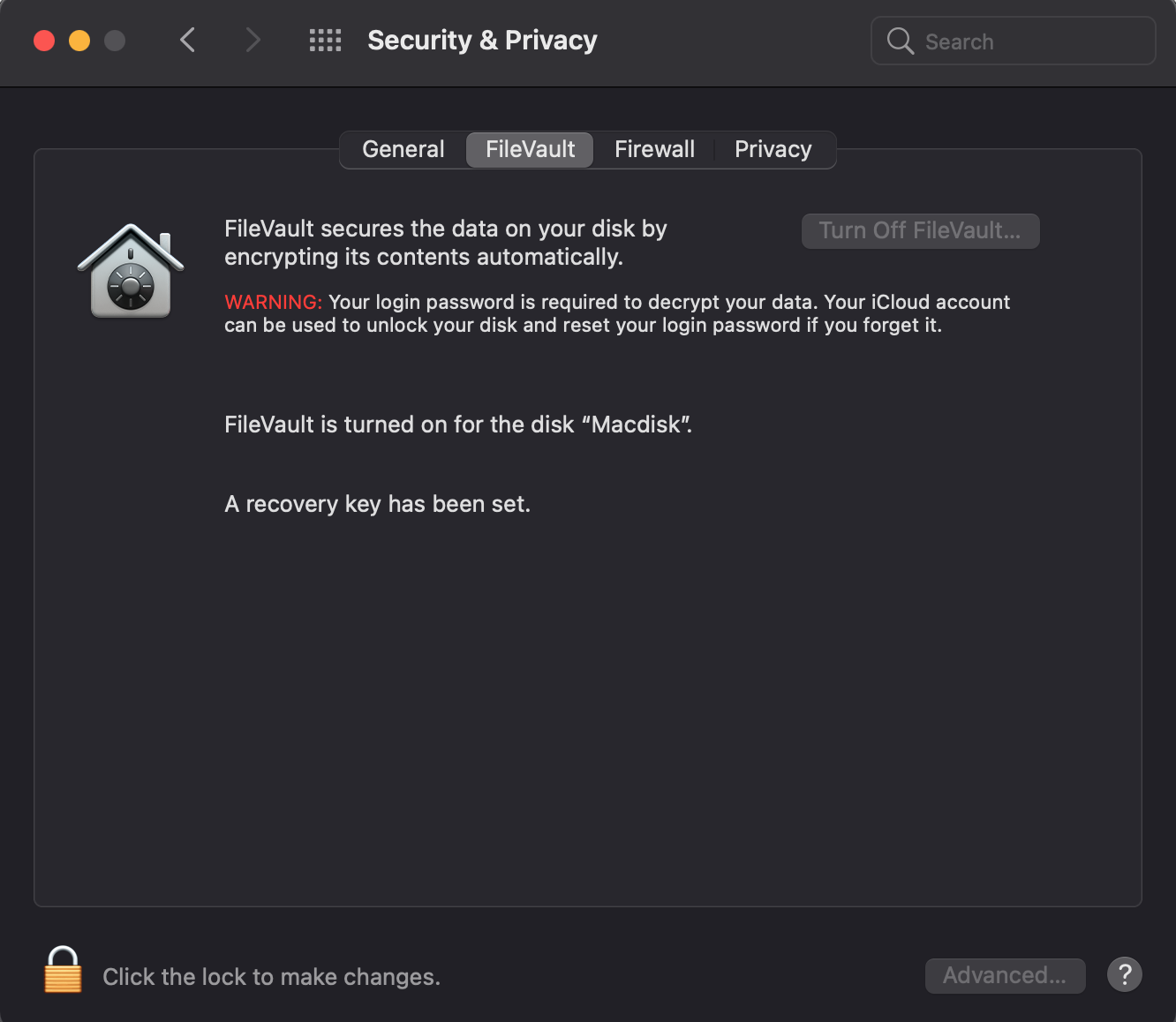
If FileVault is on:
-
Restart remotely with an authenticated restart. Instead of a standard restart, run this command in Terminal on the Mac and enter your password:
The Mac unlocks its disk once for that restart, and Connect goes online again.
-
Otherwise, someone must sign in at the Mac after each restart.
Turning off FileVault also resolves the issue, but it removes disk encryption. We do not recommend it.
Still stuck?#
Before you contact support, collect:
- What the Connect window shows, and the dashboard Status.
- The host's operating system and Connect version.
- Connect's diagnostic logs: in Connect, click the Settings (gear) button, select Diagnostics, and click Diagnostic Logs.... Connect creates
JumpConnectDiagLogs.zipand opens its folder.