Deploy Connect with Microsoft Intune#
Intune deployment distributes the Connect MSI to Windows computers as a Microsoft Intune app. A Connect Code in the app's command-line arguments adds each computer to your team. Use this method to install Connect on Windows computers already managed with Intune, without a manual installation at each computer.
Applies to#
- Windows computers managed by Microsoft Intune.
- A team administrator obtains the Connect Code; an Intune administrator deploys the app.
Before you start#
Obtain a Connect Code from a pre-configured installer:
- In the Teams dashboard, open your team and click Add Computers.
- Click an existing installer under Pre-configured installers, or click New Installer. Do not use an attributed installer; its code requires a user to sign in. See Add and manage computers.
- Copy the Connect Code.
Computers added with the code receive the installer's remote access permissions and Connect Configuration.
Steps#
- Download JumpDesktopConnect.msi.
-
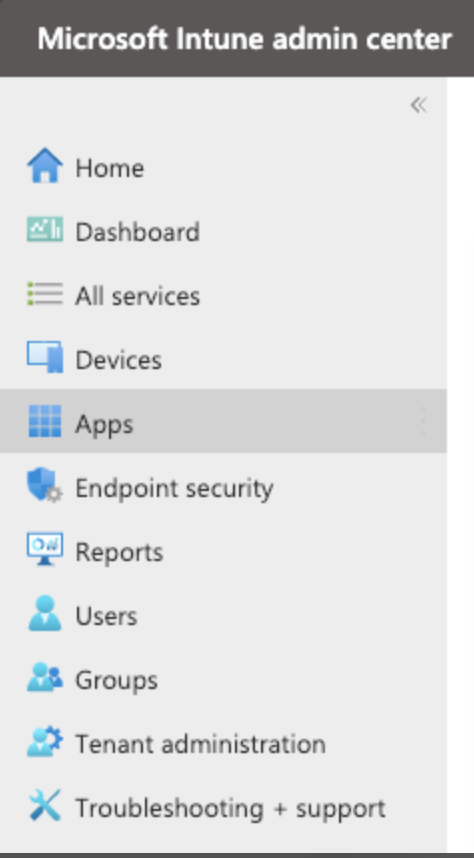
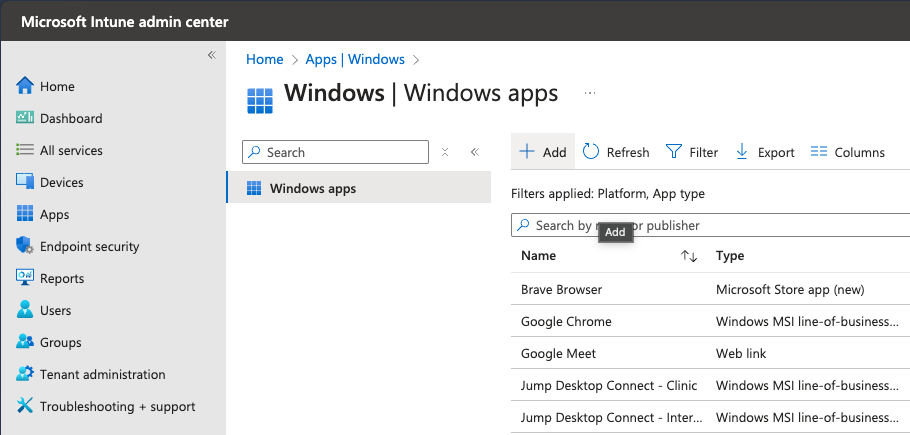
In the Intune admin center, go to Apps, select the Windows platform, and click Add.
-
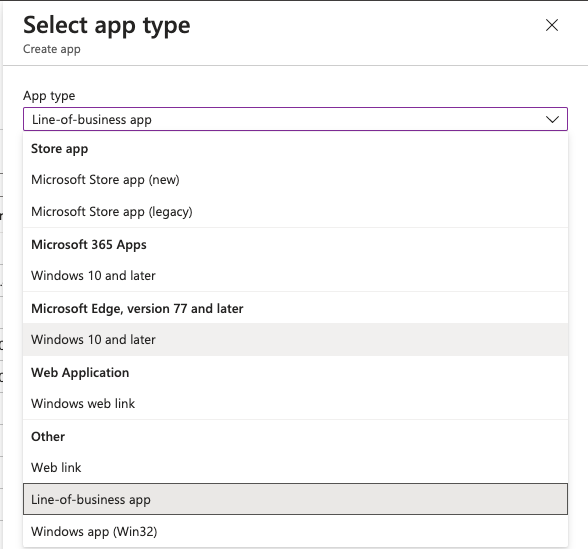
For app type, choose Line-of-business app.
-
Under App package file, upload
JumpDesktopConnect.msiand click OK.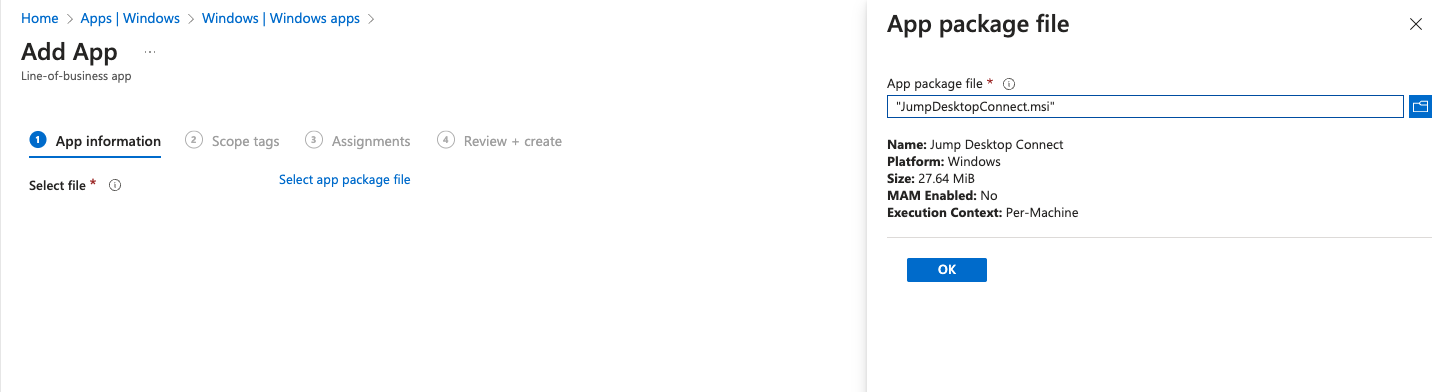
-
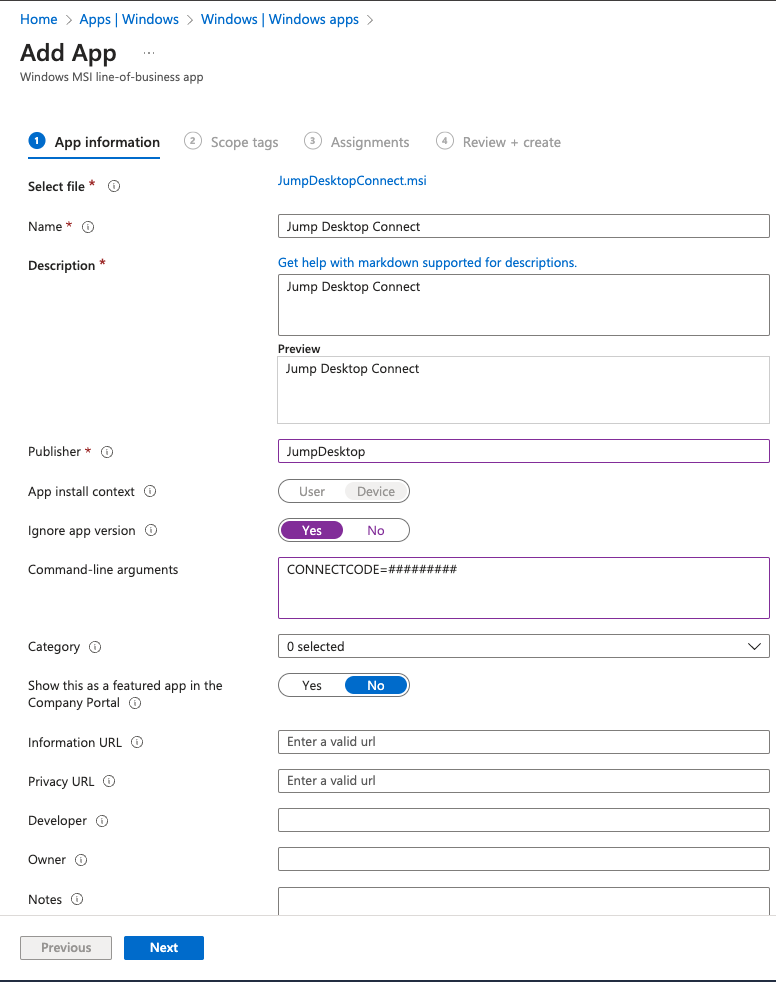
In App information, set:
- Publisher: required. Any name is accepted, for example
JumpDesktop. - Ignore app version: Yes
- Command-line arguments:
CONNECTCODE=followed by your Connect Code without spaces, for exampleCONNECTCODE=123456789.
- Publisher: required. Any name is accepted, for example
-
Click Next, configure scope tags and assignments, and then click Create.
For other installer options, see Deploy Connect to many computers.
Result#
After Intune installs the app, each computer appears under Computers in the Teams dashboard.
Limitations#
- If the Connect Code cannot be applied (for example, because the code is invalid or the computer is offline), the installation still succeeds. To verify that the computers were added, check Computers.