Redirect USB devices#
USB redirection is a Fluid session capability for sharing a USB device plugged into your computer with the host. Apps on the host can use the redirected device as if it were plugged into the host, including devices such as a game controller, a drawing tablet, a MIDI keyboard, or a security key.
Applies to#
| Device | Your computer | Plan |
|---|---|---|
| Game controllers | Windows, macOS, iPhone, iPad, Android Beta | All plans. A Steam Controller needs Enterprise. |
| Input devices, such as Wacom and other drawing tablets, control panels, and programmable keypads | Windows, macOS | Jump Desktop for Teams Enterprise plan |
| Security keys (FIDO), such as YubiKey | macOS | Jump Desktop for Teams Enterprise plan |
| Security keys, passkeys, and Windows Hello, through Windows Hello / Security Keys Alpha | Windows | Jump Desktop for Teams Enterprise plan |
| MIDI instruments and controllers Alpha | Windows (USB MIDI devices), macOS 11 or later (USB or Bluetooth LE MIDI devices) | Jump Desktop for Teams Enterprise plan |
| USB serial ports Alpha | Windows, macOS | Jump Desktop for Teams Enterprise plan |
| Driverless USB devices Alpha (devices with no driver on your computer) | Windows, macOS | Jump Desktop for Teams Enterprise plan |
- Fluid connections only. RDP and VNC sessions do not offer USB redirection.
- Host: Jump Desktop Connect 10.15.23 or later on Windows or macOS 11 or later, or Jump Desktop Connect for Linux Alpha. Game controllers need Windows 11 or later on a Windows host, or, on a Mac host, macOS 15 or later with Jump Desktop Connect 10.16 or later Alpha, connected from Jump Desktop 10.16 or later on Windows or macOS. See Game controllers.
- MIDI devices, serial ports, driverless devices, and Windows Hello / Security Keys require Jump Desktop 10.16 or later on your computer and Jump Desktop Connect 10.16 or later on the host. Serial ports work with Windows and Mac hosts, and Windows Hello / Security Keys works with Windows hosts.
- Linux Alpha hosts accept game controllers and input devices, such as drawing tablets, control panels, and Stream Deck. With Jump Desktop 10.16 or later on your computer, Linux hosts also accept MIDI devices and driverless USB devices. Serial ports and security keys cannot be redirected to a Linux host.
- USB redirection must be turned on for the host. It is off by default.
Turn on USB redirection for the host#
Computers without a Connect Configuration. On the host:
- Open Jump Desktop Connect, then Settings.
- Click Advanced.
- Under Fluid Remote Desktop, select Enable USB redirection.
Computers with a Connect Configuration assigned. The configuration's setting overrides the local setting. A team administrator completes these steps:
- In the Teams dashboard, open your team. Under Tasks, click Connect Settings.
- Open the configuration assigned to the computer.
- Under USB and Devices Settings (USB Settings in earlier versions of the Teams dashboard), turn on USB Device Redirection.
- Optional: to block a device type, turn off Allow HID Devices, Allow Game Controllers, or Allow Security Keys (FIDO). All three are on by default.
- Save the configuration.
Allow MIDI devices, serial ports, and driverless devices Alpha#
MIDI devices, serial ports, and driverless USB devices require the Connect Configuration setting Allow Other USB Devices, which is off by default. Only a Connect Configuration can turn it on; the host's Enable USB redirection setting does not allow these devices. The setting takes effect on hosts running Connect 10.16 or later. A team administrator completes these steps:
- Open the configuration assigned to the computer, as in the steps above.
- Select the Beta check box at the top right of the configuration editor to show the settings for Connect 10.16. See Settings for Connect 10.16.
- Under USB and Devices Settings, with USB Device Redirection on, turn on Allow Other USB Devices.
- Save the configuration.
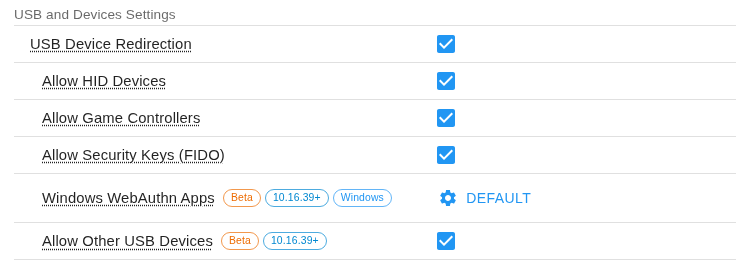
Allow Other USB Devices allows any USB device not covered by the other settings, including MIDI instruments and controllers, serial devices, storage drives, smart card readers, and vendor-specific hardware.
Team administrators choose which apps on a Windows host can use Windows Hello / Security Keys; see Choose the apps that use Windows Hello / Security Keys.
Share a device#
- Plug the device into your computer and connect to the host with Fluid.
- Open the Devices menu:
- Windows and macOS: choose Remote > Devices.
- iPhone and iPad: tap the Settings button in the session toolbar, then Devices.
- Android: tap the Settings button in the session toolbar, then Devices.
- Select the device. If it is not listed, choose Refresh.
- On Windows and macOS, a firmware update warning appears. Click I Understand.
To stop sharing the device, select it again.
Security keys that require a PIN are also supported. When a website or app on the host requests the key's PIN, the host displays its own PIN prompt in the session; enter the PIN there, then touch the key if prompted.
MIDI devices, serial ports, and driverless devices Alpha#
With Jump Desktop 10.16 or later on Windows or macOS and Connect 10.16 or later on the host, Devices also lists these devices when the host allows other USB devices:
| Device | How it is listed | On the host |
|---|---|---|
| MIDI instruments and controllers | By their MIDI name. On Windows, USB MIDI devices; on macOS 11 or later, USB and Bluetooth LE MIDI devices. | A USB MIDI device, on Windows, Mac, and Linux Alpha hosts. |
| USB serial ports | As product (port), for example CP2102 (COM3). Only serial ports provided by a USB device are listed. | A serial (COM) port, with no driver to install, on Windows and Mac hosts. |
| Driverless USB devices | Devices with no driver on your computer: on Windows, devices using the WinUSB driver; on macOS, devices with no kernel driver. | The USB device itself, on Windows, Mac, and Linux Alpha hosts. |
These devices require the Jump Desktop for Teams Enterprise plan.
Sign in with your Windows security key or passkey Alpha#
Windows Hello / Security Keys is a Devices item in Jump Desktop for Windows that lets allowed apps on a Windows host, such as Chrome, Edge, and Firefox, use the security keys, passkeys, and Windows Hello of your own Windows computer. Use it to sign in to a website on the host with the security key plugged into your computer or the passkey stored on it.
It requires Jump Desktop 10.16 or later on Windows, Jump Desktop Connect 10.16 or later on a Windows host, and the Jump Desktop for Teams Enterprise plan.
- During a Fluid session, choose Remote > Devices > Windows Hello / Security Keys.
- On the host, sign in to the website in Chrome, Edge, or Firefox.
-
On your computer, approve the request in the Windows Security prompt: touch the key, enter its PIN, or use Windows Hello.
-
Passkey autofill suggestions, which a website offers in its sign-in fields, are not redirected.
- Apps that are not allowed show the host's own Windows Security prompt.
For game controllers, including the on-screen controller on iPhone, iPad, and Android, see Use game controllers.
Result#
A check mark appears next to the device in Devices.
Troubleshooting#
"Unavailable. Click to learn more."#
To view the reason, click the item. On Android, Devices shows Unavailable on this computer instead; verify that USB redirection is turned on and Allow Game Controllers is not turned off, then reconnect.
| Message | Fix |
|---|---|
| USB redirection is turned off | Turn on USB redirection for the host, then reconnect. |
| USB redirection isn't available: the required driver is not installed or is disabled | On a Windows or Mac host, run the latest Jump Desktop Connect installer over the existing installation. Restart if prompted, then reconnect. See Install Jump Desktop Connect. On a Linux Alpha host, the Linux kernel's vhci-hcd module is missing; install your distribution's package that provides it (often an extra kernel modules package), then reconnect. |
| USB redirection isn't available: the host may not support it | Update Jump Desktop Connect on the host, and verify that you are connected with Fluid. |
"Upgrade required"#
Devices other than game controllers, and a Steam Controller, require the Jump Desktop for Teams Enterprise plan. Without that plan, the Mac App Store version does not list them.
"USB device is in use"#
Another app on your computer is using the device. Release the device from that app, then select it again.
In Jump Desktop 10.16 Alpha or later on macOS, Devices lists a device that another app is holding as device name (Unavailable), dimmed, with the description "This device can't be shared right now — it may be in use by another app." Release the device from that app, choose Refresh, then select it.
Stream Deck: requires Stream Deck software 7.1 or later. In the Stream Deck app, open Preferences > Devices, select the Stream Deck to share, and set Enabled to No. Other Stream Deck devices continue to work.
For other devices, contact support.
Limitations#
- Keyboards, mice, webcams, printers, and storage drives cannot be redirected. With Jump Desktop 10.16 Alpha, a storage drive with no driver on your computer can be redirected as a driverless device; drives that have a driver on your computer are not listed.
- On Windows, disable or uninstall the local drivers for a drawing tablet before redirecting it.
- Do not update firmware on a redirected device; the update may fail and leave the device unusable.