Cloudless Fluid#
Cloudless Fluid is a connection method for reaching a host over Fluid by hostname or IP address, with no Jump cloud service in the connection path. Because connections do not pass through the Jump cloud, Cloudless Fluid works for hosts without internet access. Use it on isolated or high-security networks, for example for hosts reachable only over your VPN. To compare other options, see Choose a connectivity option.
Applies to#
- Jump Desktop for Teams Enterprise plan.
- Team administrators turn on Cloudless Fluid; end users connect.
- Hosts running Jump Desktop Connect on Windows, macOS, or Linux Alpha.
- Jump Desktop on Windows, macOS, iPhone, or iPad, signed in to an account on the Jump Desktop for Teams Enterprise plan. Otherwise, the app refuses Cloudless Fluid connections, including connections from launch URLs.
- Jump Desktop for Android and the web browser client cannot make Cloudless Fluid connections.
Before you start#
Warning
Access Groups and other team access controls do not apply to Cloudless Fluid. Any user who can reach the host's port and knows a local username and password can sign in. Protect the host with your firewall or VPN, and consider restricting access by user or group.
Allow the following traffic from clients to the host:
| Protocol | Port | Purpose |
|---|---|---|
| TCP | Manual Fluid Port (default 35384) | Incoming connections |
| UDP, with TCP as fallback | Connection Port Range: 35385-35485 by default on computers with a Connect Configuration; 35385-45385 on computers without one. See Network requirements. | Session traffic |
Turn on Cloudless Fluid#
Turn on Cloudless Fluid for each host by using either of the following methods.
From the Teams dashboard: in a Connect Configuration, select Manual Fluid Connections. Optionally, change Manual Fluid Port. Assign the configuration to the hosts.

On the host (Windows or macOS, for example when the host has no internet access):
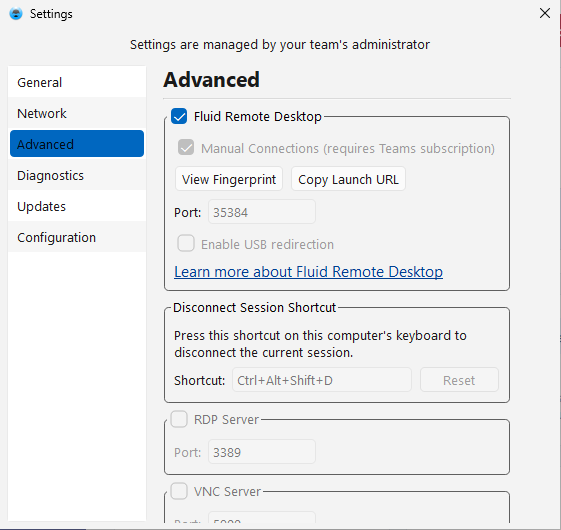
- Open Jump Desktop Connect and go to Settings > Advanced.
- Verify that Fluid Remote Desktop is turned on.
-
Select Manual Connections (requires Teams subscription). Optionally, change Port.
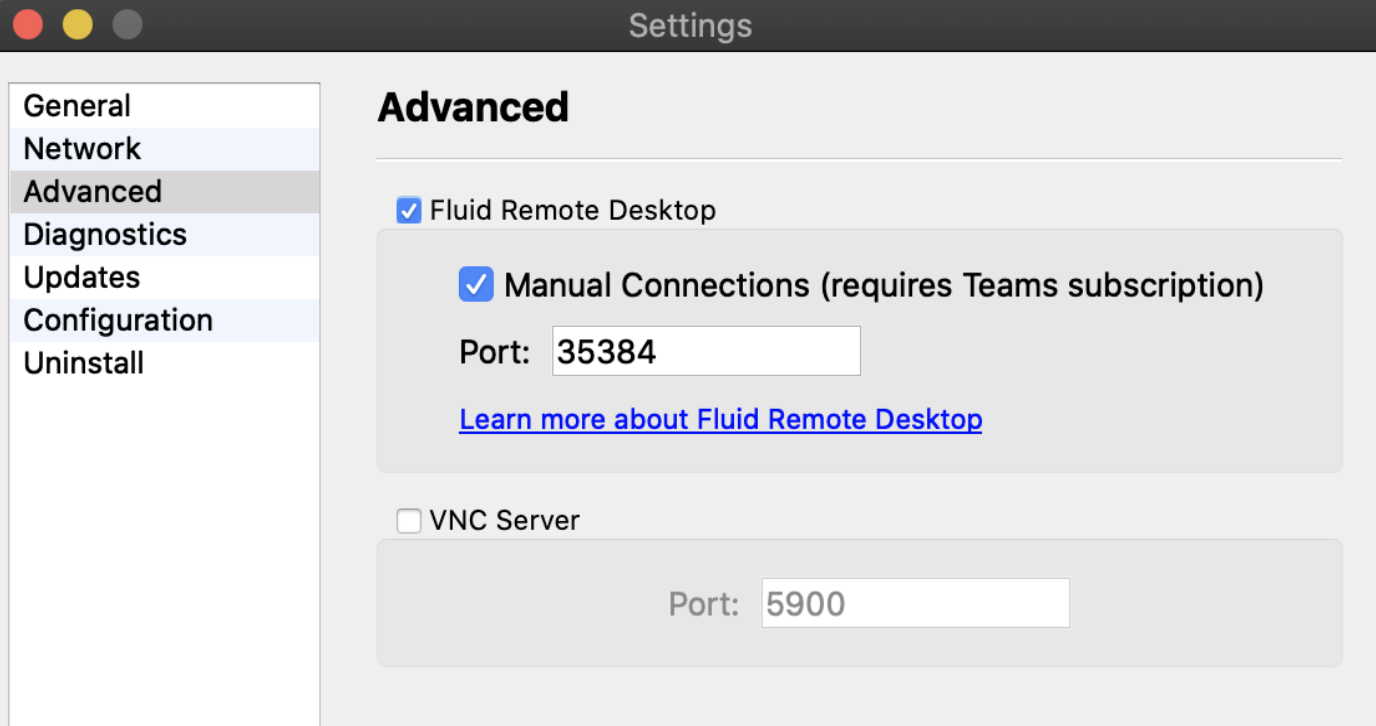
The option is unavailable (greyed out) unless Fluid Remote Desktop is on and local changes are allowed. On a host with a Connect Configuration, local changes require the Local Configuration Changes setting in that configuration.
From the command line (Connect 10.12.15 or later): run Connect with --serverconfig RtcLocalServer=true, and also with --serverconfig RTCEnabled=true if Fluid Remote Desktop was turned off. See Enable Cloudless Fluid and get its launch URL from the command line.
Connect#
Launch URL: on the host, in Settings > Advanced, click Copy Launch URL. If users reach the host by a different name or IP address, edit the host name in the URL. Send the URL to users. To print the URL from the command line instead, run Connect with --cloudlessurl (see Enable Cloudless Fluid and get its launch URL from the command line). The URL pins the host's fingerprint, so Jump Desktop refuses a host with a mismatched fingerprint. See Launch links and connection files.
Add manually (Windows and macOS):
- In Jump Desktop, click File > Add New....
- For Type, choose Fluid.
- Enter the Host as a hostname or IP address. Append
:portif the host does not use port 35384. - Enter a Name and add the host.
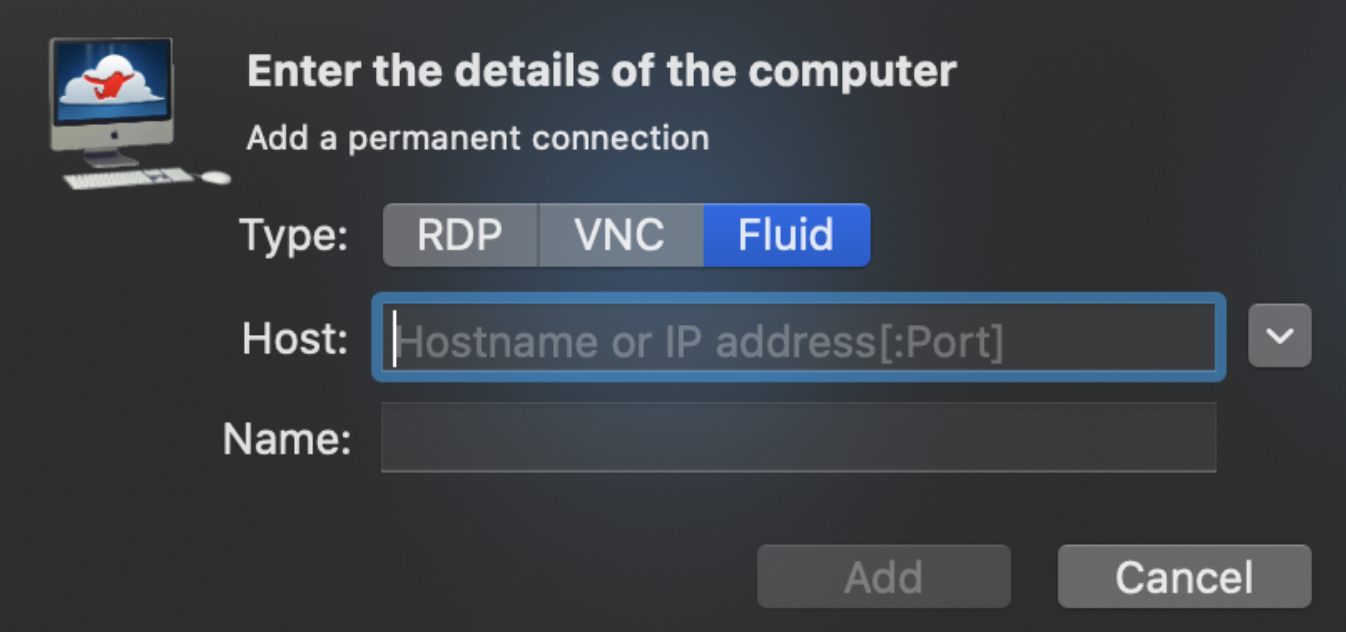
Add manually (iPhone and iPad): in the computer list, tap +, set Type to Fluid, and enter the Host and Port (default 35384).
Verify the fingerprint#
The first time you connect to a manually added host, Jump Desktop displays Verify Fingerprint. Compare the displayed fingerprint with View Fingerprint under Settings > Advanced in Connect on the host. Click Trust and Continue only if the fingerprints match.
If the fingerprint changes later, click Reject (Recommended) unless you expected the change.
Then sign in with a local user account on the host.
Connect through a gateway#
A gateway that forwards traffic to hosts on a private network, such as the gateway of a connection broker, can carry Cloudless Fluid connections when clients cannot reach the host's own addresses. Add the gatewayudp parameter to the launch URL so that Jump Desktop also sends Fluid's UDP session traffic to the gateway.
Requires Jump Desktop 10.12.15 or later on Windows, macOS, iPhone, or iPad. Using a host name in gatewayudp requires Jump Desktop 10.13.2 or later. The host needs no change.
Configure the gateway with two forwards to the host:
| Gateway endpoint | Forward to the host | Launch URL part |
|---|---|---|
| A TCP port on the gateway | TCP Manual Fluid Port (default 35384) | The host and port in the URL: jump://<gateway>:<tcp-port>?... |
| A UDP port on the gateway | UDP, the first port of the Connection Port Range (default 35385) | gatewayudp=<gateway>:<udp-port> |
For example:
jump://203.0.113.10:34000?protocol=fluid&SSLFingerprint=<fingerprint>&rtcv2=true&OSTypeCode=1&gatewayudp=203.0.113.10:34001
Start from the host's launch URL (see Connect), replace its host name and port with the gateway's TCP endpoint, and append gatewayudp.
gatewayudptakes one endpoint: an IPv4 address, an IPv6 address in brackets ([2001:db8::10]:34001), or a host name, followed by:and a port from 1 to 65535. The port is required.- Jump Desktop resolves a host name when the connection starts, and offers the gateway endpoint alongside the host's own addresses; the connection uses whichever path works.
- Jump Desktop ignores a
gatewayudpvalue it cannot parse, or a host name it cannot resolve, and connects without the gateway endpoint. gatewayudpapplies only to Cloudless Fluid connections. Connections through the Jump cloud ignore it, and Jump CLI accepts the parameter but does not use it.
Emergency manual connections Alpha#
Emergency manual connections are a break-glass mechanism that lets a local administrator on a team host turn on Cloudless Fluid without the Teams dashboard, for example during a cloud outage. It requires Jump Desktop Connect 10.16 or later and works in two parts:
-
A team administrator allows it in advance. In the Connect Configuration assigned to the host, under Fluid Connections, turn on Allow Emergency Manual Connections (off by default; a setting for Connect 10.16). The host keeps this setting during a cloud outage. Without it, the host ignores the local override.
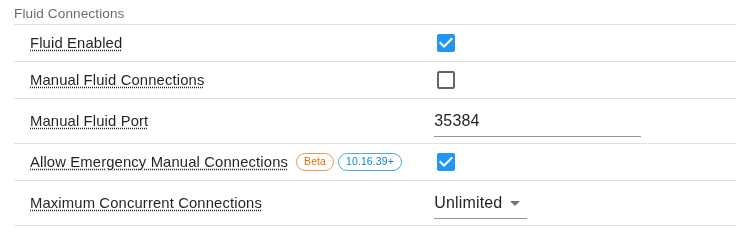 2. A local administrator turns it on at the host. Set
 BreakGlassCloudlessFluidto on in the host's administrator-only store:In an elevated command prompt, or with an Intune or Group Policy registry setting:
A configuration profile delivered by MDM to the
com.p5sys.jump.connectdomain (/Library/Managed Preferences) also works and takes precedence.Add the line
BreakGlassCloudlessFluid=1to/etc/jump-connect/overrides.conf. The file must be owned by root and must not be writable by other users; Connect ignores it otherwise.
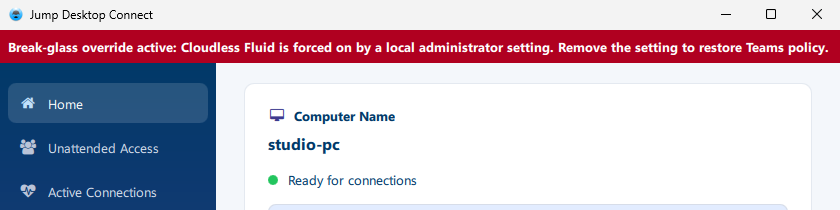
Connect applies the change within about 30 seconds. While the override is on, Manual Connections is turned on and locked, and its Port: field is locked, in Connect's settings, and the Connect window displays a warning bar: "Break-glass override active: Cloudless Fluid is forced on by a local administrator setting. Remove the setting to restore Teams policy." Users sign in with the same rules as other Cloudless Fluid connections; see Restrict access by user or group. To turn the override off, delete BreakGlassCloudlessFluid or set it to off.
Restrict access by user or group#
Because team access controls do not apply, any user with a local account on the host can sign in. On Windows, the account must also be a member of the Administrators or Users group and, with Connect 10.15.28 or later, must hold the Allow log on locally right. To allow only specific users or groups, turn on Local Authentication Restrictions in the Connect Configuration assigned to the host. The restrictions apply to both Cloudless Fluid sign-ins and connections through the Jump cloud.