Install and uninstall Jump Desktop Connect#
Jump Desktop Connect is the app that makes a computer available for remote access. Install it on each host (the computer you connect to), such as an office or home computer, and then connect to the host from Jump Desktop on another device.
To deploy Connect to many computers, see Deploy Connect to many computers.
Applies to#
- A user with administrator privileges on the host.
- Windows 10 or later (64-bit), macOS 10.15 or later, or Linux. Connect 10.16 Alpha requires Windows 10 version 1809 or later, or macOS 10.15.4 or later. Linux:
- 64-bit Intel or AMD (x86-64), or ARM (ARM64)
- A Wayland or X11 desktop
- A distribution that uses APT, DNF or YUM, Zypper, or pacman
If Connect does not work on your Linux distribution, email support@jumpdesktop.com and we will work to get it supported. To connect when no one is signed in to a Linux host, see When no one is signed in.
Install Connect#
- Download the Windows installer.
- Run the installer and approve the administrator prompt.
Connect opens when the installer finishes.
- Download the macOS installer.
- Open the disk image, then open Install Jump Desktop Connect and follow the installer.
Connect opens when the installer finishes. Next, grant macOS permissions to Connect; without these permissions, Connect cannot display or control the Mac.
Alpha: not for production use
Jump Desktop Connect for Linux is in alpha and is intended for testing. Do not install it on production systems.
-
In a terminal in the desktop session of the user who will set up the host, run the install script:
The script adds the Jump Desktop package repository (using
sudo), installsjump-connect, and starts Connect. -
When the Connect window opens, add your account as a remote access user.
The Connect window opens only when the script runs in a desktop session. On a host without a desktop session, such as a host you reach only over SSH, sign in from the terminal, add the host to an account or team during installation with a Connect Code, or install with Jump CLI:
curl -fsSL https://jumpdesktop.com/downloads/install.sh | sh -s -- --component connect --connectcode 123456789
If the Connect Code cannot be applied, for example because it has expired, the script ends with an error and Connect remains installed. To try again, run this command and replace 123456789 with a valid Connect Code:
Connect checks for updates and installs them through the host's package manager, unless Install Updates Automatically (Recommend) is turned off in Connect Settings > Updates.
Add the computer to your account#
A remote access user is a Jump Desktop account permitted to connect to the host. To access the host from your personal Jump Desktop account, add your account as a remote access user. On a host without a desktop session, sign in from the terminal, use a Connect Code during installation, or install with Jump CLI.
If the Connect window is not visible, click the Connect icon in the system tray (Windows and Linux) or menu bar (macOS:  ), and then choose Show Jump Desktop Connect. On Linux, you can also open Jump Desktop Connect from the applications menu.
- In the Connect window, click Add a remote access user.
- Click Click here to sign in via your web browser... and sign in. To sign in on your phone instead, click Show QR Code and scan the code.
In Connect 10.16 Alpha, click Add Remote Access on the Home page, and then click Sign In with Browser, or Sign In with Phone to scan a QR code with your phone.
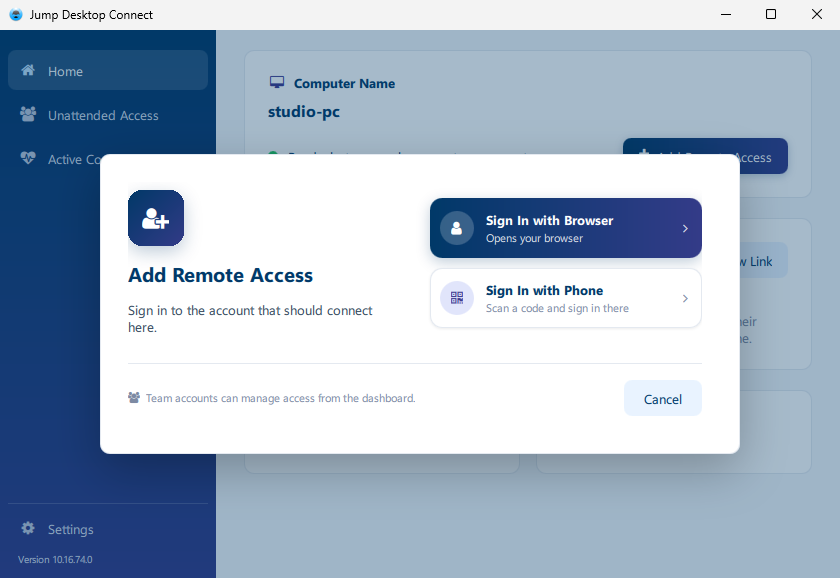
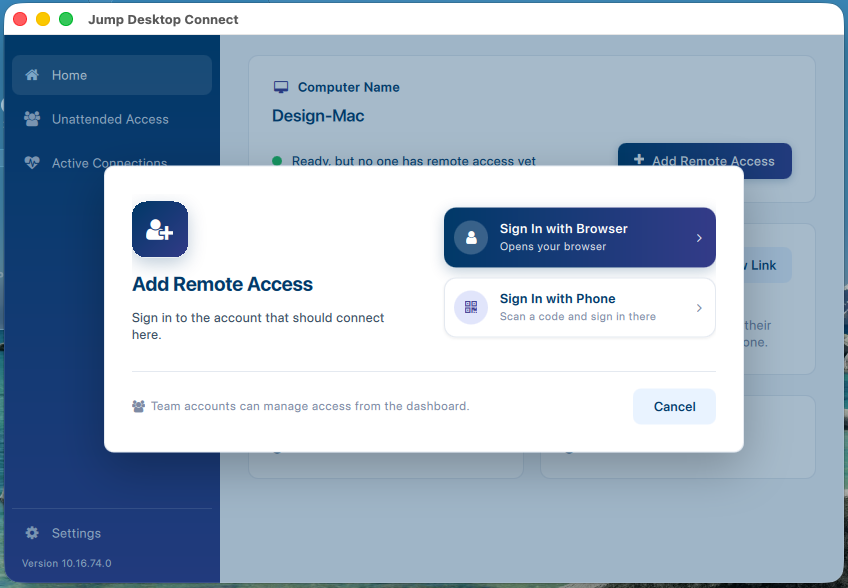
The account is added to the remote access list. Sign in with the same account in Jump Desktop on the device you connect from.
To configure a host from a terminal or over SSH, including for a personal account, see Set up a host with Jump CLI. To add the host to a team instead, use a pre-configured installer (see Add and manage computers) or a Connect Code.
Sign in from the terminal#
To add a host to your account from a terminal or over SSH, with no Connect Code, for example a host that has no desktop session, run this on the host after installing. It works on Linux Alpha, and with Connect 10.16 Alpha on Windows and macOS.
Run JumpConnectCli.exe --signin from the Connect installation folder (see Deploy with a Connect Code).
In Connect 10.16, add --nowait to print the sign-in link and exit, or --timeout <seconds> to wait a different time, from 1 to 3600 seconds (default 600).
Connect shows a sign-in link and, when the terminal is large enough, a QR code. Open the link in a browser on any device, or scan the QR code with your phone's camera, and sign in to your Jump Desktop account. The command waits up to 10 minutes for you to sign in, then confirms the account the host was added to. The link works for 1 hour, or until Connect restarts. If a team administrator has turned off adding accounts to the host, the command says so and the host is not added.
Alternative: set up a host with Jump CLI#
Most people install Connect with the steps above. Jump CLI is an alternative for scripted or automated setup, for administering a host over SSH, and for adding a host to your account from a terminal without a Connect Code. It installs Connect and adds the host to your account with one command.
- Install Jump CLI on the computer where you run the command.
-
Run one of these commands:
jump-cli connect bootstrap --personal --run                 # this computer, your personal account
jump-cli connect bootstrap --personal --ssh user@host --run  # a Mac or Linux host over SSH
If no usable sign-in is saved, Jump CLI prompts you to sign in. Without
--run, Jump CLI prints the setup command for you to review instead of running it.
The setup command runs Jump Desktop's official installer script, which installs Connect and adds the host to your account. The installation may prompt for your sudo password. On a Windows computer, run the command from an elevated (Administrator) PowerShell window.
- Windows host over SSH: Jump CLI prints the command. Run it in an elevated PowerShell window on the host.
- Mac host: a person at the Mac must still grant macOS permissions to Connect.
- Team: to add the host to a team or to choose a team installer, see Set up a computer for remote access.
Uninstall Connect#
After you uninstall Connect, the host no longer accepts remote connections.
Uninstall Jump Desktop Connect from Apps in Windows Settings, or from Programs and Features in Control Panel.
- In the Connect window, click the settings (gear) icon.
- Select Uninstall, then click Uninstall Jump Desktop Connect.
- Click Yes, then enter an administrator password.
Limitations#
- Uninstalling Connect does not remove the host from your account or team. For a team host, remove the computer in the Teams dashboard.
- An administrator policy can block the addition of remote access users; in that case, Connect displays Not allowed to change remote access users.