Provision users with SCIM#
SCIM provisioning is a SCIM 2.0 integration that lets your identity provider (IdP) manage Jump Desktop accounts and Access Groups. Your IdP creates accounts and disables remote access for users you deactivate, so you do not update each user in the Teams dashboard. Use it to onboard and offboard staff from your IdP, and to keep Access Groups synchronized with IdP groups.
Applies to#
- Jump Desktop for Teams Enterprise plan.
- Team administrators.
- A team with single sign-on configured.
1. Turn on SCIM in Jump Desktop#
-
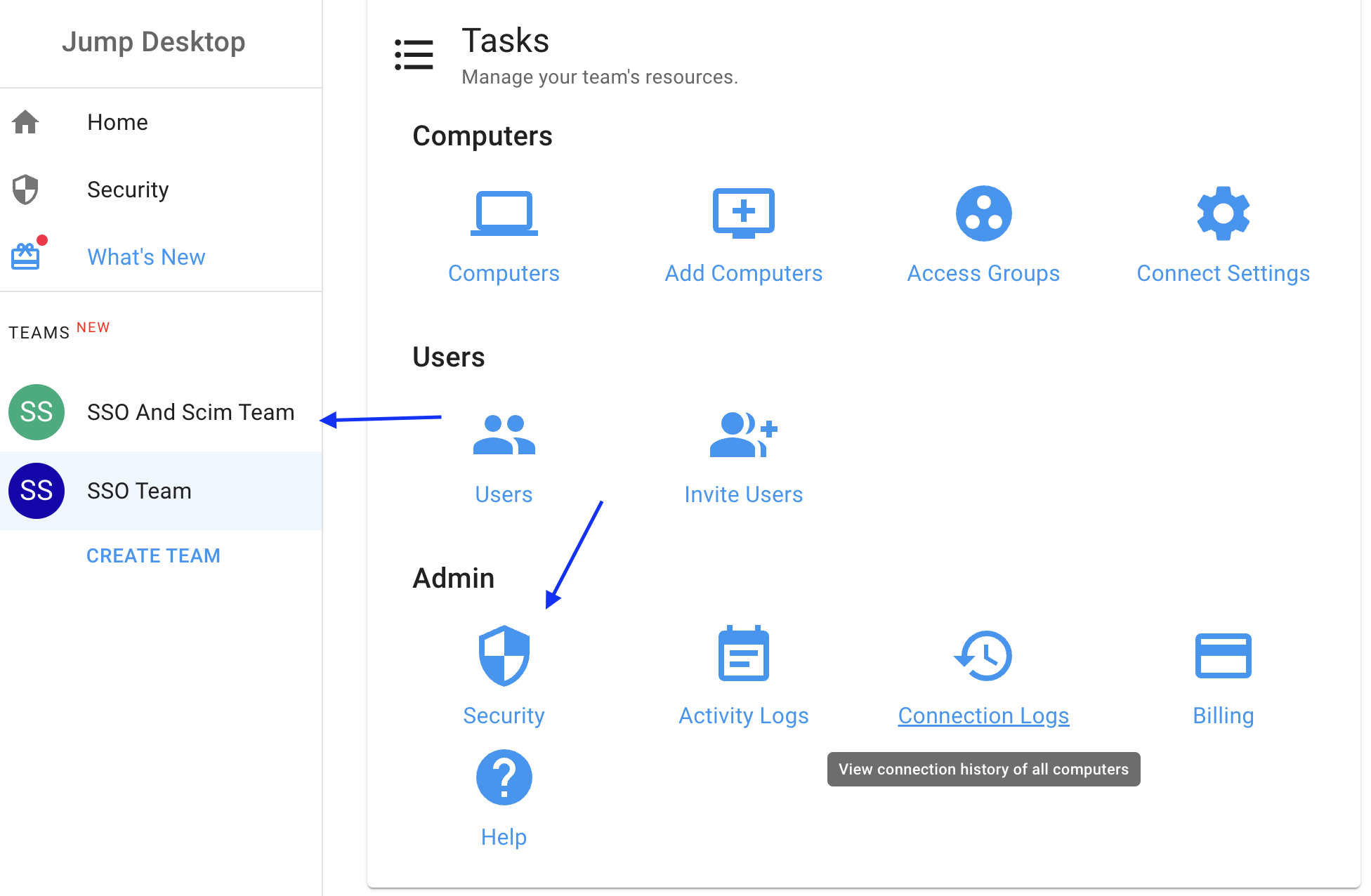
In the Teams dashboard, open your team and click Security.
-
In Team Single Sign On, select Enable SCIM provisioning.
- Copy the SCIM URL (click the expand button if the details are hidden). The URL has the format
https://api.jumpdesktop.com/v1/scim/v2/<your-sso-id>. -
Next to SCIM Credentials, click the copy button to copy the token.
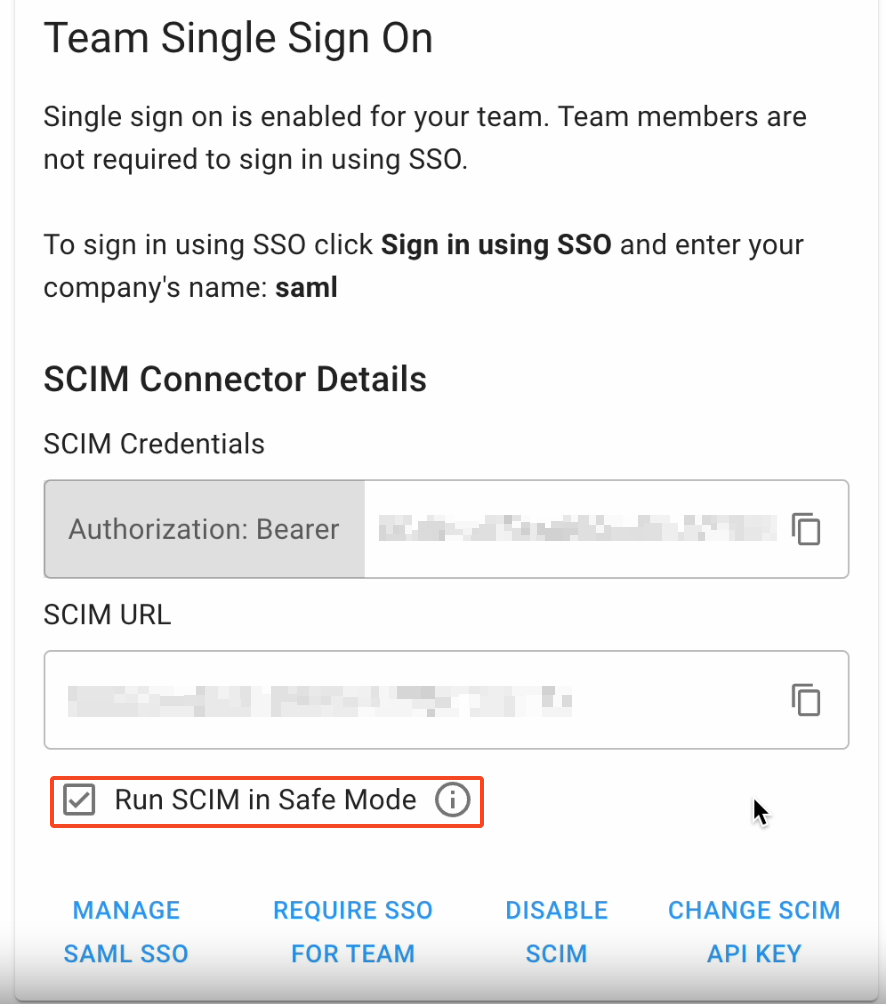
Treat the token as a password. To replace it, click the refresh icon (Change SCIM API key) in the credentials field, then Yes, change token. The old token stops working immediately, so update the token in your IdP.
2. Configure your identity provider#
In your IdP's Jump Desktop SSO app, enter the SCIM URL and the token (a bearer token). Jump Desktop supports SCIM Users and Groups and matches users by email address.
-
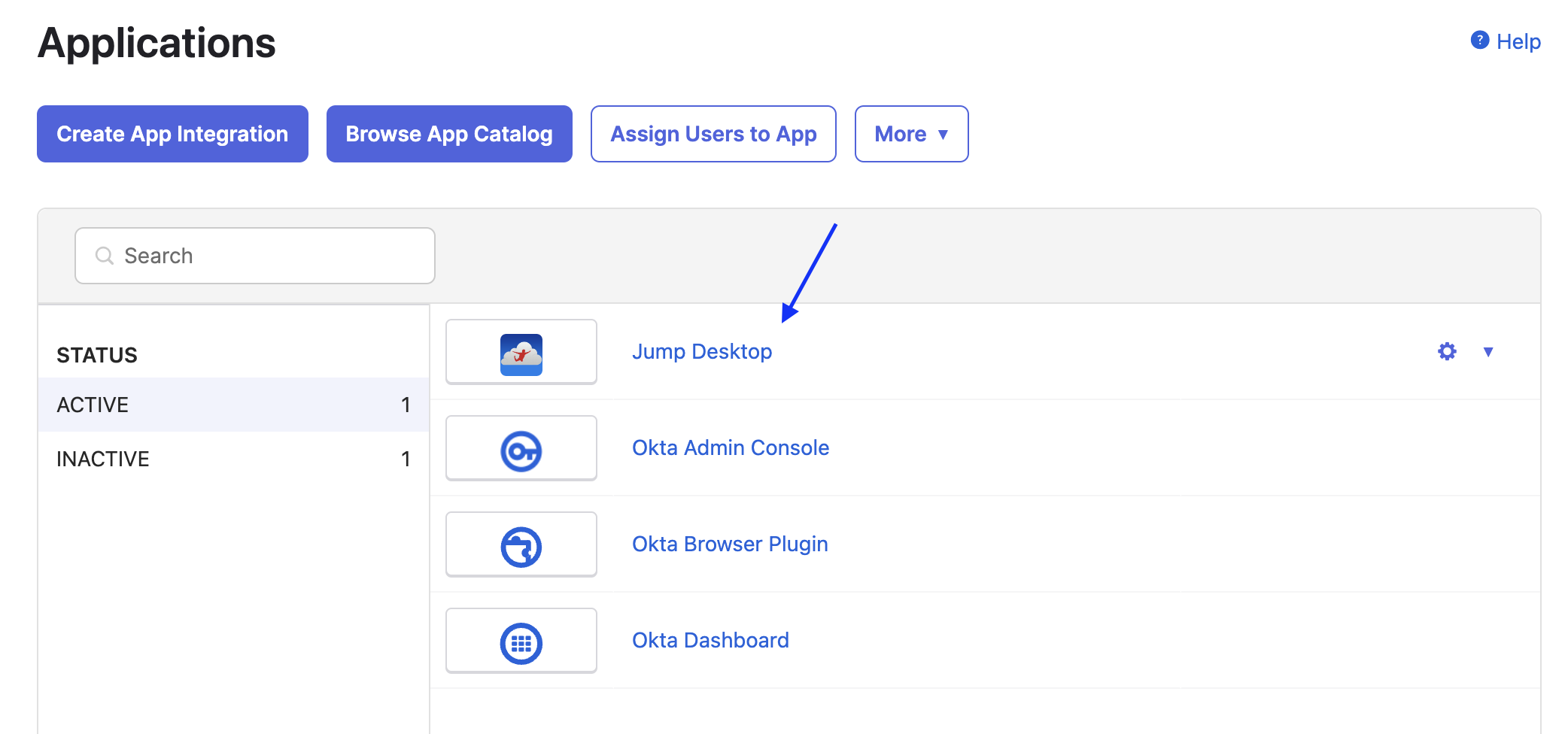
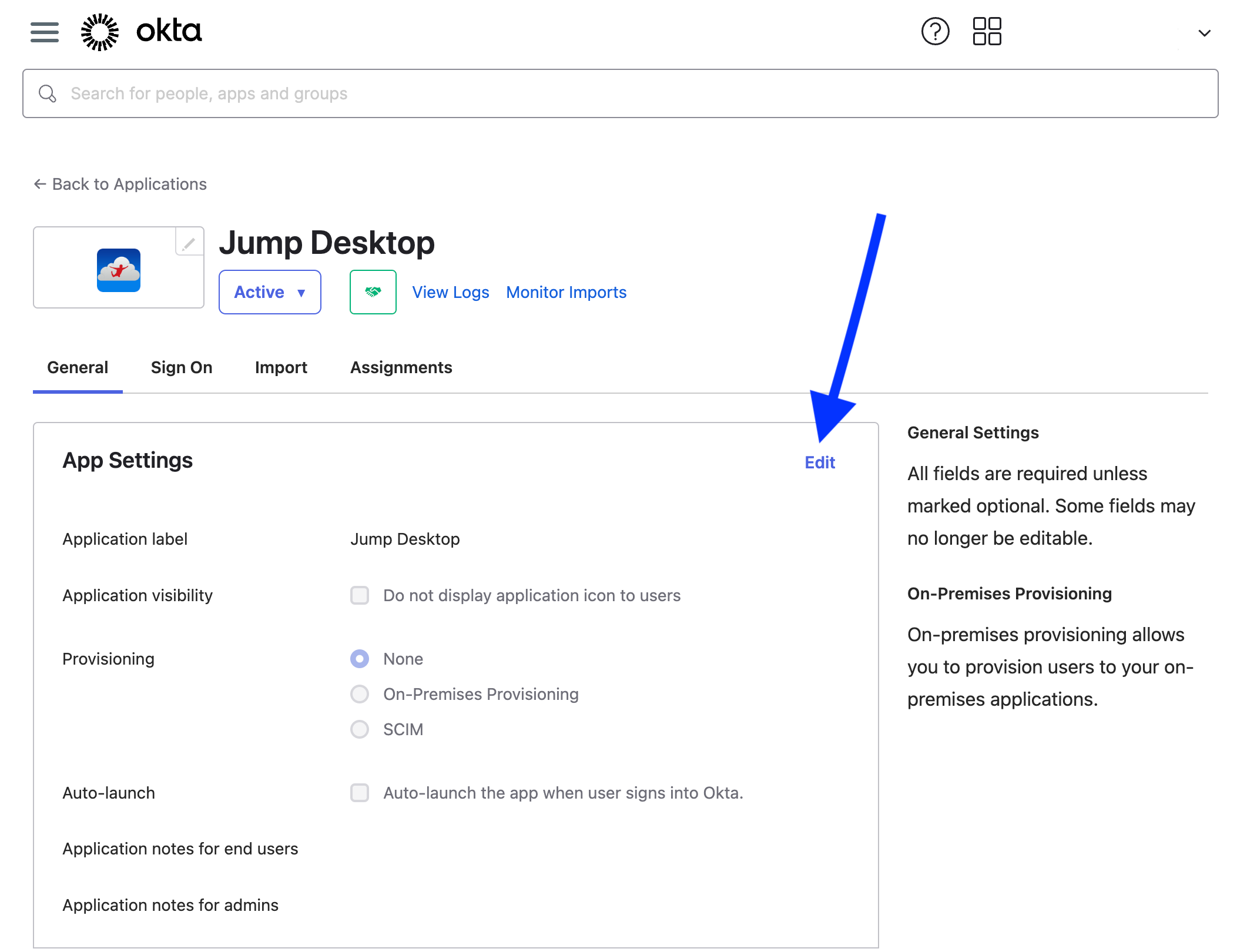
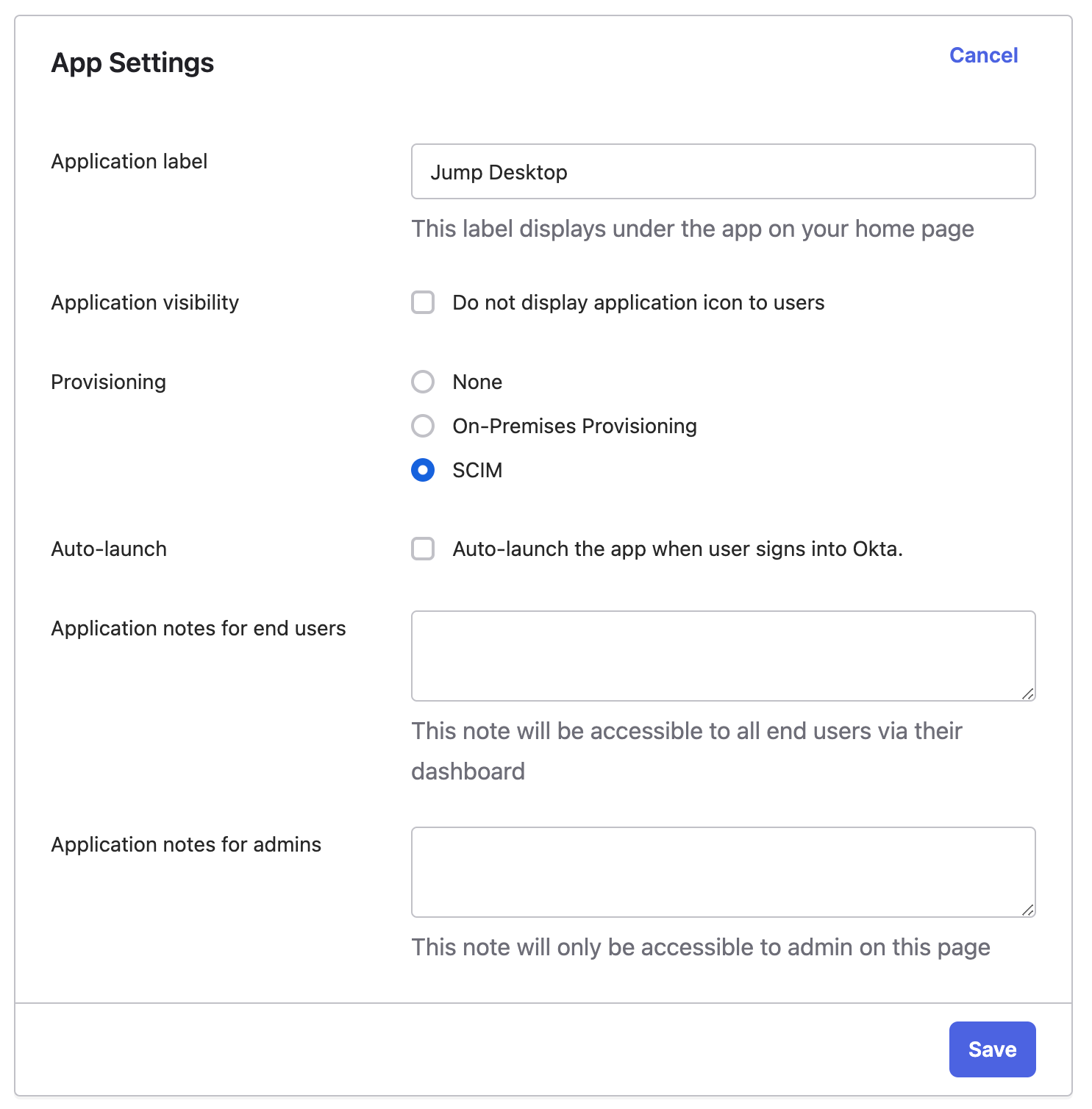
In the Jump Desktop app, click General > App Settings > Edit, select SCIM provisioning, and click Save.
-
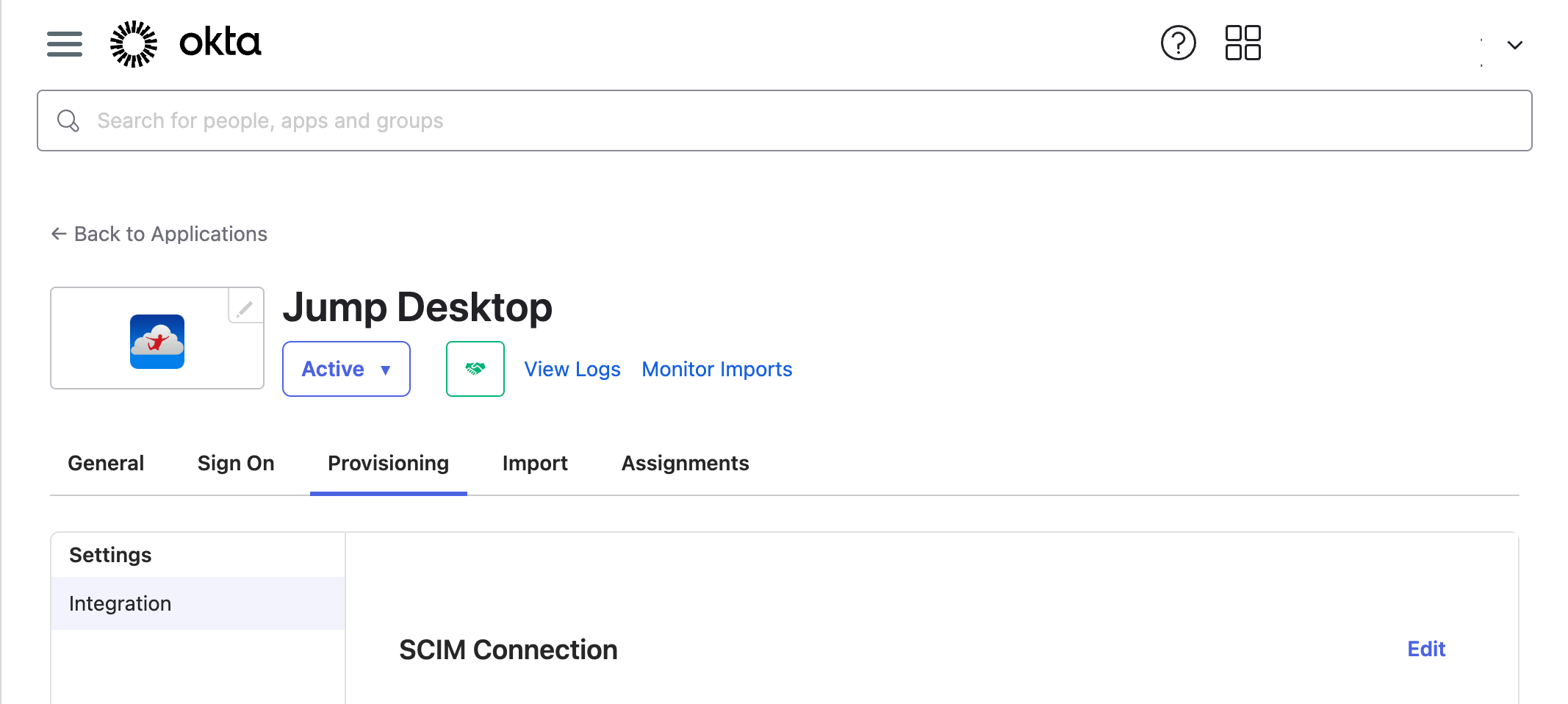
Click Provisioning > Integration.
-
Set SCIM connector base URL to the SCIM URL, Unique identifier field for users to
email, and Authentication Mode to HTTP Header. In Authorization, paste only the token; the field already contains Bearer. - Select Push New Users, Push Profile Updates, and Push Groups.
-
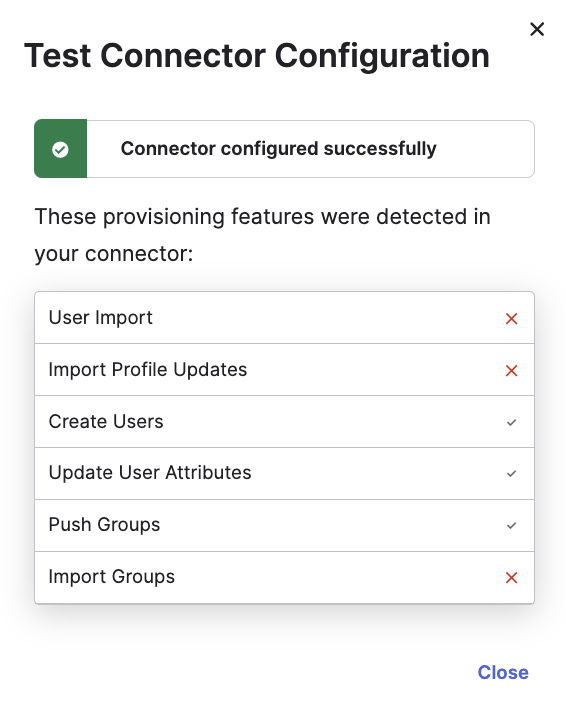
Click Test Connector Configuration, then Save.
-
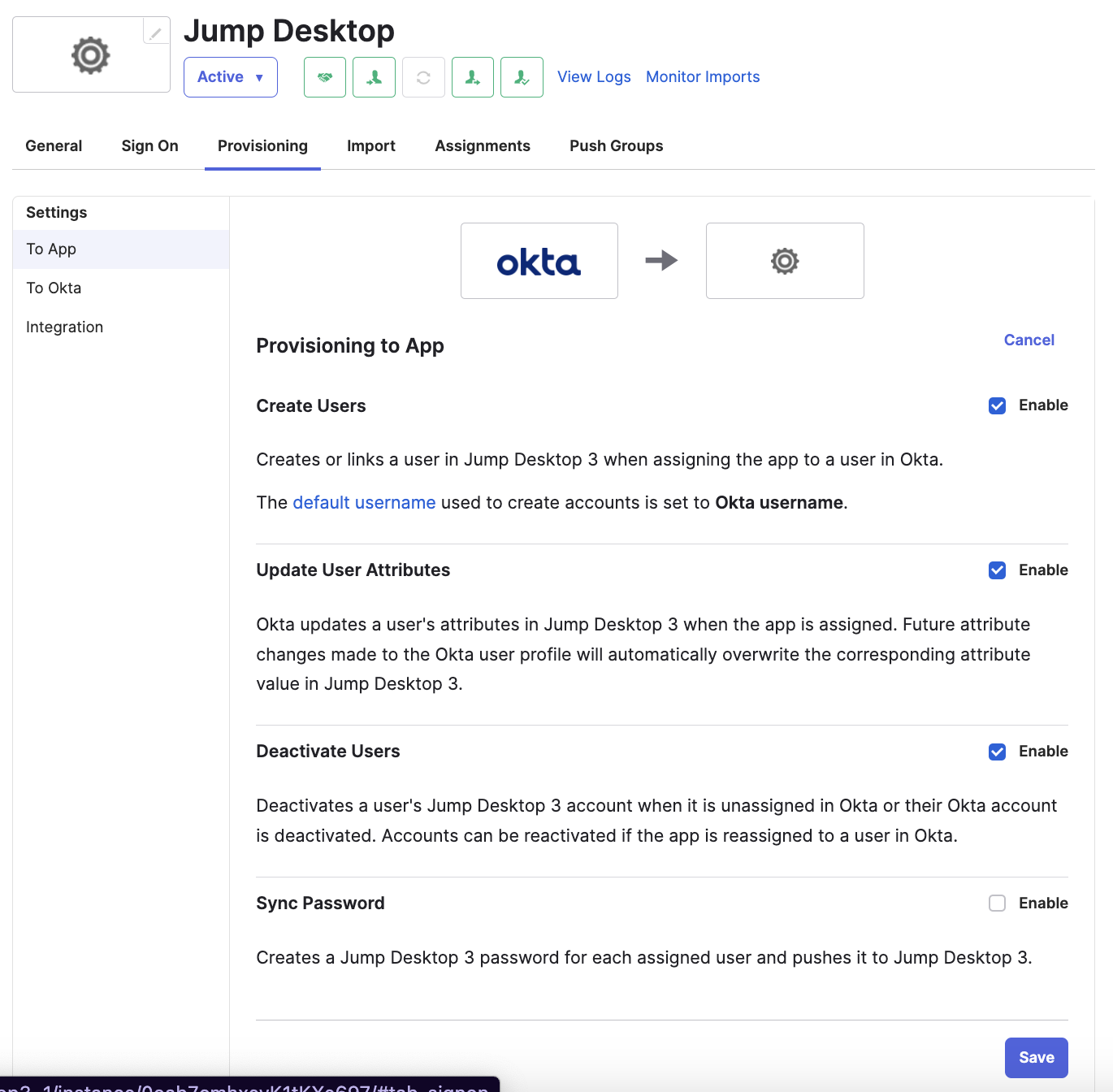
In Provisioning > To App, turn on Create Users, Update User Attributes, and Deactivate Users.
-
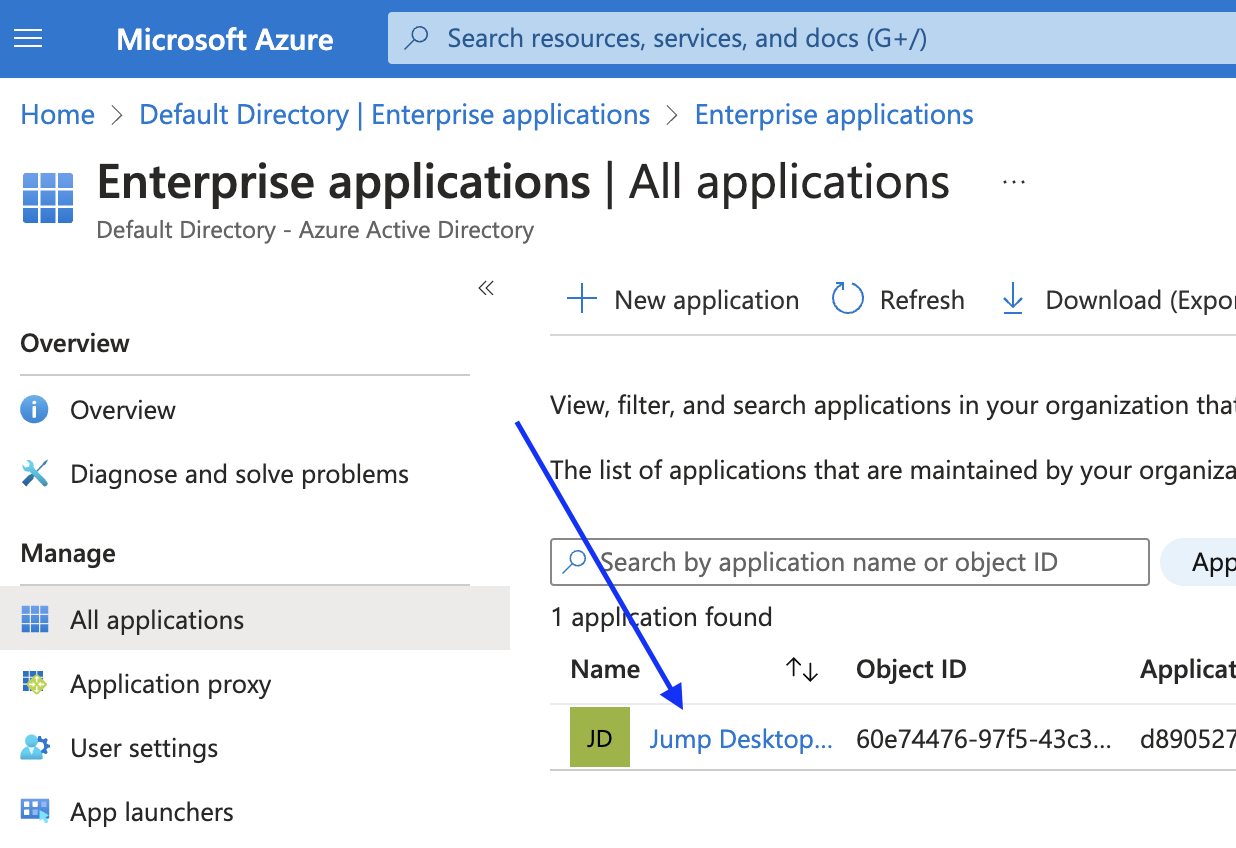
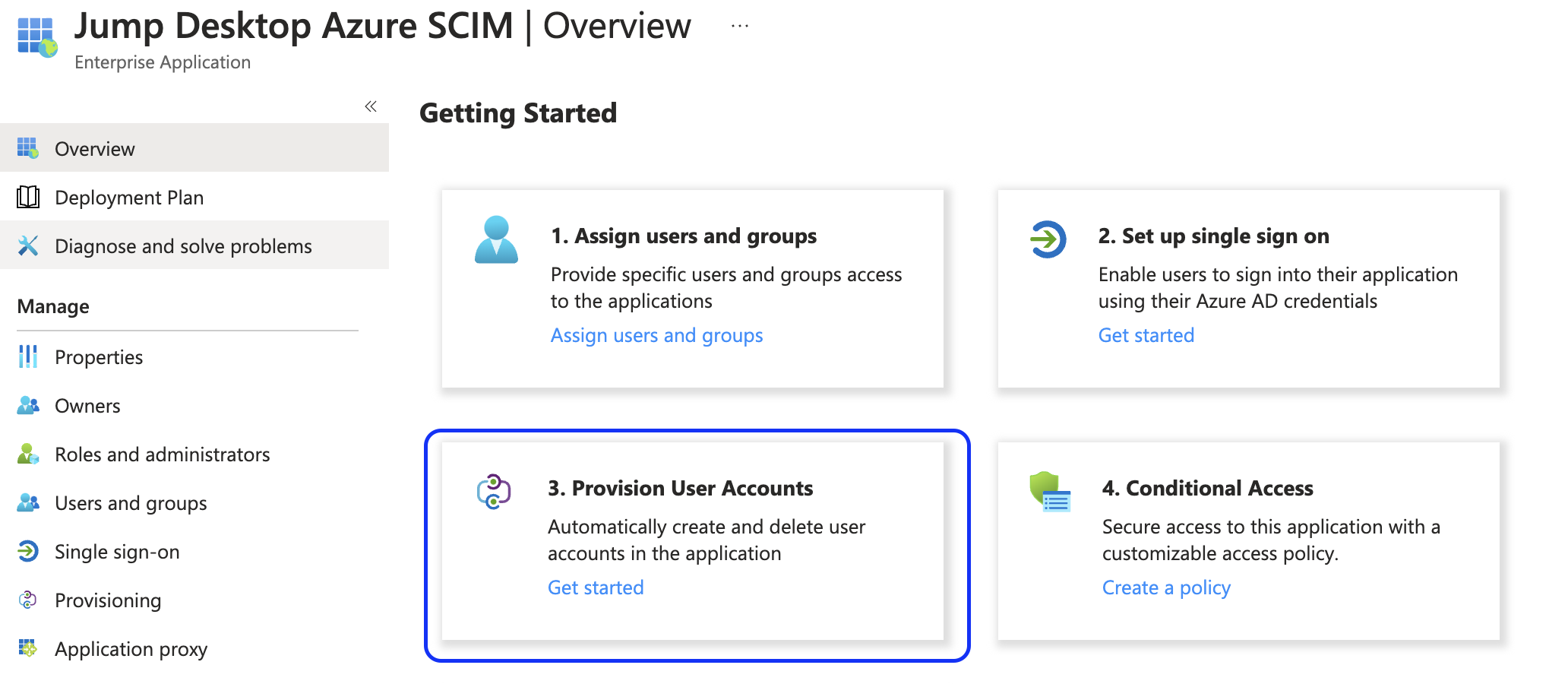
In Enterprise applications, open the Jump Desktop app and click Provision User Accounts.
-
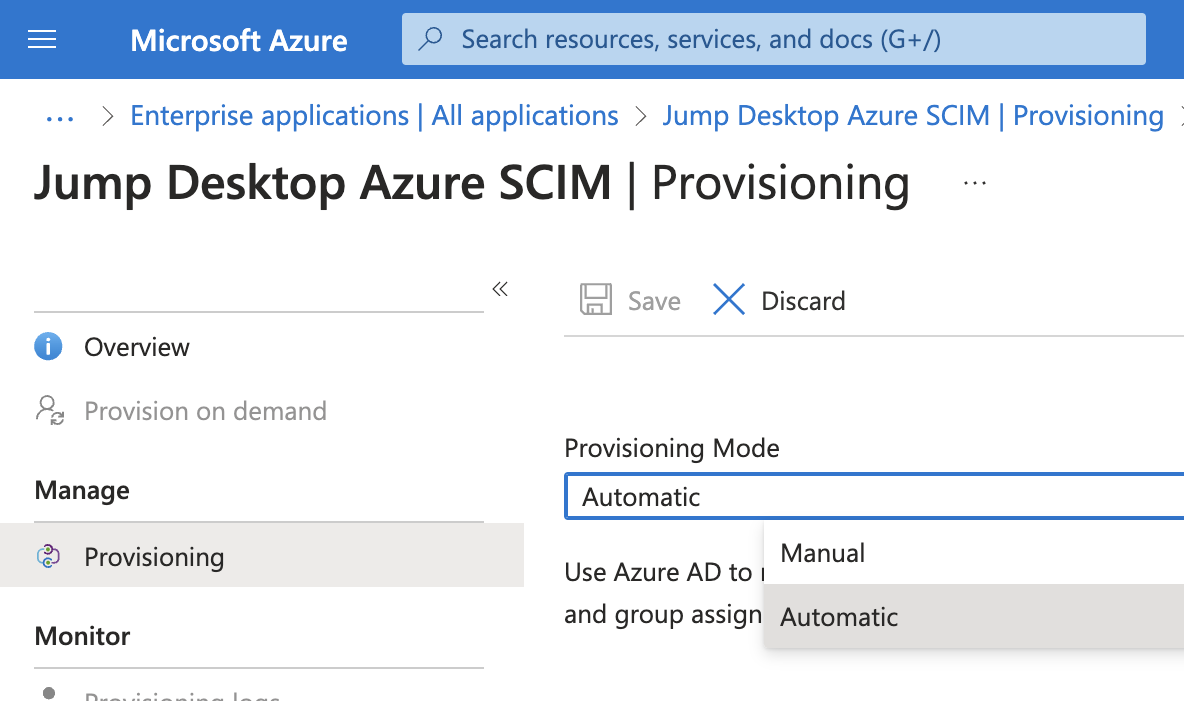
Click Get Started and choose automatic provisioning.
-
In Admin Credentials, set Tenant URL to the SCIM URL and Secret Token to the token.
- Click Test Connection, then Save.
-
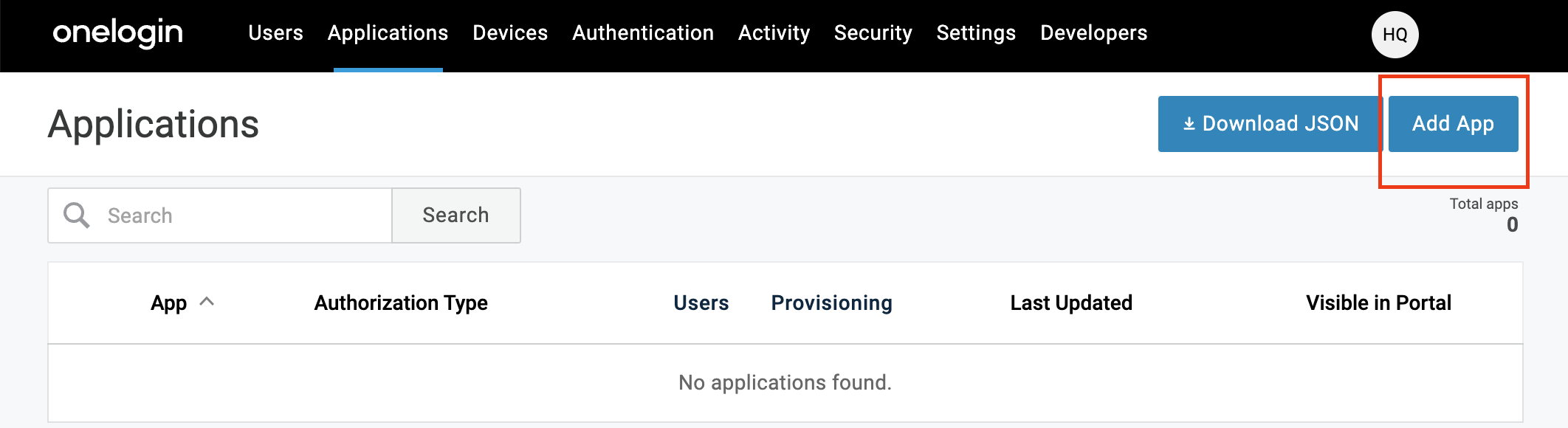
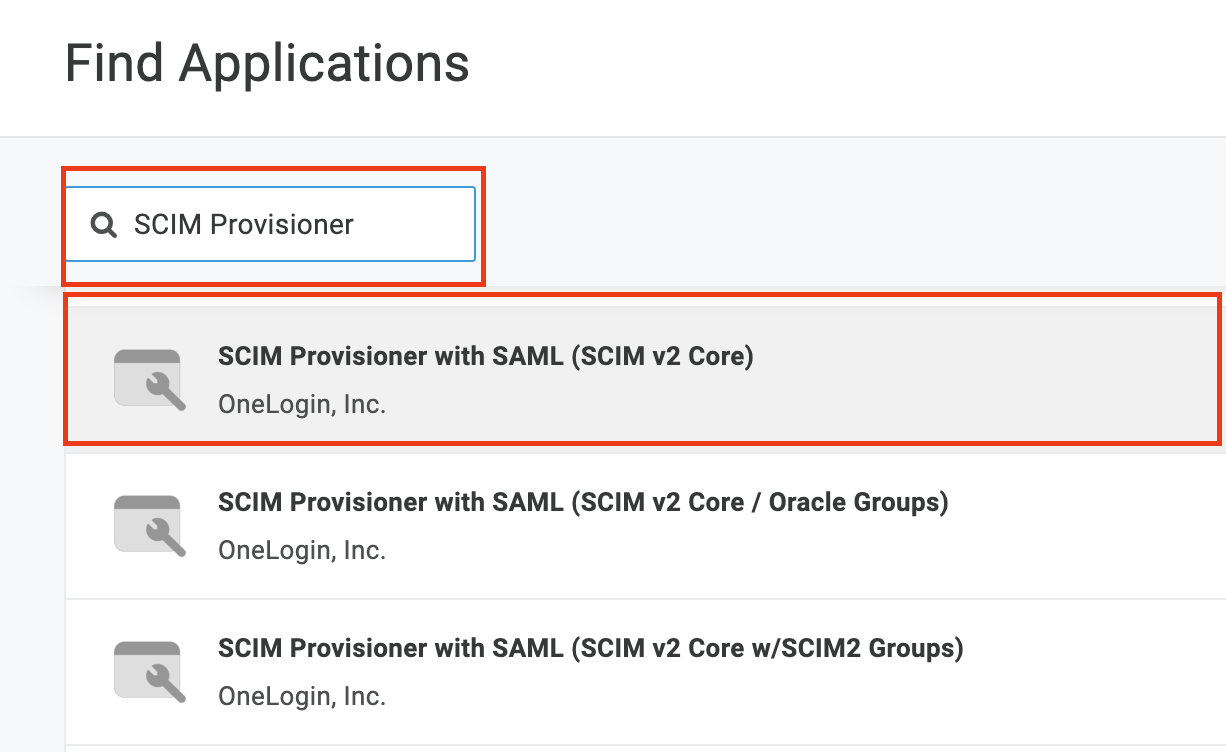
Add the SCIM Provisioner with SAML (SCIM v2 Core) app.
-
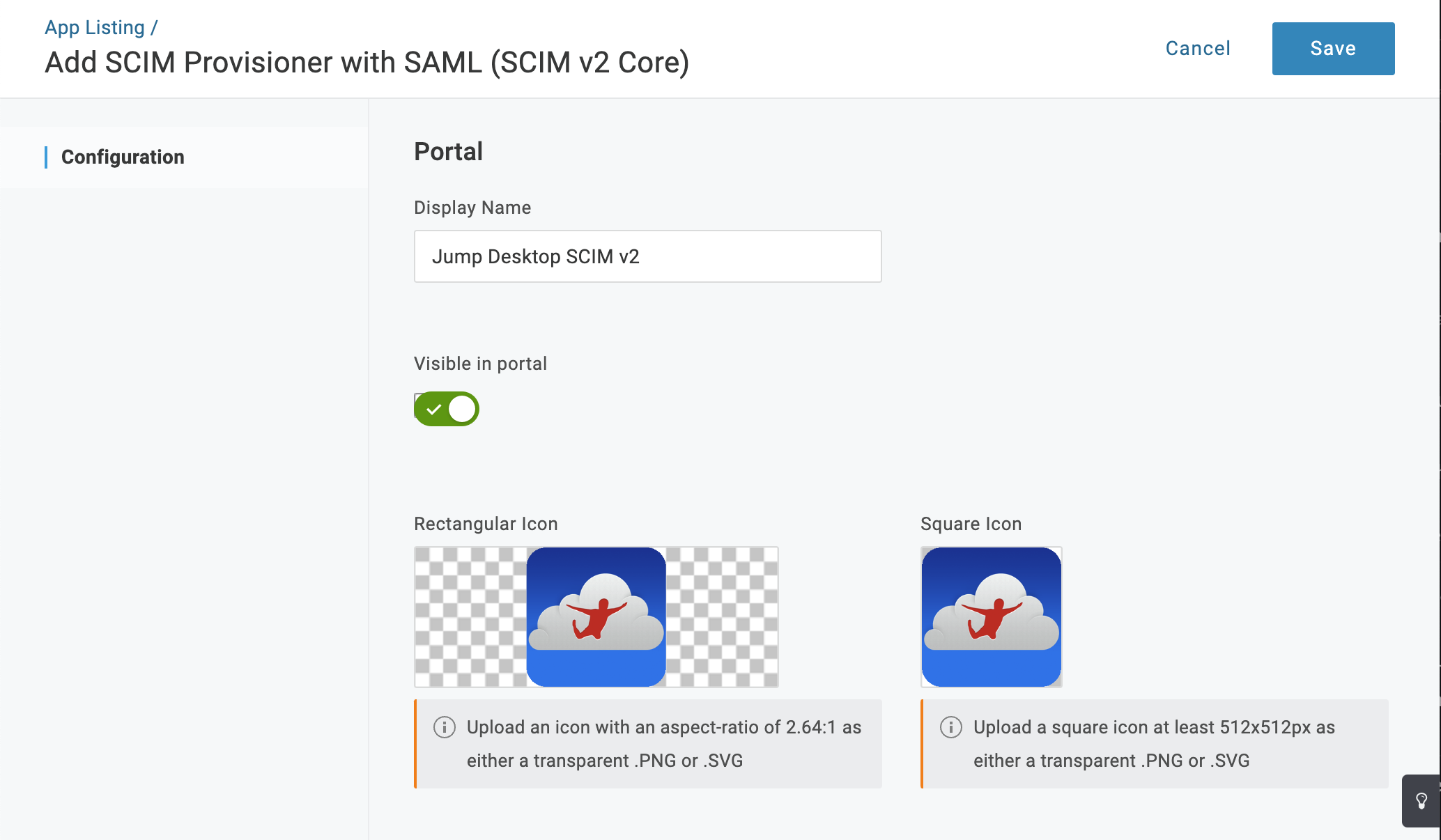
In Configuration, enter the SCIM URL as the SCIM base URL and the token as the SCIM bearer token. Enable the API connection and click Save.
-
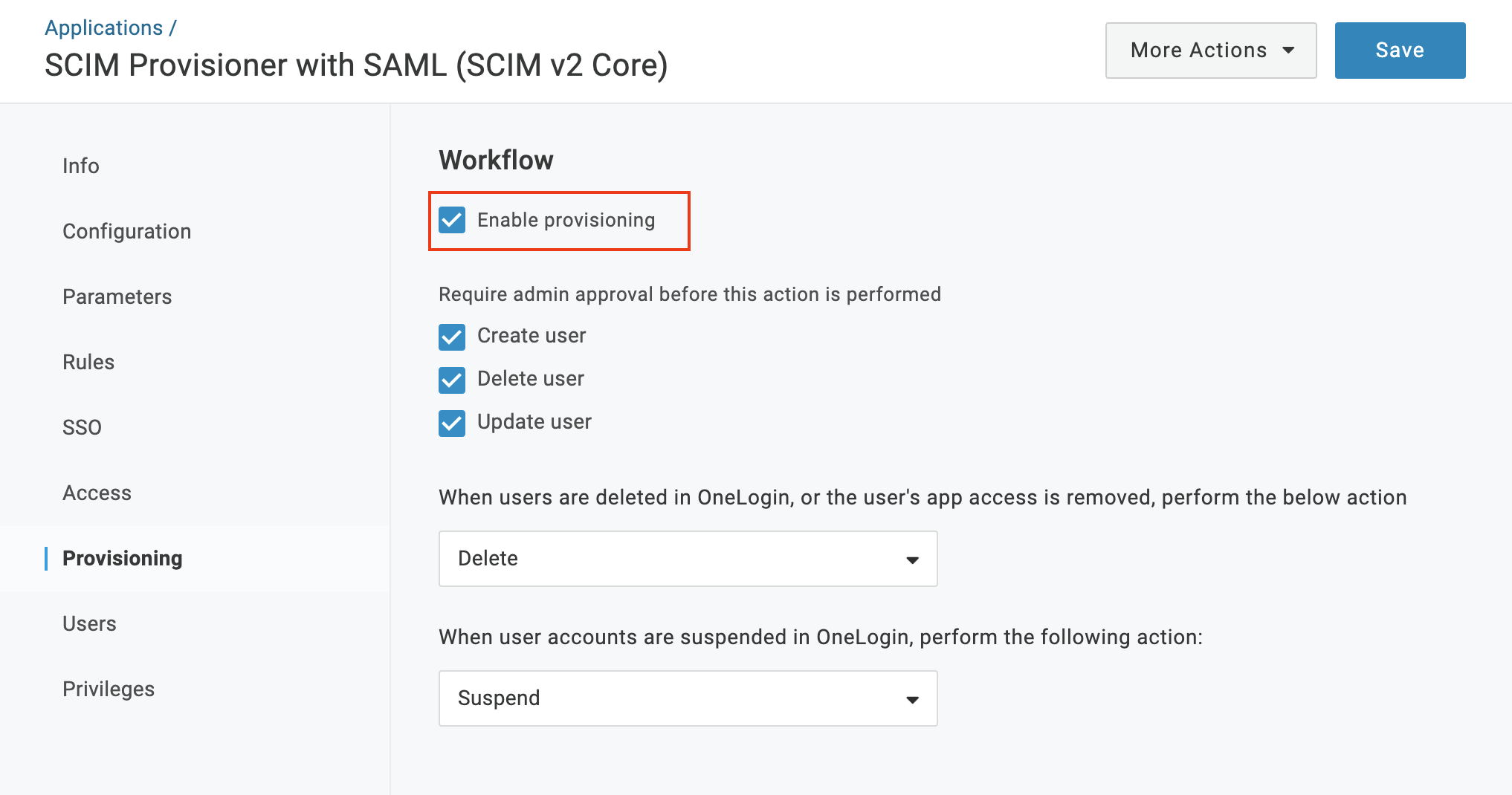
In Provisioning, select Enable provisioning and click Save.
-
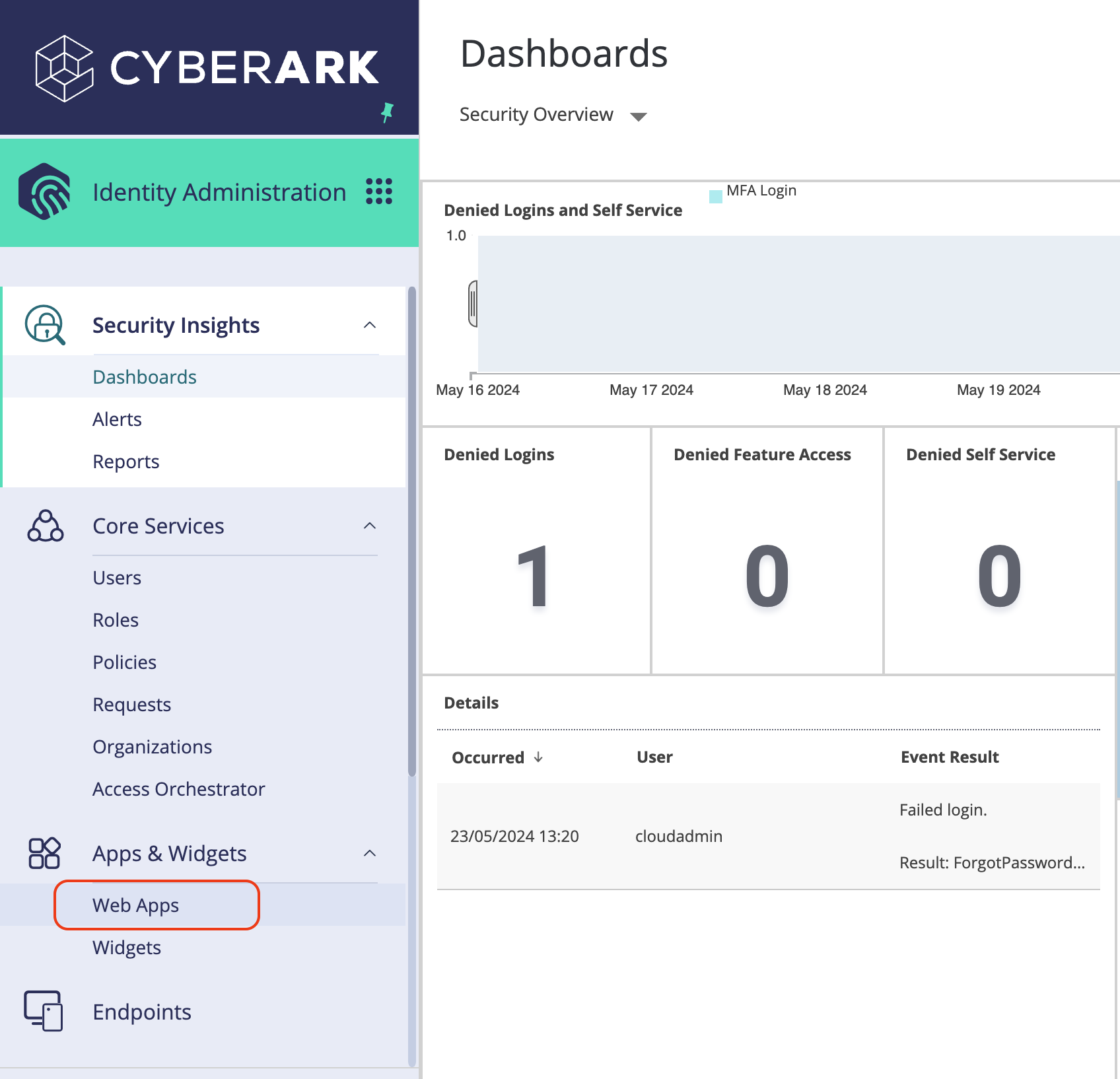
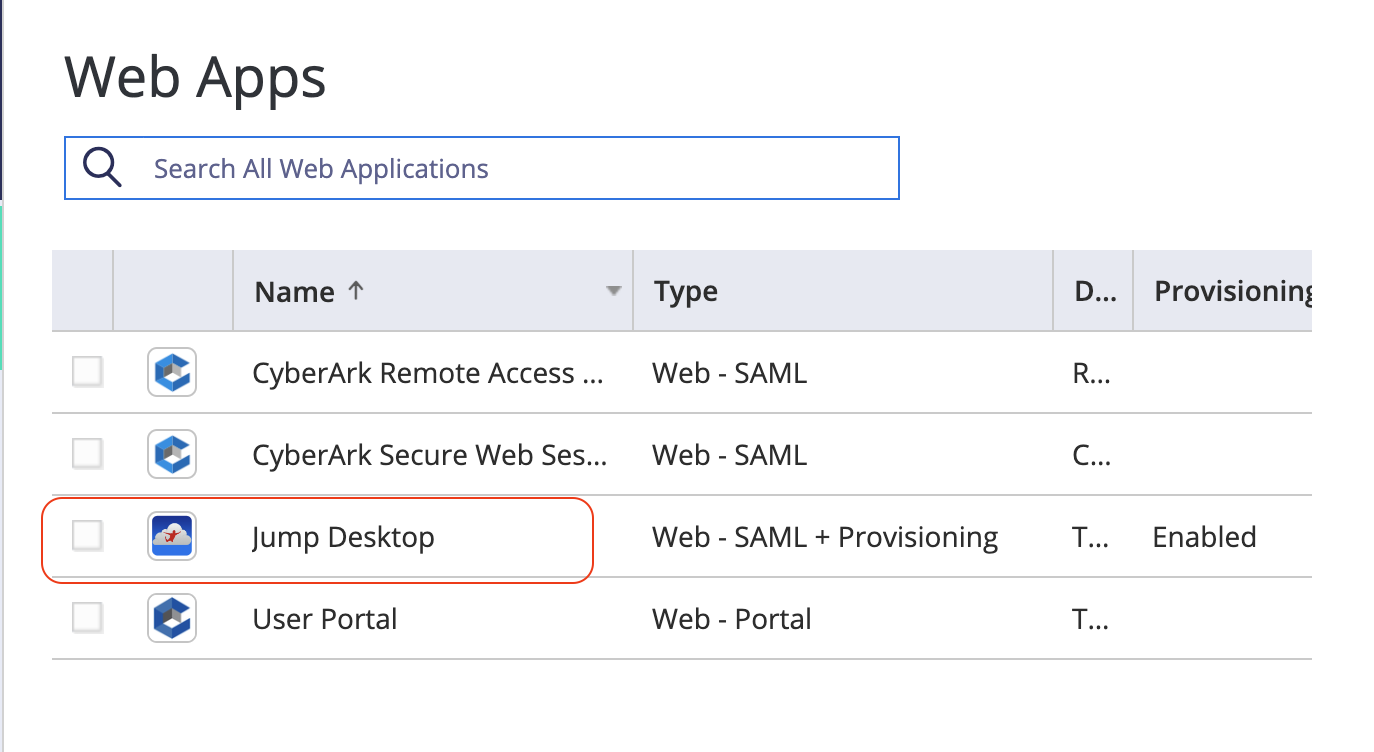
In Apps & Widgets > Web Apps, open the Jump Desktop SSO app.
-
In Provisioning, enter the SCIM URL and the bearer token.
3. Add provisioned users to the team#
SCIM creates Jump Desktop accounts but does not add existing accounts to your team.
- New accounts join the team automatically if Add new users to the team automatically is selected in Team Single Sign On.
- Otherwise, on the team page, click Add Users, select the users under Add Users, and click Add To The Team. See Add and manage users.
Users count toward billing when they join the team, not when SCIM creates their account.
When SCIM confirms an account that already existed, Activity Logs records that the user is not a member of the team and must be added manually, and records each group the user was skipped for. See Activity Logs and Connection Logs.
Provisioning behavior depends on whether the user's email address is on a verified domain:
| User's email | Account does not exist yet | Account already exists |
|---|---|---|
| On a verified domain | Created and ready to sign in with SSO. | Linked to your SSO and managed by SCIM. |
| Not on a verified domain | The user receives an email to confirm their address. The account is created after the user confirms. | Managed by SCIM only if the user has already linked your SSO. Otherwise, provisioning fails. |
Access Groups#
Groups pushed from your IdP become Access Groups with a SCIM badge. Synchronization is one-way, from your IdP to Jump Desktop.
| Change | Where |
|---|---|
| Create, rename, or delete the group | Your IdP |
| Add or remove users | Your IdP |
| Add or remove computers | Teams dashboard |
Only team members are added to a group.
Deactivate and delete users#
| IdP action | Result in Jump Desktop |
|---|---|
| Deactivate | Remote access is disabled in every team the user belongs to. The user remains a team member. |
| Reactivate | If Reactivate Users in Team is selected (off by default), remote access is re-enabled in every team where it is disabled, including teams where an administrator disabled it. Otherwise, an administrator re-enables remote access. |
| Delete, with Run SCIM in 'Safe Mode' on (default) | Remote access is disabled in every team and the user is marked for deletion. Review users marked for deletion in the team's Users list. |
| Delete, with Safe Mode off | The user is removed from every team and their account is deleted. |
Users with remote access disabled are not billed.
Warning
Turning off Run SCIM in 'Safe Mode' immediately deletes every account already marked for deletion. Deletions made with Safe Mode off cannot be undone.
Turn off SCIM#
- In Team Single Sign On, clear Enable SCIM provisioning.
- Click Yes, remove SCIM.
The token stops working, and requests from your IdP are rejected. Provisioned users retain their accounts and status. Access Groups are no longer managed by SCIM and can be edited in the Teams dashboard.