Use the keyboard#
Jump Desktop sends your keystrokes to the host. The controls on this page send keys missing from your keyboard and shortcuts your own computer would otherwise intercept. For example, send Ctrl+Alt+Delete to a Windows host, use Cmd shortcuts from a Mac on a Windows host, or type function keys on an iPad keyboard.
Applies to#
- Jump Desktop on Windows, macOS, iPhone, iPad, and Android Beta.
- For a web browser, see Connect from a web browser.
Shortcuts on Windows and Mac#
In Jump Desktop for Windows and Jump Desktop for Mac, use these fixes when a shortcut reaches the wrong computer or sends the wrong keys:
| Problem | Fix |
|---|---|
| Alt+Tab, the Windows key, Cmd+Tab, or Spotlight acts on your own computer instead of the host | Turn on Remote > Windows Shortcuts (Ctrl+Alt+Left Arrow) or Remote > macOS Shortcuts (Ctrl+Cmd+Left Arrow). See Send system shortcuts to the host. |
| You want the host to receive a different key combination than the one you press, such as Ctrl+C when you press Cmd+C | Add or change a key conversion. |
| A shortcut, such as Cmd+W, acts on Jump Desktop instead of the host | Turn off that Jump Desktop shortcut. |
| The macOS Dictation shortcut gives an error tone or does nothing in Jump Desktop for Mac | In Jump Desktop for Mac 10.15.23 or later, turn on Restore macOS Dictation shortcut in General settings. See macOS Dictation. |
| You want to observe the session without sending any keyboard or mouse input | Choose Remote > Observe. See Observe mode. |
Key conversions, Jump Desktop shortcuts, and the system shortcuts setting are stored in a keyboard and mouse profile (a named set of settings). Each host can use its own profile; in Jump Desktop for Windows, this applies only to hosts that connect with Fluid. See Keyboard and mouse profiles.
Send special keys from a menu (Windows and Mac)#
In a session in Jump Desktop for Windows or Mac, choose Remote > Send via Keyboard:
| Item | Sends |
|---|---|
| Keys | Home, End, Forward Delete, Num Lock, Scroll Lock, Print Scrn, Pause, Break, Insert, and F1 to F16 |
| Ctrl-Alt-Del | Ctrl+Alt+Delete |
| Password > Password | The saved password for the host, typed as keystrokes, followed by Return |
| Clipboard Text | Your clipboard text, typed as keystrokes, up to 1 KB. A Typing clipboard text... message confirms it. |
To send Ctrl+Alt+Delete from the keyboard instead, press Ctrl+Alt+End in Jump Desktop for Windows or Ctrl+Option+Delete in Jump Desktop for Mac (default key conversions when connected to a host that is not a Mac).
In Observe mode, these items send no input.
macOS Dictation#
Use macOS Dictation in Jump Desktop for Mac to enter spoken text into an app on the host, for example when drafting a document or message. Dictation runs on your Mac; Jump Desktop sends the recognized text to the host as keystrokes.
These steps apply to Jump Desktop for Mac 10.15.23 or later.
If pressing fn twice or the Dictation key gives an error tone or does nothing while a Jump Desktop session is focused, restore your Mac's Dictation shortcut:
- Choose Jump Desktop > Settings… (Preferences… on macOS 12 and earlier).
- Select General. Under Shortcuts, turn on Restore macOS Dictation shortcut.
- Return to the session and click a text field in the host's app.
- Use your configured macOS Dictation shortcut and speak a short phrase. Confirm that the text appears in the host's text field.
Restore macOS Dictation shortcut is off by default. Jump Desktop suppresses your Mac's Caps Lock and input-source indicators over the host's screen, which also disables the native Dictation shortcut there. Turning this setting on restores the shortcut, but those local indicators may appear over the host's screen.
To start Dictation without changing the setting, choose Edit > Start Dictation in the session. The default Jump Desktop shortcut is Ctrl+Option+Cmd+D; you can disable it in Keyboard and mouse profiles. This command also starts Dictation on your Mac and sends text to the host.
For writing and office work, see Coding and productivity.
Function keys on a Mac#
In Jump Desktop for Mac, hold fn and press a top-row key to send F1, F2, and so on. To send function keys without fn, turn on Use F1, F2, etc. keys as standard function keys in macOS keyboard settings.
On-screen keys (iPhone, iPad, and Android)#
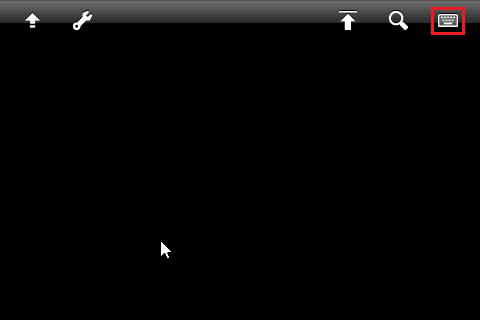
- iPhone and iPad: tap the keyboard button in the session toolbar.
- Android: tap the floating keyboard button at the bottom edge of the screen.
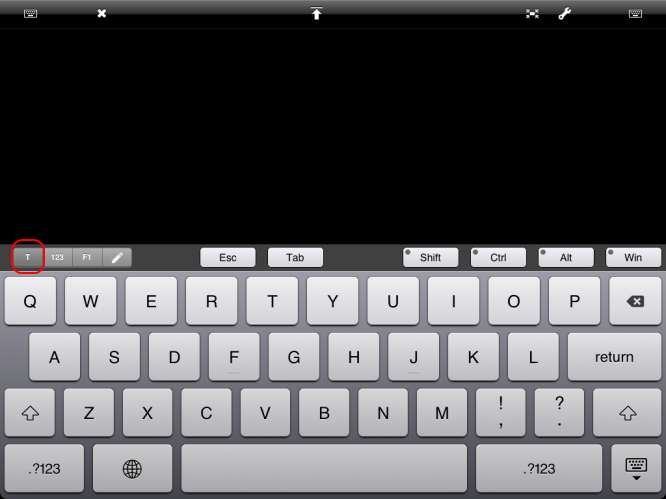
The extra keys row contains Esc, Tab, and sticky Shift, Ctrl, Alt, and Win keys (Shift, Ctrl, Opt, and Cmd when connected to a Mac). Swipe the row to reveal more keys:
- Function keys.
- Ctrl+Alt+Delete.
- A key that types your clipboard text.
- A key that types the saved password and presses Return (hold it until the ring fills).
iPhone, iPad, and Android have no Send via Keyboard menu. On iPhone and iPad, the Settings button in the session toolbar opens a menu containing Clipboard Text. On an iPad with iPadOS 26 or later, the Remote menu in the menu bar also has Keys, Ctrl-Alt-Del, and Password.
For touch gestures, see Controls and gestures.
Hardware keyboards on iPhone and iPad#
A keyboard connected to an iPhone or iPad sends shortcuts, arrow keys, and Esc to the host.
- Win key: press Cmd when connected to a Windows host.
- Function keys: on keyboards with fn, hold fn and press a top-row key.
Macros#
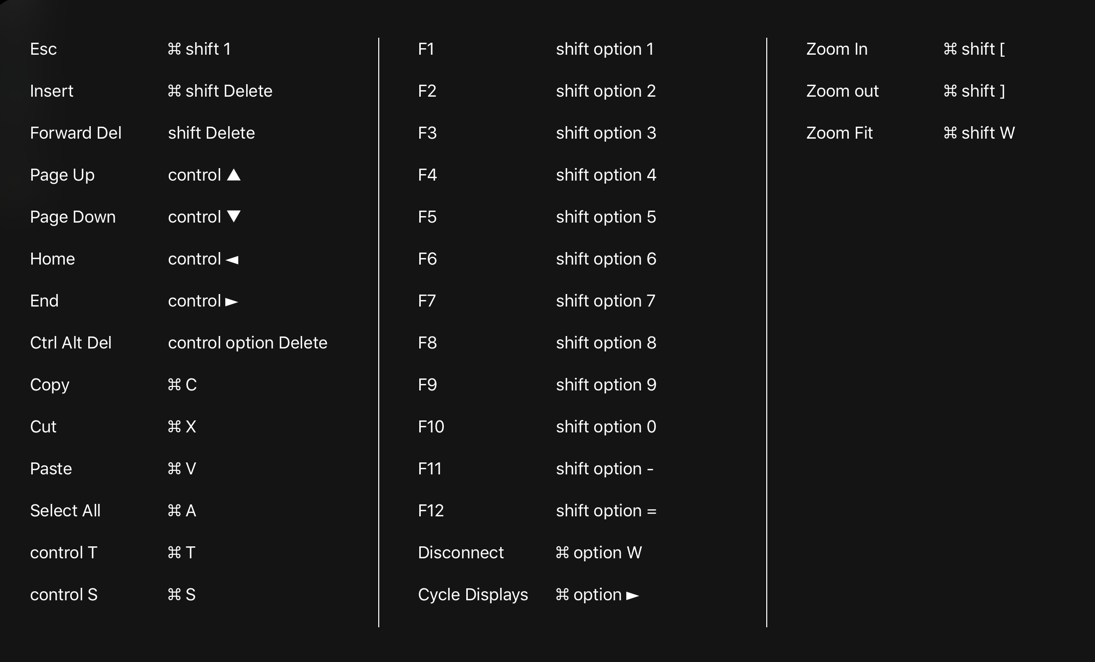
On iPhone and iPad, macros are key combinations that send keys missing from compact keyboards; macros are on by default. To turn them off, tap Keyboard in Jump Desktop settings and turn off Macros. To view the full list, hold Cmd while connected.
| Press | To send |
|---|---|
| Cmd+Shift+1 or Cmd+. (period) | Esc |
| Shift+Option+1 to 0, Shift+Option+- (minus), Shift+Option+= | F1 to F10, F11, F12 |
| Ctrl+Option+Delete | Ctrl+Alt+Delete |
| Cmd+Shift+Delete | Insert |
| Shift+Delete | Forward Delete |
| Ctrl+Up / Down / Left / Right | Page Up / Page Down / Home / End (Ctrl+Shift+arrow when connected to a Mac) |
| Cmd+C, Cmd+X, Cmd+V, Cmd+A, Cmd+Z | Ctrl+C, Ctrl+X, Ctrl+V, Ctrl+A, Ctrl+Z (not when connected to a Mac) |
| Cmd+Option+W | Disconnect |
International keyboards#
On iPhone and iPad, if your keyboard layout uses Left Alt (Option) to type characters, use these settings in Jump Desktop settings > Keyboard:
- Ignore Left Alt: Left Alt no longer sends shortcuts. Use Right Alt for shortcuts such as Alt+F.
- Left Alt Is Right Alt: Left Alt acts as Right Alt. Windows and Linux computers only.
Hardware keyboards on Android#
Tap the floating keyboard button, then type on the connected keyboard. Esc, Tab, arrow keys, Home, End, Page Up, Page Down, Insert, Forward Delete, F1 to F12, and Ctrl and Alt shortcuts are sent to the host.