Controls and gestures#
A gesture profile is an input setting that determines how touches translate into mouse input. Standard is the default profile. Choose the profile that suits the task, for example Trackpad for precise pointer control or Pen for drawing with a stylus. For on-screen keys and hardware keyboards, see Use the keyboard.
Applies to#
- Jump Desktop on iPhone and iPad.
- Jump Desktop on Android Beta.
- A web browser on a touch device.
Choose a gesture profile#
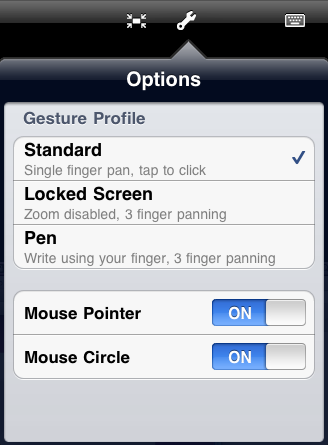
Tap the Settings button in the session toolbar, then Gesture Profile. On iPad, when the menu bar is visible, the same options are under Input. In the same menu, Learn About Gestures shows the gestures for each profile.
| Profile | Behavior |
|---|---|
| Standard | Tap where you want to click. Drag one finger to pan the zoomed screen. |
| Locked Screen | Zoom is off and the screen stays in place. Drag one finger to move the pointer; swipe with three fingers to pan. |
| Pen | Dragging one finger holds the left mouse button down, as if drawing. Suited to stylus input. |
| Trackpad | The screen works like a laptop trackpad. Slide a finger to move the pointer; tap anywhere to click at the pointer. |
| Trackpad (Gaming) | Trackpad behavior with relative mouse movement, for 3D apps and games. Appears only when the host supports it. |
| Direct Touch | Every touch sends a left click or drag at your finger. Right click, scrolling, and pinch to zoom are off. |
| Windows Multi-Touch | Replaces Direct Touch when the host accepts touch input. Touches go to the host's own touch gestures and the pointer is hidden. |
| View Only | Touches are not sent to the host. |
Gestures#
For all profiles except Direct Touch and View Only:
| Action | Gesture |
|---|---|
| Click | Tap |
| Double click | Double tap |
| Right click | Touch and hold, or tap with two fingers |
| Left drag | Tap, then touch again and drag without lifting. In Pen, drag one finger. |
| Right drag | Tap, then touch and hold until a ripple appears, then drag |
| Middle click | Tap twice, then touch and hold until a ripple appears |
| Middle drag | Tap twice, then touch and hold until a ripple appears, then drag |
| Scroll | Swipe up or down with two fingers |
| Zoom | Pinch (not in Locked Screen) |
| Pan the screen | Swipe with three fingers (not in Trackpad) |
| Show or hide the keyboard | Tap with three fingers |
| Switch between keypad and keyboard (iPhone) | Double tap with three fingers |
Pointer and circle#
Tap the Settings button, then Mouse:
- Show Pointer shows the remote pointer.
- Show Circle shows a circle for controlling the pointer. Slide inside the circle to position the pointer precisely; tap it to click at the pointer. You can also double click, right click, and drag from the circle.

Choosing a profile resets both settings: Standard and Locked Screen turn on both, Pen and Trackpad turn on only the pointer, and Direct Touch and View Only turn on neither.
Choose a gesture profile#
Tap the Settings button in the session toolbar, then Gesture Profile, and select a profile. If the toolbar is collapsed, tap the three-dot bar at the top of the screen first. Your choice is saved for that host. To set the profile before connecting, touch and hold the computer, tap Edit, and set Touch gestures. The same screen also contains Swap mouse buttons and Reverse scroll direction.
| Profile | Behavior |
|---|---|
| Standard | Tap where you want to click. Slide one finger to move the pointer; when zoomed in, it pans the screen instead. |
| Locked Screen | Zoom and panning are off. Slide one finger to move the pointer. |
| Pen | Sliding one finger holds the left mouse button down, as if drawing. |
| Trackpad | Slide a finger to move the pointer; tap anywhere to click at the pointer. |
| Direct Touch | Taps and slides click and drag at your finger; touch and hold starts a left drag. The pointer is hidden. |
| View Only | Touches are not sent to the host. Slide one finger to pan. |
Gestures#
For all profiles except Direct Touch and View Only:
| Action | Gesture |
|---|---|
| Click | Tap |
| Double click | Double tap |
| Right click | Tap with two fingers (clicks at the pointer), or touch and hold |
| Left drag | Tap, then touch again and drag without lifting. In Pen, drag one finger. |
| Right drag | Tap, then touch and hold, then drag |
| Middle drag | Tap twice, then touch and hold, then drag |
| Scroll | Swipe with two fingers |
| Zoom | Pinch (not in Locked Screen) |
| Pan the screen | Swipe with three fingers (not in Locked Screen or Trackpad) |
Standard, Locked Screen, and Pen also show a circle for controlling the pointer. Drag the circle to move the pointer precisely; tap it to click at the pointer. Trackpad shows the pointer without the circle.
To show the keyboard, tap the floating keyboard button at the bottom edge of the screen. See On-screen keys.
Mouse#
A connected mouse moves the remote pointer directly. The left, right, and middle buttons send clicks, and the wheel scrolls.
Choose a gesture profile#
On the floating toolbar, tap the settings button (Show settings drawer). Under Touch Gesture Profile, choose a Profile:
| Profile | Behavior |
|---|---|
| Standard | Tap where you want to click. Drag one finger to pan the zoomed screen. |
| Trackpad | Slide a finger to move the pointer; taps click at the pointer. |
Gestures#
| Action | Gesture |
|---|---|
| Click | Tap |
| Double click | Double tap |
| Triple click | Triple tap |
| Right click | Touch and hold. In Trackpad, you can also tap with two fingers. |
| Left drag | Tap, then touch again and drag without lifting |
| Right drag | Tap, then touch and hold, then drag |
| Middle click | Tap twice, then touch and hold |
| Middle drag | Tap twice, then touch and hold, then drag |
| Scroll | Swipe with two fingers |
| Zoom | Pinch |
| Show or hide the keyboard and shortcut keys | Tap with three fingers |