Remote audio#
Remote audio is the streaming of the host's sound to your device during Fluid sessions. From a Mac, you can also send your microphone to a Mac host. Use remote audio to follow a video playing on the host, and your microphone to speak into an app on a Mac host.
Applies to#
- Host: Windows, macOS, or Linux Alpha running Jump Desktop Connect, connected with Fluid.
- Hear remote audio: Jump Desktop on Windows, macOS, iPhone, iPad, and Android Beta, and in a web browser.
- Send your microphone: Jump Desktop on macOS, connected to a Mac host.
- Audio/Video Sync: Jump Desktop 10.16 Alpha or later on Windows and macOS.
Hear the host's sound#
- On a Mac host, allow Connect Microphone access, which Connect uses to capture the Mac's sound. See Grant macOS permissions to Connect.
- In Jump Desktop, turn audio on:
- Windows: in the computer's settings, Sharing > Play Audio
- macOS: in the computer's settings, Sharing > Play Audio on Mac
- iPhone and iPad: in the computer's settings, the audio switch
- Android: tap the Settings button in the session toolbar and clear Mute Sound. This action also updates Start Sessions Muted in Settings, so subsequent sessions start with the same setting.
- Web browser: in the settings drawer, Sharing > Audio
Audio is on by default for new Fluid computers. Team administrators can turn it off with the Audio Streaming setting in a Connect Configuration.
Choose the host's audio device#
When the host offers a choice of audio devices to capture, Jump Desktop on Windows and macOS lists them in Remote > Audio > Receive Audio. A check mark shows the device you hear. Jump Desktop 10.16 Alpha or later for Mac remembers your choice for each computer and selects the device again on the next connection, if the host still lists it.
Audio/Video Sync Alpha#
Audio/Video Sync is a Fluid session setting in Jump Desktop on Windows and macOS that delays the video or the audio on your computer so the two play in sync. Use it when the host's video plays slightly ahead of or behind its sound, for example while reviewing an edit or watching a video on the host.
It requires Jump Desktop 10.16 or later on Windows or macOS. The host does not need Connect 10.16.
- During a Fluid session, choose Remote > Framerate > Audio/Video Sync.
- Choose a delay:
- No Delay (default): neither stream is delayed.
- Under Delay Video: 20 ms, 40 ms, 60 ms, 80 ms, 100 ms, 125 ms, 150 ms, 175 ms, 200 ms, 250 ms, 300 ms, 400 ms, or 500 ms. Choose this when the video plays ahead of the sound.
- Under Delay Audio: 20 ms, 40 ms, 60 ms, 80 ms, 100 ms, 150 ms, or 200 ms. Choose this when the sound plays ahead of the video.
The delay applies during the session, and a message such as Video delayed by 40 ms confirms it. Jump Desktop saves the delay for that computer and applies it to subsequent connections.
Where the sound plays on a Windows host#
Connect copies the sound from the Windows host's default output device without muting or switching that device. The sound plays on your device and continues to play on that output device on the host.
Windows hosts with no sound device#
Sound works without additional configuration on Windows hosts with no sound device, such as virtual machines. Jump Desktop Connect 10.15.23 or later installs a virtual speaker named Jump Desktop Virtual Speaker on Windows 10 version 22H2 or later and Windows 11. On a host with an existing sound device, Connect keeps that device as the default.
Where the sound plays on a Mac host#
When you connect, Connect switches the Mac's sound output to Jump Desktop Audio so that Connect can capture the sound. You hear the sound on your device, and the Mac host's speakers are silent. When the last session disconnects, Connect restores the previous output device.
Hear sound on the Mac host too#
On the Mac host, while connected:
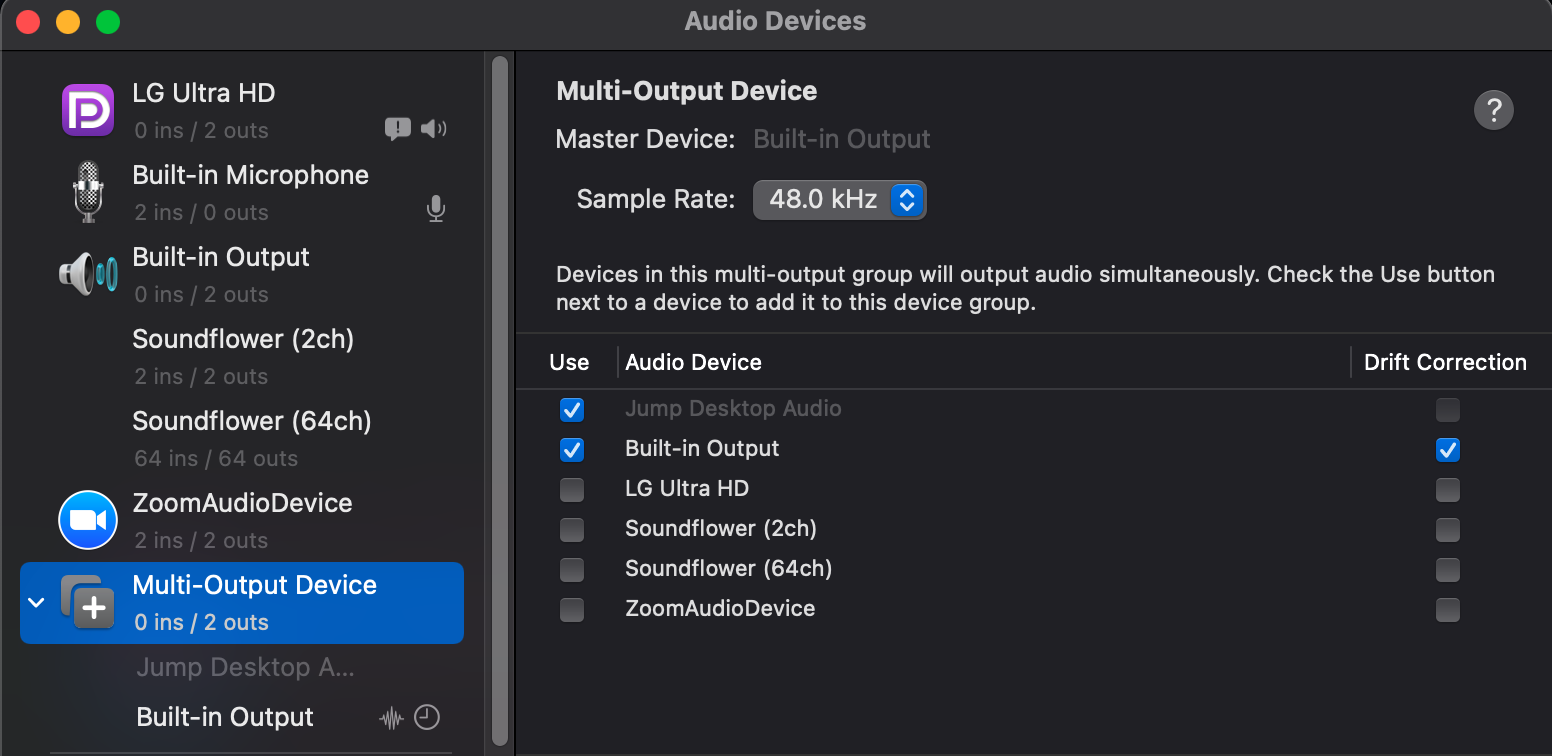
- Open Audio MIDI Setup.
- Click + > Create Multi-Output Device.
-
Select Jump Desktop Audio and the speakers you want to use.
-
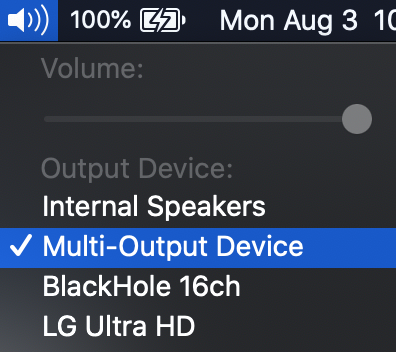
In the macOS sound menu, choose Multi-Output Device as the output.
Stop Connect switching the Mac's output#
- On the Mac host, open Jump Desktop Connect and click the settings icon.
- Click Advanced.
-
Under Fluid Remote Desktop, clear Change Audio Device.
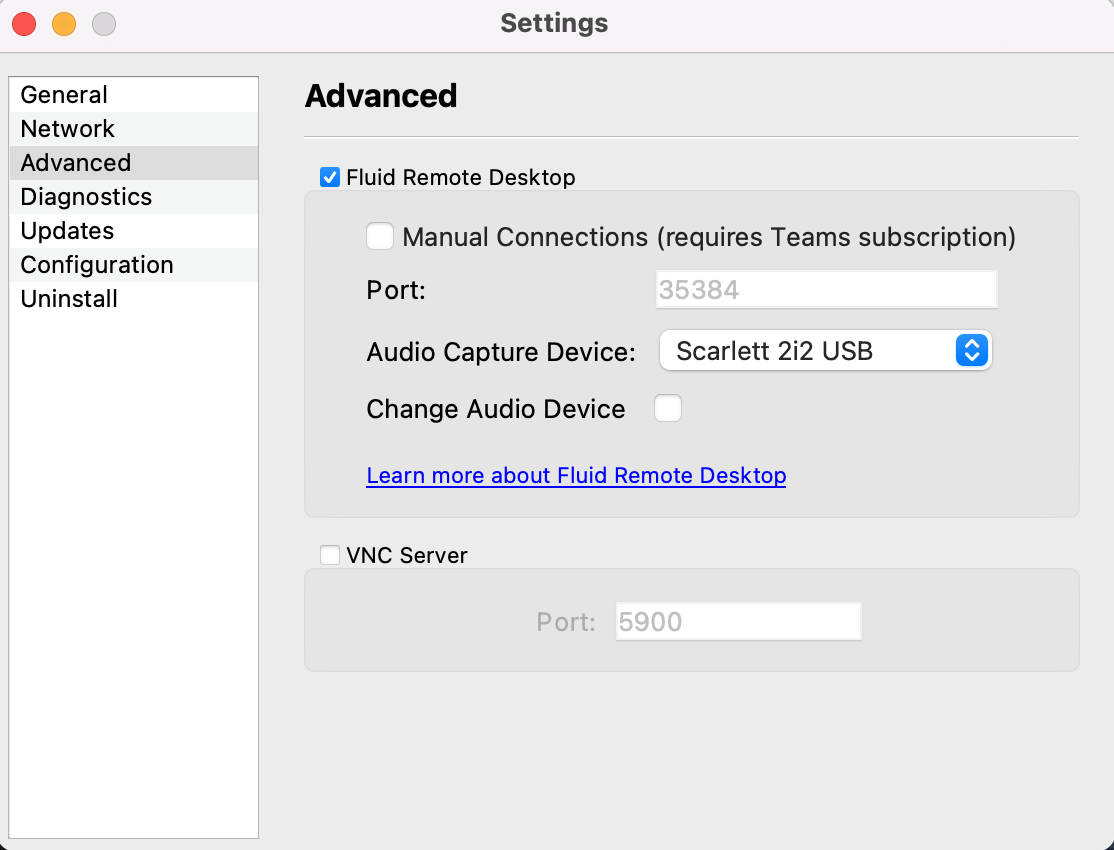
With this setting off, you hear only apps that output to the Audio Capture Device (normally Jump Desktop Audio).
Team administrators control this behavior with the Change System Audio Output setting in a Connect Configuration.
Sound from a Mac host is too quiet#
With Jump Desktop Connect 10.15, the Jump Desktop Audio device lowers the volume of captured sound to prevent clipping. Jump Desktop Connect 10.16 Alpha or later fixes this: it captures sound at full volume and uses a limiter to prevent clipping. With Connect 10.15, for louder sound, capture from another virtual audio loopback device, such as BlackHole:
- On the Mac host, install a virtual audio loopback device.
- Open Jump Desktop Connect and click the settings icon.
- Click Advanced.
- Under Fluid Remote Desktop, choose the loopback device in Audio Capture Device.
- Reconnect, then play audio on the host to check the volume.
With Change Audio Device on (the default), Connect switches the Mac's output to the selected device while you are connected. If Change Audio Device is off, choose the loopback device as the output on the Mac host before you reconnect, in either the macOS sound menu or the app playing the sound.
Send your microphone to a Mac host#
- On your Mac, during a session, choose Remote > Audio > Send Audio, then select your microphone.
- If the menu shows Requires microphone permission..., click it and allow Jump Desktop to use the microphone. If you previously denied access, allow it in macOS privacy settings, then restart Jump Desktop.
- On the Mac host, select Jump Desktop Microphone as the input in the app that needs it.
To stop sending your microphone, choose None (Mute).
Limitations#
- A Mac host does not stream audio from the login screen.
- On Windows N editions, audio requires the Windows Media Feature Pack.