Add a watermark to sessions#
A session watermark is a text overlay that identifies who is connected to a host, from where, and when. During Fluid sessions, Connect draws the watermark on the host's displays. The watermark is part of the host's screen image, so it appears in every app and browser users connect from. Use it to indicate that a session is in progress, for example on computers that handle sensitive data.
The watermark is a Connect Configuration setting; it applies to the computers assigned that configuration.
Applies to#
- Jump Desktop for Teams Enterprise plan.
- Team administrators.
- Hosts running Connect on Windows, macOS, or Linux Alpha.
- Fluid sessions only. RDP and VNC connections do not show the watermark.
Turn on the watermark#
- In the Teams dashboard, open your team and click Connect Settings.
- Click New Configuration, or click the edit icon on an existing configuration.
- In Fluid Settings, next to Watermark, click Edit.
- Select Show Watermark.
- In Watermark Text, enter and format the text. The text can include fields.
- Set Watermark Opacity (default 100%).
-
Choose a Display Strategy:
- Static: under Watermark placement on displays, select one or more of the nine positions (1 is top left; 9 is bottom right).
- Random: choose Watermarks Per Display (1 to 4, default 1) and Update Interval (10 seconds to 10 minutes, default 30 seconds). At each interval, the watermarks move to new random positions.
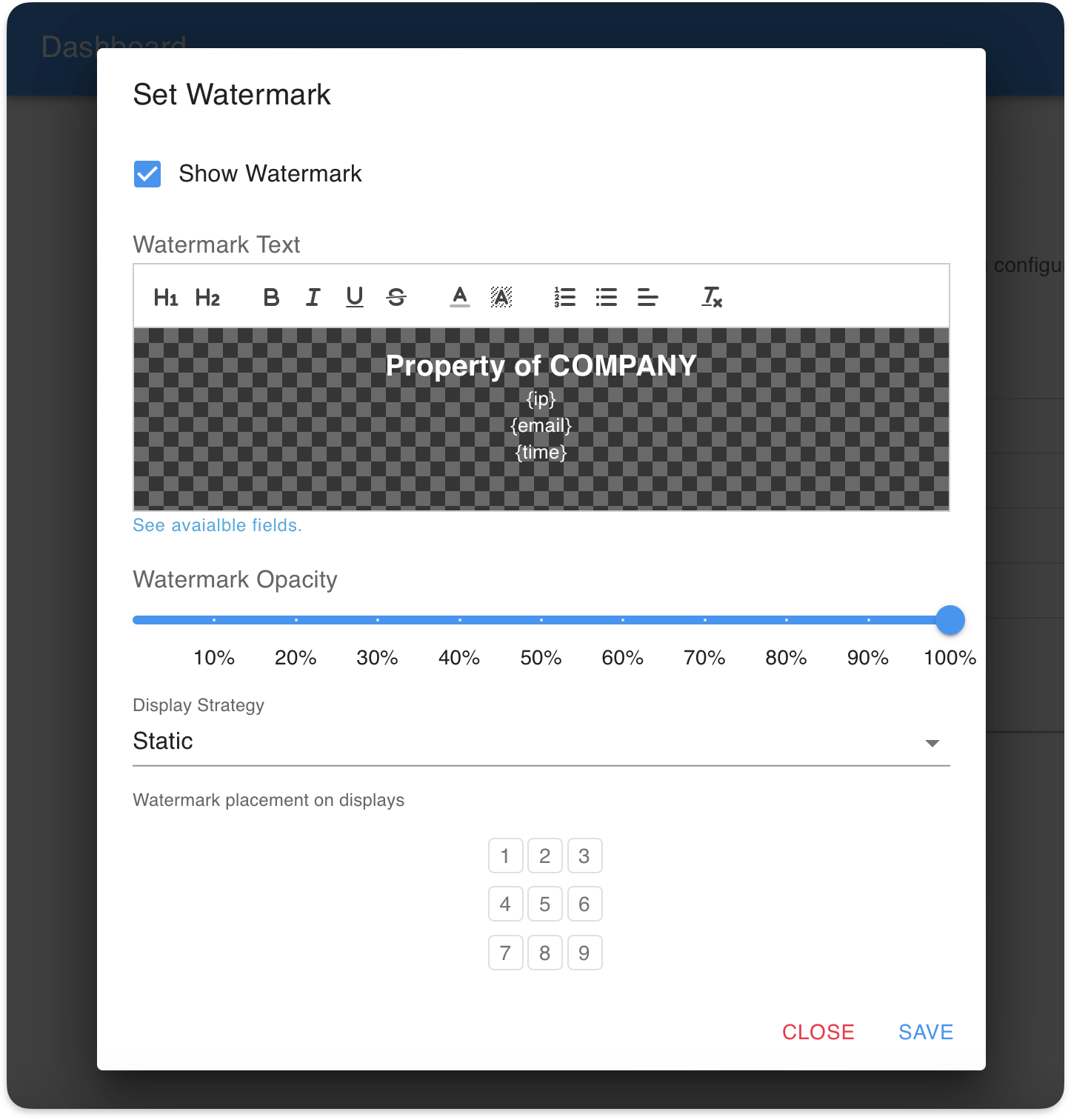 8. Click Save in the watermark dialog, then click Save in the configuration.
9. If the configuration is new, assign it to computers or Access Groups.
8. Click Save in the watermark dialog, then click Save in the configuration.
9. If the configuration is new, assign it to computers or Access Groups.
To turn off the watermark, clear Show Watermark and save.
Fields#
Fields are replaced with live values. When several users are connected, their values are separated by commas.
| Field | Shows |
|---|---|
{email} |
Connecting user's email address |
{ip} |
Connecting user's IP address |
{name} |
Connecting user's full name |
{firstname} |
Connecting user's first name |
{lastname} |
Connecting user's last name |
{connid} |
Connection ID |
{peerid} |
Connecting user's device ID |
{localuser} |
User account on the host used for the session |
{hostname} |
Host's name as reported by its operating system |
{jumphostname} |
Host's name in the Teams dashboard |
{computerid} |
Host's device ID |
{time} |
Current local time on the host |
Result#
During a Fluid session, the watermark appears on every display, remains above other windows, and does not block clicks.
Limitations#
- Watermark text, including formatting, is limited to 2,048 characters.
- A static watermark requires at least one selected placement.