Connection statistics#
Connection statistics are a live overlay of Fluid session metrics, updated every second. Use them to diagnose why a session is slow or blurry, for example because of packet loss or blocked UDP. Red values indicate a problem.
Show statistics#
| Client | Steps |
|---|---|
| Windows, macOS | Choose Help > Show Fluid Connection Stats. |
| iPhone, iPad, Android Beta | In the session toolbar, tap the Settings button, then tap Show Connection Stats. |
| Web browser | Open the settings drawer and turn on Show Stats. See Connect from a web browser. |
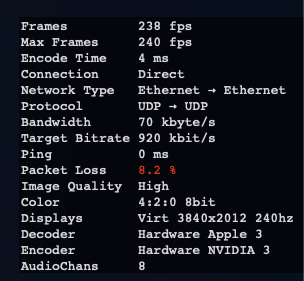
Statistics#
"Local" refers to your device (the device you connect from). Menu names in the table are from Windows, macOS, iPhone, and iPad. On Android, the menus are Frame Rate, Max Bandwidth, Codec, and Color Quality. The web browser has only Frame Rate and Maximum Bandwidth.
| Statistic | Shows | What to look for |
|---|---|---|
| Frames | Frames the host encoded in the last second. | 0 usually means the host's screen did not change. Frames can also be skipped when the video stream exceeds the allowed bandwidth. |
| Max Frames | Maximum frames per second the host sends. Set with the Framerate menu (Frame Rate on Android and in the web browser). | |
| Encode Time | Milliseconds the host takes to encode a frame. | High values indicate heavy load on the host. Measure while something is moving on screen, such as a video; readings vary at low frame rates and with hardware encoders. |
| Connection | Direct (no NAT between the devices, such as on the same network or a VPN), Direct NAT (peer-to-peer across the internet), or Relay (through a relay server, when no direct path works or a team administrator requires relay connections). | |
| Network Type | Network in use, such as Ethernet, Wifi, Cellular, or VPN. When an arrow appears, the local side is listed first. | |
| Protocol | UDP, TCP, Relay UDP, Relay TCP, or Relay TCP-TLS. When an arrow appears, the local side is listed first. | UDP generally performs best. |
| Bandwidth | Video data received in the last second, in kbyte/s. | |
| Target Bitrate | The bitrate the host currently targets, in kbit/s. It adjusts to network conditions, up to the limit set in the Maximum Bandwidth menu or Connect settings. | A value well below Maximum Bandwidth means the network cannot currently carry more data, or the Maximum Target Bandwidth set by a team administrator is lower. With packet loss, try a lower maximum. |
| Ping | Network latency between the host and your device, in ms. | Red: ping is unsteady (jitter). |
| Packet Loss | Percentage of packets lost in the last second. | Red whenever loss is detected. Jump Desktop compensates for packet loss, which can reduce image quality or responsiveness. |
| Image Quality | Very High, High, Medium, or Low. | Lower values can indicate network problems or packet loss. |
| Color | Chroma format and bit depth, such as 4:2:0 8bit or 4:4:4 10bit. 4:4:4 provides sharper text and exact colors; 10bit provides more colors. Set with the Color menu (Color Quality on iPhone, iPad, and Android). | |
| Displays | Resolution and refresh rate of each display on the host. Virt marks a virtual display created by Jump Desktop. | |
| Decoder | Decoder on the local device: Fluid, Fluid 2.0, or Hardware with a GPU vendor (Apple, NVIDIA, AMD, Intel). | |
| Encoder | Encoder on the host, using the same names. Hardware encoders reduce CPU load on the host. Set with the Codec menu. | |
| AudioChans | Audio channels streamed from the host: 1 mono, 2 stereo, 6 for 5.1, 8 for 7.1. Blank when no audio is streaming. |
Client differences:
- Android: omits Color and AudioChans. Connection shows Direct (P2P) or Relay. Adds Decode Time, the milliseconds your device takes to decode a frame.
- Web browser: omits Protocol, Color, and Displays.
Related#
- Slow or laggy sessions: symptoms, what the numbers mean together, and what to try.
- Codecs and hardware encoding: choose a codec and color level.
- Gaming