Connect from a web browser#
The Jump Desktop browser client connects to your Windows, Mac, or Linux hosts from a web browser, with no app to install. Browser access is free with any Jump Desktop account. Use it on a device without the Jump Desktop app, such as a Linux computer, or to open a screen sharing link someone sent you.
Applies to#
- Client: Web browser.
- Host: Windows or Mac running Jump Desktop Connect 7 or later, or Linux Alpha. See Install Jump Desktop Connect.
- Account: any Jump Desktop account. Browser access is free.
Connect to your computers#
- Sign in at app.jumpdesktop.com.
- Click My Computers. The list includes your computers and your teams' computers.
- Click a computer to open its session in a new browser tab. On a narrow screen, such as a phone, each computer is shown as a full-width card with its name, status, operating system, and tags.
- If prompted, enter the username and password for the host. To save the credentials in this browser only, select Remember credentials in this browser when the option appears.
Connect from a team#
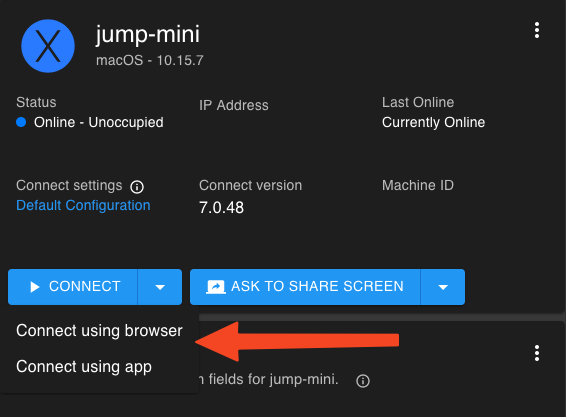
In your team's Computers, find the computer, click the arrow next to Connect, and choose Connect using browser. The Connect button retains your most recent choice.
Open a screen sharing link#
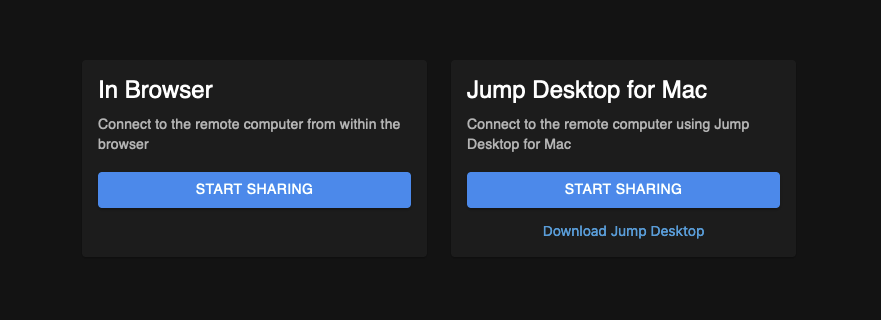
Open the link, then under In Browser, click Start Sharing. If the link has expired, ask the sender for a new one.
To send a link or request to share a screen, see Ask to share a screen.
Session controls#
The session controls are in the floating toolbar at the top of the session. To reposition the toolbar, drag it.
| Control | What it does |
|---|---|
| Shortcut keys | Lists shortcut keys to send to the host. On touch devices, it also opens the on-screen keyboard. |
| Settings drawer | Contains full screen mode, Disconnect, and the settings listed below. |
The settings drawer contains these settings:
- Displays: Display, Frame Rate, Maximum Bandwidth, Resolution matching, and Virtual Display.
- Sharing: Audio (see Remote audio) and Clipboard Sync.
- Touch Gesture Profile: see Controls and gestures.
- Stats: Show Stats displays connection statistics.
- Feedback: Send Feedback opens a support request form in a new browser tab.
Switch away from a session#
When you switch to another tab or application, keys held on your physical keyboard are released on the host. This prevents a modifier or character key from staying pressed while you work elsewhere. Modifiers selected or locked in the browser client's on-screen shortcut keys retain their state when you switch away.
Clipboard#
- Chrome and other Chromium-based browsers, such as Edge: turn on Clipboard Sync, then click Allow when the browser requests clipboard permission. Until you grant permission, a warning icon appears next to Clipboard Sync; click the icon for steps to grant permission from the address bar.
- Other browsers, such as Safari and Firefox: with Clipboard Sync on, use the toolbar button to send your clipboard contents to the host. Safari also provides a toolbar button to retrieve the host's clipboard contents.
For clipboard sync in the Jump Desktop apps, and for turning it off on team computers, see Copy and paste between computers.
Limitations#
- The browser client does not support file transfer, USB redirection, microphone input, observe mode, privacy mode, or color quality settings.
- When you join through a screen sharing link, Clipboard Sync, Resolution matching, and Virtual Display are not available.
- Saved credentials are stored only in the browser that saved them. To sync credentials, use the Jump Desktop app.