Find and organize your computers#
The computer list is the main window of Jump Desktop, listing the hosts (the computers you connect to) with their live status. It lets you find a host by name, address, or status, group hosts with tags and favorites, and connect from one place.
For example:
- A personal user with a desktop, a laptop, and a media PC marks the two used most as favorites and connects with a double-click.
- An IT or help desk technician with hundreds of hosts filters by Online or Unoccupied, searches by machine ID, and groups hosts by site or customer with nested tags.
- A developer opens Recent to return to the hosts running their builds and AI agents, and checks each one in its live preview.
Applies to#
- Jump Desktop 10.16 or later for Windows Alpha. It is the only computer list in Jump Desktop 10.16 for Windows.
- Jump Desktop 10.16.74 or later for Mac Alpha on macOS 14 or later, where it is the default computer list. On earlier macOS versions, Jump Desktop for Mac keeps the previous computer list. The 10.16.73 version on the sections below is for Windows; on Mac, every section needs 10.16.74.
- Hosts added with Jump Desktop Connect or by address.
Navigate the list Alpha#
The navigation pane on the left lists:
| Entry | Shows |
|---|---|
| All Computers | Every computer. |
| Recent | The 10 computers you connected to most recently. |
| Favorites | Computers you marked as favorites. |
| Tags | Your tags, which can be nested. Select a tag to show its computers, including those in tags inside it. |
To show or hide the pane, choose View > Navigation pane. The heading above the list shows how many computers are shown and online, for example "12 shown · 9 online".
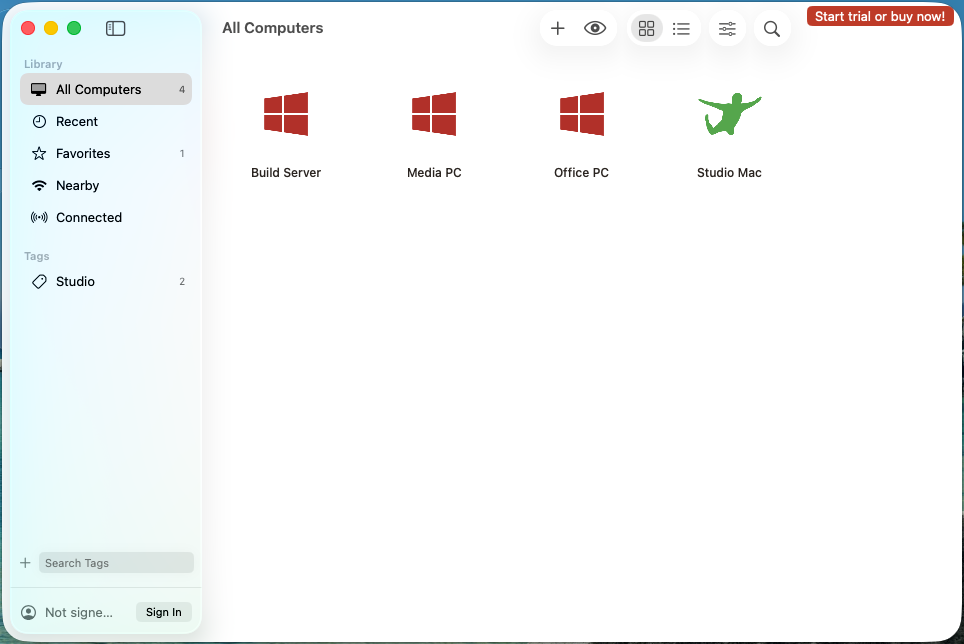
The sidebar lists:
| Entry | Shows |
|---|---|
| All Computers | Every computer. |
| Recent | The 10 computers you connected to most recently. |
| Favorites | Computers you marked as favorites. |
| Nearby | Computers found on your local network. |
| Connected | Computers with an open session. |
| Tags | Your tags, which can be nested. To filter the tag list, type in Search Tags. |
Organize with tags and favorites Alpha#
A tag is a label you give to any number of computers, such as a site, a customer, or a project. A tag can contain other tags. Favorites work like a tag that has its own entry in the list.
| To | Do this |
|---|---|
| Create a tag | Click + (New tag) next to Tags, enter a name, and click Create. |
| Create a tag inside another tag | Right-click the tag and choose New tag inside…. |
| Rename a tag | Right-click the tag and choose Rename…. |
| Delete a tag | Right-click the tag and choose Delete tag. The tag and the tags inside it are removed from every computer; the computers stay. |
| Nest or reorder tags | Drag a tag onto another tag, or between two tags. To move it back to the top level, drop it on the Tags heading. |
| Tag computers | Drag the selected computers onto a tag, or right-click them and choose Tags, then a tag or New tag…. |
| Add favorites | Drag the selected computers onto Favorites, or right-click them and choose Add to favorites. |
| To | Do this |
|---|---|
| Create a tag | Click + (Add Tag) under the sidebar. A tag named New Tag appears; type its name. |
| Rename a tag | Right-click the tag and choose Rename Tag. |
| Remove a tag from its computers | Right-click the tag and choose Remove Tag from Computer… or Remove Tag from All Computers…. The tag and the tags inside it are removed from the computers; the tags remain in the sidebar. |
| Delete a tag | Right-click the tag and choose Delete Tag…. The tag and the tags inside it are removed from the computers; the computers remain. |
| Nest or reorder tags | Drag a tag onto another tag, or between two tags. |
| Tag computers | Drag the selected computers onto a tag, or right-click them and choose Tags, then a tag. |
| Add favorites | Drag the selected computers onto Favorites, or right-click them and choose Tags > Favorite. |
| Remove all tags | Drag the selected computers onto All Computers. |
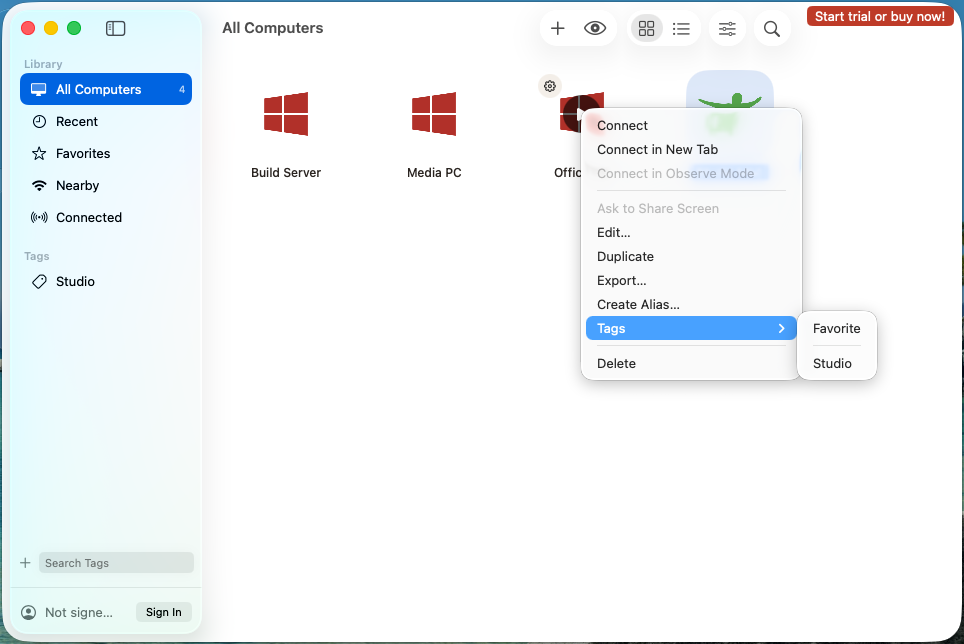
Right-clicking a tag also offers actions for its computers, such as Connect Computers, Connect in New Tabs, and Edit Computers….
Dragging computers onto a tag adds the tag; the computers keep their other tags.
Search and filter Alpha#
Type in the search field at the top of the window (Search computers on Windows, Ctrl+F; Search on Mac). A search matches computers whose name, address, machine ID, tags, or connected users contain the text, ignoring case. Both apps use the same search rules:
| Search | Matches |
|---|---|
| Several words | Computers matching any of the words. |
"Office PC" (in quotes) |
Computers named exactly Office PC. Other words then must all match too. |
tag: followed by text, such as tag:london |
Only tags. |
fluid, rdp, vnc |
Computers using that connection type. |
windows (or win), macos (or mac), linux, unknown |
Computers running that operating system. |
auto, manual |
Computers added with Jump Desktop Connect, or added by address. |
online, offline |
Jump Desktop Connect computers that are online or offline. |
connected, disconnected |
Computers with or without an open session from this app. |
occupied |
Online computers with connected users. |
unoccupied |
Computers without connected users, including offline computers and computers added by address. The Unoccupied tab shows only online ones. |
ssh |
Computers configured to connect through an SSH server. |
Filter tabs above the list narrow it to All, Connected, Disconnected, Online, Offline, Occupied, or Unoccupied computers. On Mac, to show or hide the filter tabs, click Filter Bar in the toolbar.
Change the view, columns, and sort order Alpha#
- View: click List or Tiles above the list, or choose View > Tiles (Ctrl+1) or View > List (Ctrl+2).
- Columns: in the list view, right-click a column heading and select the columns to show. Name is always shown. To resize a column, drag the edge of its heading.
- Sort: click Sort and choose Name, Status, Protocol, Address, or Users, then Ascending or Descending.
| Shown by default | Hidden by default |
|---|---|
| Name, Status, Protocol, Connected Users, Address | Machine ID, OS, Username, Last connected |
- View: in the toolbar, choose as Icons or as List.
- Columns: in the list view, right-click a column heading and select the columns to show. If you used the previous computer list, the list starts with its columns; otherwise it shows Name, Address, Tags, Status, Machine ID, and Connected Users. Other columns include OS, Protocol, Username, Last Connected, Last Seen, SSH Server, and RD Gateway.
- Sort: in the list view, click a column heading. In the icon view, right-click an empty area and choose Sort By, then a column and Ascending or Descending.
Each computer shows its status: for example, connected by you, in use by another user, online, offline, or added by address. While you are connected to a computer, its tile shows a live preview of the host's screen, so you can check several hosts at once.
Connect and manage computers Alpha#
Double-click a computer to connect, or select several computers and right-click them. On Windows, hovering over a tile shows Connect (or Join when another user is connected) and Disconnect.
| Menu item | Action |
|---|---|
| Connect (Enter) | Connect to the selected computers. |
| Connect in Observe Mode | Connect without sending keyboard or mouse input. Available for Fluid computers; see Observe mode. |
| Disconnect | End the selected sessions. |
| Ask to share screen | Ask the person at the host to approve the connection; see Ask to share a screen. |
| Edit… | Change the computer's settings. Several selected computers show Edit computers…. Available only while the computers are disconnected. |
| Change icon… | Choose the computer's icon. |
| Duplicate | Copy the computer and its settings. |
| Export… | Save the computers to a file; see Launch links and connection files. |
| Create shortcut… | Save a shortcut that connects to the computer, in a folder you choose. |
| Add to favorites | Add to Favorites, or Remove from favorites. |
| Tags | Add or remove tags, or create a tag with New tag…. |
| Delete (Del) | Delete the computer and its settings from this PC. |
| Remove my access | Remove your account from a Jump Desktop Connect host; see Remove your access to a host. |
| Menu item | Action |
|---|---|
| Connect | Connect to the selected computers. Several selected computers show Connect Computers. |
| Disconnect | End the selected sessions. |
| Connect in New Tab | Connect in a tab; see Connect to several computers at once. |
| Connect in Observe Mode | Connect without sending keyboard or mouse input. Available for Fluid computers; see Observe mode. |
| Connect in New Tabbed Window | Connect to several computers as tabs in a new window. |
| Save Computer (Cmd+S) | Save a computer from Nearby to your list. |
| Ask to Share Screen | Ask the person at the host to approve the connection; see Ask to share a screen. |
| Edit… | Change the computer's settings. |
| Duplicate | Copy the computer and its settings. |
| Export… | Save the computers to a file; see Launch links and connection files. |
| Create Alias… | Create an alias that connects to the computer. |
| Tags | Mark as Favorite, or add or remove tags. |
| Delete | Delete the computer and its settings from this Mac. |
| Remove My Access | Remove your account from a Jump Desktop Connect host; see Remove your access to a host. |
Add a computer Alpha#
- Click New, or choose File > Add a computer… (Ctrl+N).
- In Add a computer, choose a tab:
- Jump Desktop Connect: follow the steps to install Connect on the host and sign in with the same Jump Desktop account. The host appears in the list.
- By address: enter the Address and Name, choose the connection type in Connect with, and click Add.
To import computers, choose File > Import > From file… or From URL….
- In the toolbar, click Add Computer.
- In Add a Computer, choose Jump Desktop Connect or By address:
- Jump Desktop Connect: follow the steps to install Connect on the host and sign in with the same Jump Desktop account. The host appears in the list.
- By address: enter the host's address in Host:, choose the Type:, enter a Name:, and click Add.
To connect once without saving the computer, click Quick Connect in the toolbar.
Sign in Alpha#
Sign in with your Jump Desktop account to see the hosts added with Jump Desktop Connect.
On the welcome page, or with Sign in at the bottom of the navigation pane, choose:
- Sign in: opens jumpdesktop.com in your browser. The window updates when you finish signing in.
- Sign in with your phone: shows a code to scan with your phone's camera, then sign in on the phone.
When you are signed in, the bottom of the navigation pane shows your account.
On the welcome screen, choose Sign In or Sign In with Your Phone. Later, click Sign In at the bottom of the sidebar. In the Sign into Jump Desktop sheet:
- Open Browser: sign in on jumpdesktop.com in your browser.
- Copy Link: copy the sign-in link to open it elsewhere.
- Show QR Code: scan the code with your phone's camera and sign in on the phone.
The sheet closes when you are signed in. In the Mac App Store version, sign-in opens a system sign-in prompt instead.
Check that it worked#
- Your hosts appear under All Computers, with their status.
- Selecting a tag shows only the computers with that tag or a tag inside it.
- Typing part of a computer's name in the search field shows that computer.