Verify your domain#
Domain verification is a DNS TXT record check that proves your team owns an email domain. Use it to onboard users on your domain without email confirmation, and to make SSO-only sign-up and sign-in available for those users.
For users whose email address is on a verified domain:
- Accounts created by their first SSO sign-in or by SCIM are ready to use without email confirmation.
- You can require them to sign up and sign in with SSO only.
Applies to#
- Jump Desktop for Teams Enterprise plan.
- Team administrators.
- A team with single sign-on configured. The Domain Verification section does not appear until SSO is configured.
- Permission to add DNS records for the domain.
Add and verify a domain#
-
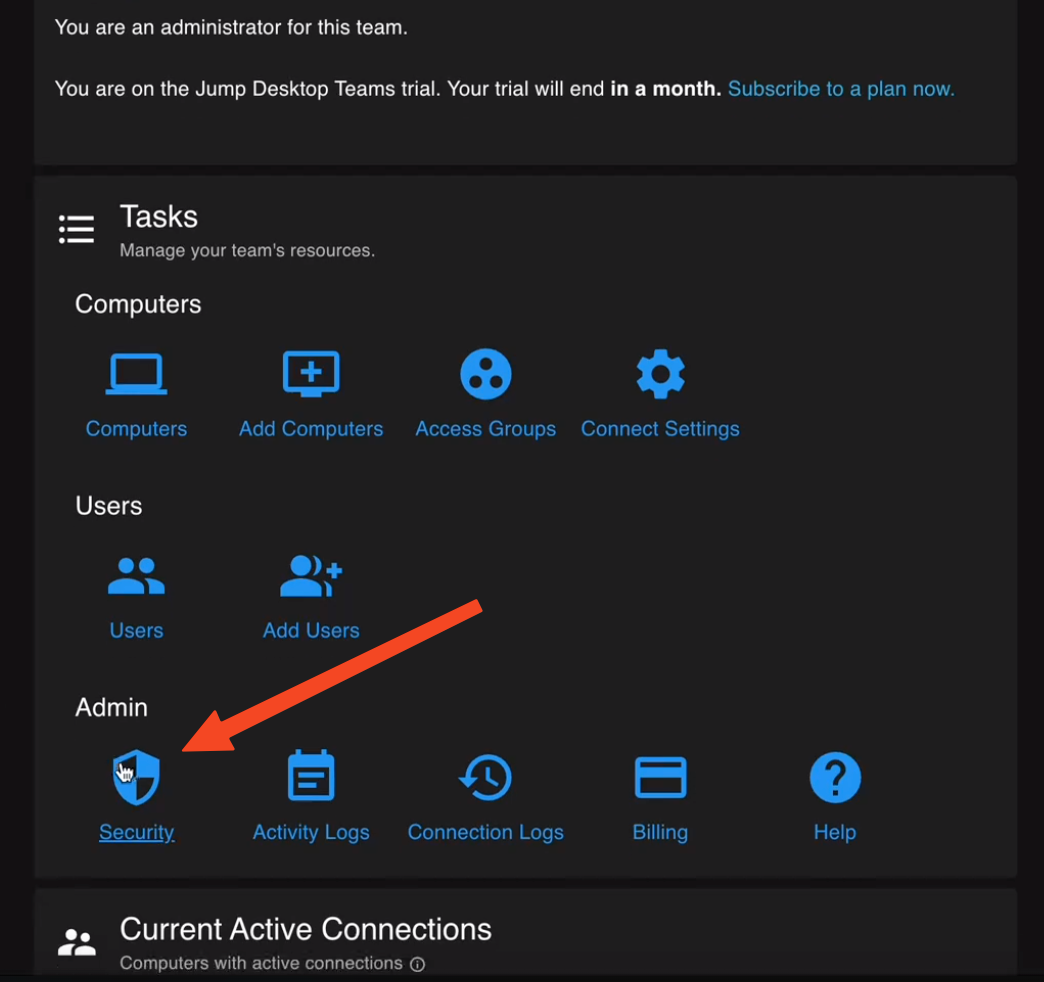
In the Teams dashboard, open your team and click Security.
-
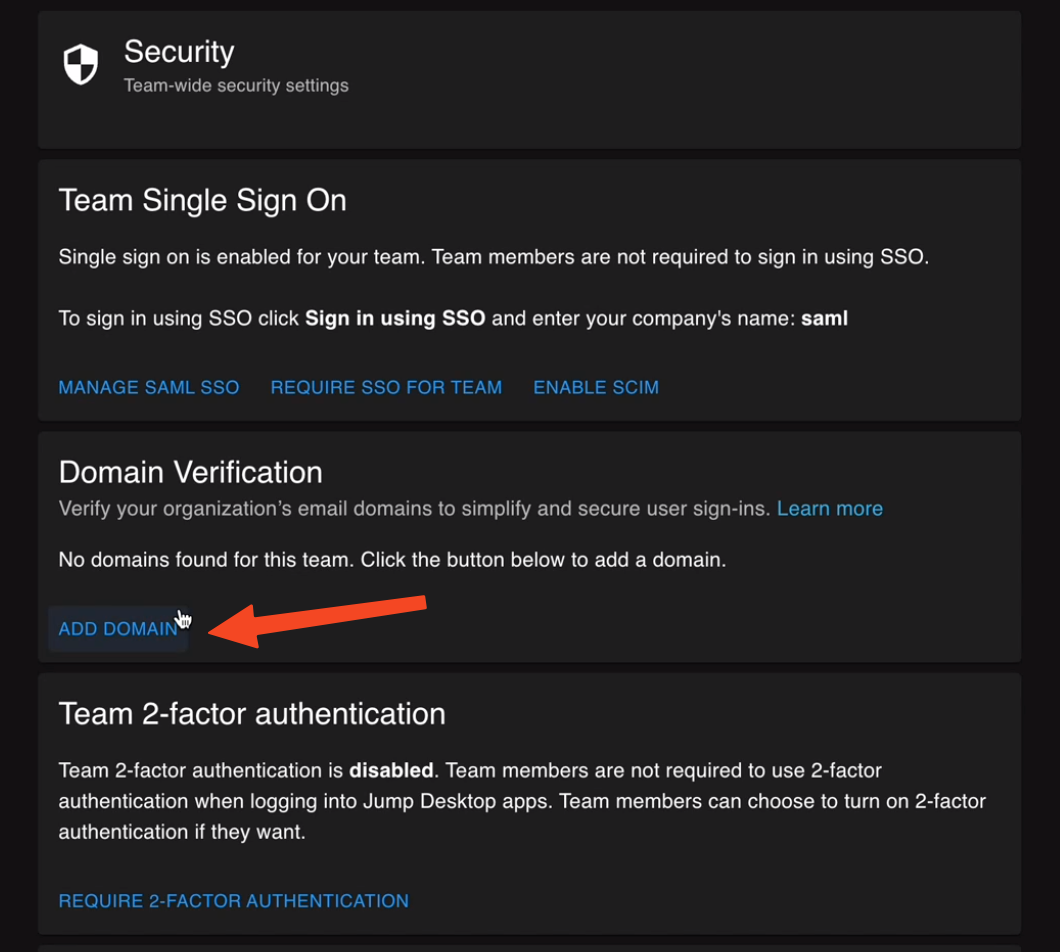
In Domain Verification, click Add Domain.
-
Enter the domain, for example
example.com, and click Add Domain. The domain appears with status Pending.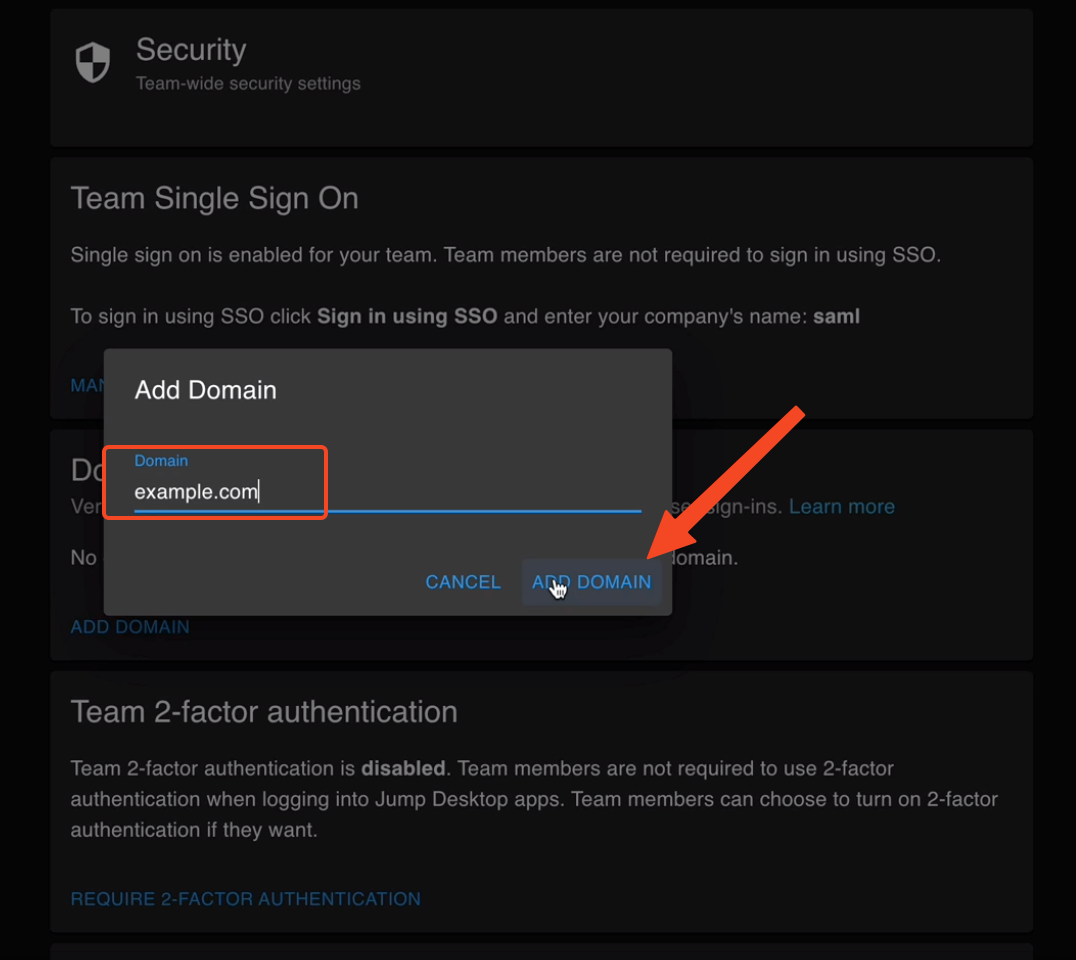
-
Click the value in the Txt Record column to copy it. The value consists of
jumpdesktop=followed by letters and numbers.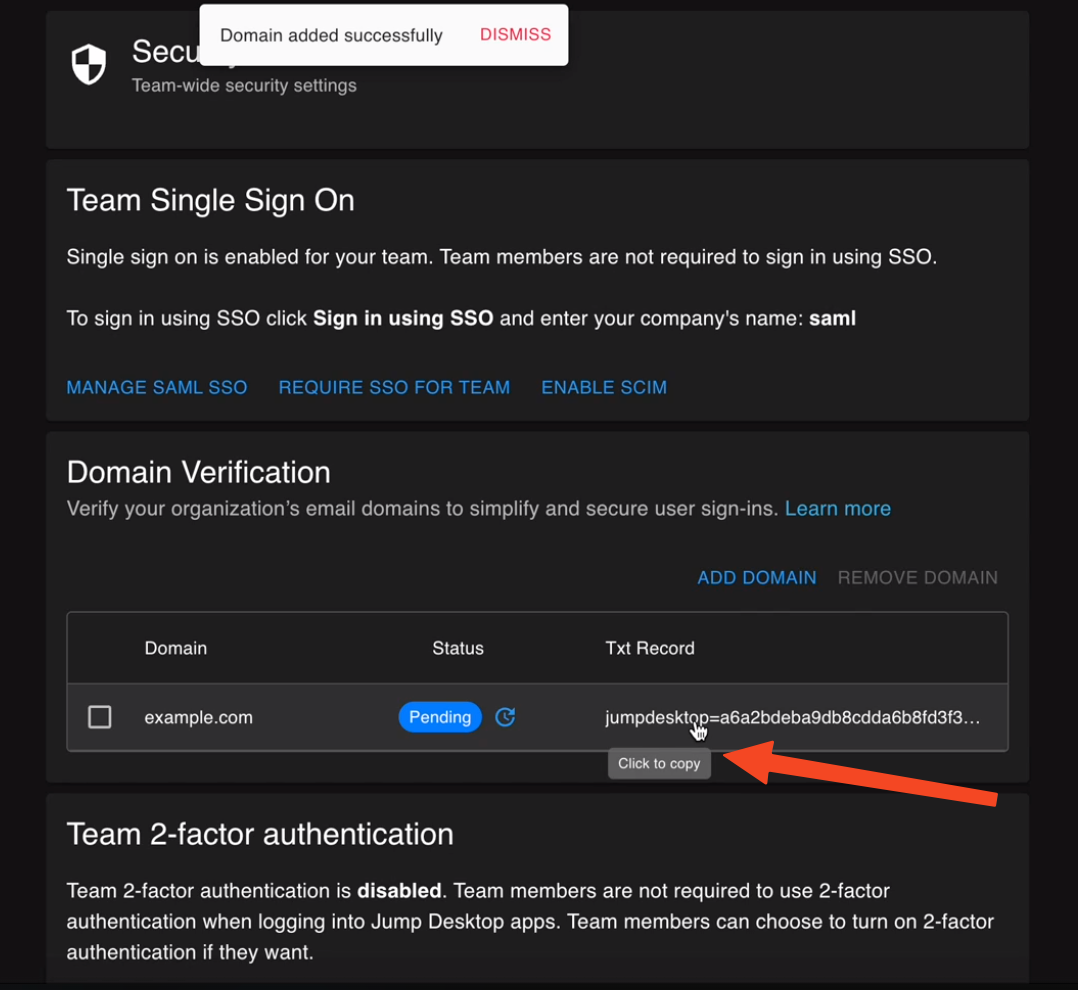
-
At your DNS provider, add a TXT record with the copied value on the domain itself (the root, often entered as
@). -
After the record is published, click Request Verification (the icon next to the status).
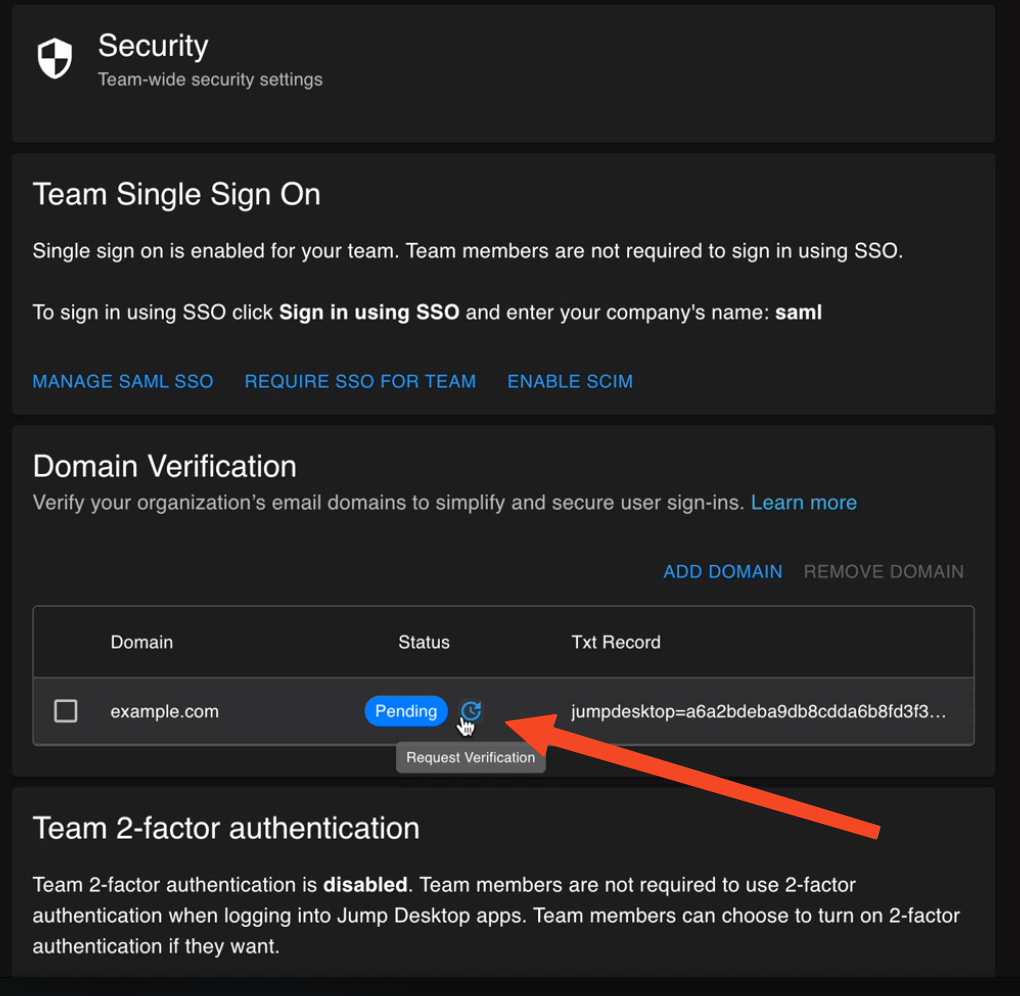
The status changes to Verified when the record is found. If the status shows Pending or Failed, wait for the DNS record to propagate, then request verification again.
Keep the TXT record in place after verification. Jump Desktop rechecks domains periodically, so a domain's status can change without administrator action. If the record is removed, a verified domain changes to Failed.
Require SSO for the domain#
These switches apply only while the domain is Verified.
| Switch | Effect on users with an email address on the domain |
|---|---|
| Enforce SSO Signup | Cannot create a Jump Desktop account with any other method; SSO is required. |
| Require SSO Login | Cannot sign in with any other method; SSO is required. Entering their email address on the Jump Desktop web sign-in page redirects them to your identity provider. |
If an existing account has not linked SSO, the web dashboard may show Your account is restricted. In Single Sign On, click Sign in with SSO, enter your organization's SSO company name, click Continue, and sign in at your identity provider. Then sign in again and confirm that the restriction is gone. This applies even if the account is not a member of your team.
To require SSO for all team members instead, see Require SSO.
Add verified users to the team#
Domain verification does not add users to your team. Add users manually, or select Add new users to the team automatically in Team Single Sign On.
For details on how SCIM provisions users on verified and unverified domains, see Provision users with SCIM.
Remove a domain#
Select the domain, click Remove Domain, and confirm. The domain's SSO requirements no longer apply.
Limitations#
- Domains are matched exactly:
example.comdoes not coveruser@sales.example.com. Add each email domain separately.