Grant macOS permissions to Connect#
macOS privacy permissions allow Connect to capture and control the screen of a Mac host. Without these permissions, you cannot view or control the Mac remotely, and on macOS 14 and later, unattended access can stop working. Grant them on the Mac after you install Connect, or when you cannot view or control a configured Mac.
Applies to#
- A user physically present at the Mac.
- Macs running Jump Desktop Connect, which requires macOS 10.15 or later. The permissions assistant requires macOS 13 or later.
Permissions Connect needs#
| Permission | Required | Purpose |
|---|---|---|
| Screen Recording (Screen & System Audio Recording on macOS 27) | Yes | Streams the Mac display to the device you connect from. |
| Accessibility (Device Control and Data Access on macOS 27) | Yes | Allows remote control of the mouse and keyboard. |
| Remote Desktop | macOS 14 and later | Maintains unattended access (no one at the Mac approves the connection). Without it, macOS can request screen recording approval again, which blocks access when no one is at the Mac. |
| Microphone | No | Streams the Mac audio. Without it, you can view and control the Mac but cannot hear its audio. |
Steps#
-
On the Mac, open Jump Desktop Connect. If any permission is missing or has not been reviewed, the Jump Desktop Connect Permissions assistant opens.
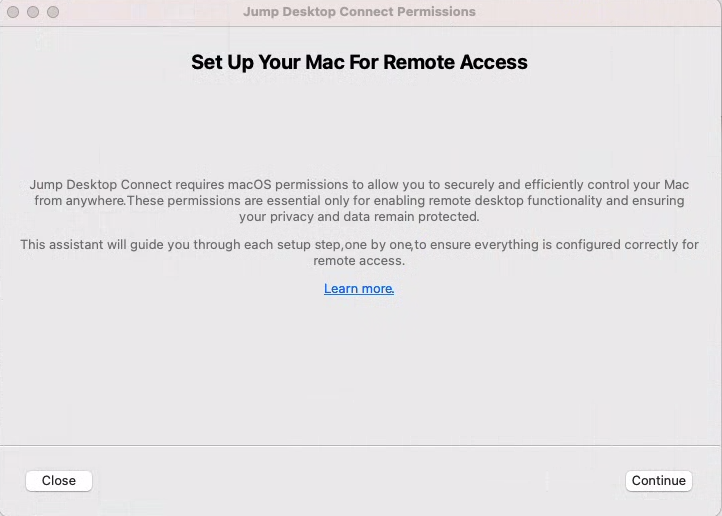
To open the assistant manually, click the settings icon, select Diagnostics, and click Check macOS Permissions....
-
Click Continue and complete each step. For each permission, the assistant either requests it or opens the matching pane in macOS Privacy & Security settings, where you turn on Jump Desktop Connect. Continue becomes available as the Screen Recording, Accessibility, and Microphone permissions are granted. On macOS 27, the buttons that open these panes are labeled Open in System Settings... instead of Open In System Preferences....
-
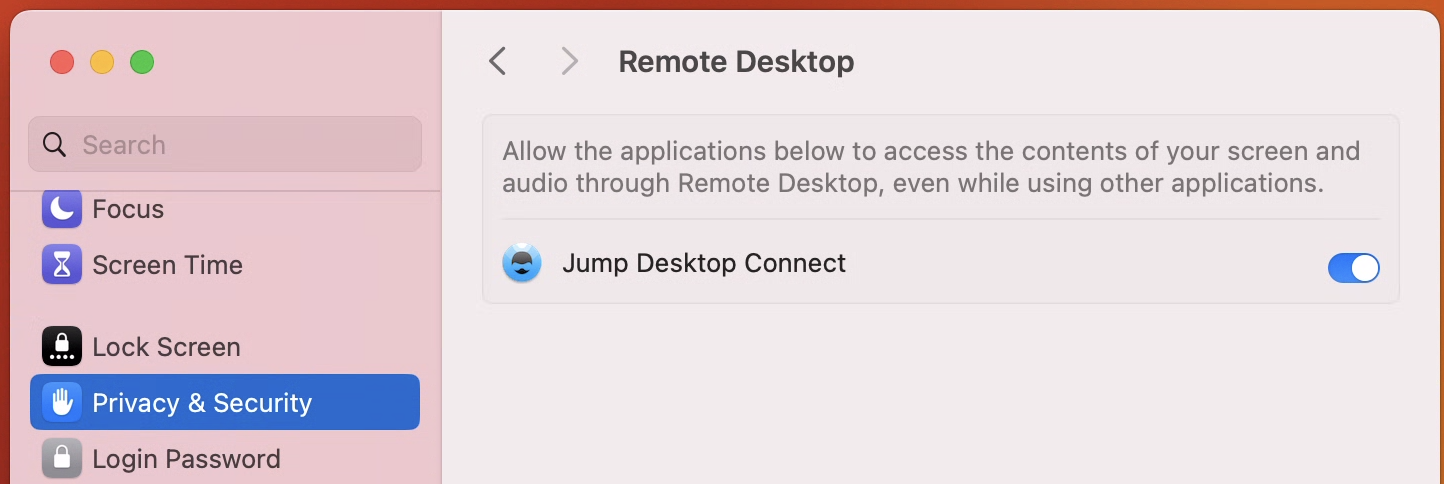
On the Unattended Remote Desktop step (macOS 14 and later), click Request Remote Desktop Permission... or Open in System Preferences... (Open in System Settings... on macOS 27). Turn on Jump Desktop Connect in Privacy & Security > Remote Desktop, then click Continue. Connect cannot detect this permission, so verify it manually.
-
On the Microphone Access step, grant access or click Skip.
- On the All Done! page, click Close.
To change these permissions later, use macOS Privacy & Security settings.
If Connect isn't listed in Screen Recording#
- On the assistant's Screen Recording step, click Request Screen Recording Permission... (or Open In System Preferences...). This action adds Jump Desktop Connect to the list. On macOS 27, the step is named Screen & System Audio Recording, and its buttons are Request Screen & System Audio Recording Permission... and Open in System Settings....
- If Jump Desktop Connect is still not listed, restart the Mac, and then check Privacy & Security > Screen Recording (Screen & System Audio Recording on macOS 27) again.
If you don't want remote access to this Mac#
Uninstall Connect. Uninstalling Connect does not affect the Jump Desktop app, which you use to connect from this Mac.