Jump CLI MCP server Beta#
jump-cli mcp is the MCP server in Jump CLI Beta for connecting AI agents to the hosts your Jump Desktop account can access. An agent connected through the server can control those hosts, and you can monitor its sessions in Mission Control. For first-time setup, see Use Jump CLI with AI agents. For the settings and steps of the complete workflow, see Let AI agents control computers.
AI agents act on your hosts
An agent can perform any action available to the signed-in user on the host, such as deleting files or changing settings. Agents can make mistakes, and text on a host's screen can contain instructions that mislead them. Monitor agents in Mission Control, restrict the hosts they can access (see Security), and do not let agents work on hosts where a mistake would be costly.
Applies to#
- Jump CLI Beta on Windows, macOS, and Linux, on the computer that runs your MCP client.
- Any Jump Desktop account. No Teams subscription is required.
- Each host requires Jump Desktop Connect. On a Mac host, a person at the Mac must grant Connect Screen Recording and Accessibility in macOS permissions; without these permissions, the agent cannot view the screen or control the mouse and keyboard.
Authentication#
Sign in with jump-cli auth viewer login, or set JUMP_TOKEN for your MCP client. The server uses the first credential it finds, in this order:
- The
JUMP_TOKENenvironment variable. - A saved API token (from
jump-cli auth api loginorjump-cli auth login). - A saved viewer token (from
jump-cli auth viewer login).
If no credential is present, the server exits with a message instructing you to run jump-cli auth viewer login or set JUMP_TOKEN. The server never opens a browser. To restrict an agent to a viewer token, see Security.
Add the server to an MCP client#
Your MCP client starts the server, so you do not need to run jump-cli mcp yourself.
Add the server to opencode.json (or opencode.jsonc) in your project, or to your global OpenCode configuration:
{
  "$schema": "https://opencode.ai/config.json",
  "mcp": {
    "jump-cli": {
      "type": "local",
      "command": ["jump-cli", "mcp"],
      "enabled": true
    }
  }
}
To verify that the server is connected, run opencode mcp list. For more information, see OpenCode MCP servers.
In the Cline panel, click MCP Servers, open Configure, and click Configure MCP Servers. Add Jump CLI under mcpServers:
For more information, see Configuring MCP servers in Cline.
Create .continue/mcpServers/jump-cli.yaml in your workspace:
name: Jump CLI
version: 0.0.1
schema: v1
mcpServers:
  - name: Jump CLI
    type: stdio
    command: jump-cli
    args:
      - mcp
For more information, see MCP in Continue.
Run goose configure, choose Add Extension > Command-line Extension, name it Jump CLI, and enter jump-cli mcp as the command.
Add the server to Zed's settings.json:
For more information, see MCP in Zed.
To pass options, add them after mcp, for example "args": ["mcp", "--idle-suspend-timeout", "300"].
To verify the configuration, ask the agent to list your computers.
Options#
| Flag | Value | Default | Description |
|---|---|---|---|
--idle-suspend-timeout |
seconds | 120 |
Seconds without agent input or screenshots before screen updates pause to reduce bandwidth usage. 0 turns off automatic pausing. |
--mission-control-addr |
address:port |
This computer only, random port | Address and port on which Mission Control is served. |
The global flags also apply, for example --log-level and --logfile.
What an agent can do#
- List the computers your account can access and view their online status.
- Connect to up to 8 hosts simultaneously, and disconnect from them.
- Take screenshots of the host's screen.
- Move and click the mouse, drag, scroll, type, and press keys and key combinations.
- Read and set the host's clipboard.
- Record the host's system audio (the audio playing through its speakers) to a file.
- Configure displays: select the display the agent views, create virtual displays, set resolutions, and restore the original display layout.
- Turn on privacy mode when the host supports it and an administrator allows it. Privacy mode blanks the host's own screen and blocks its local keyboard and mouse.
- Request that you sign in to a host, app, or website through Mission Control.
Screenshots, clipboard contents, and audio recordings are saved as files on the computer that runs your MCP client. These files are removed when the session ends or Jump CLI exits; during a long session, older files may be removed sooner.
To keep virtual displays between an agent's sessions and your own, see Check in on AI agents and long-running work.
Mission Control#
Mission Control is a local web dashboard for monitoring AI agent sessions. It runs on the computer that runs your MCP client. In Mission Control, you can:
- Watch every session live.
- Review each action the agent takes.
- Sign the agent in to hosts and apps without entering passwords in chat.
- Take control at any time.
To open Mission Control, ask the agent for its link.
See every session#
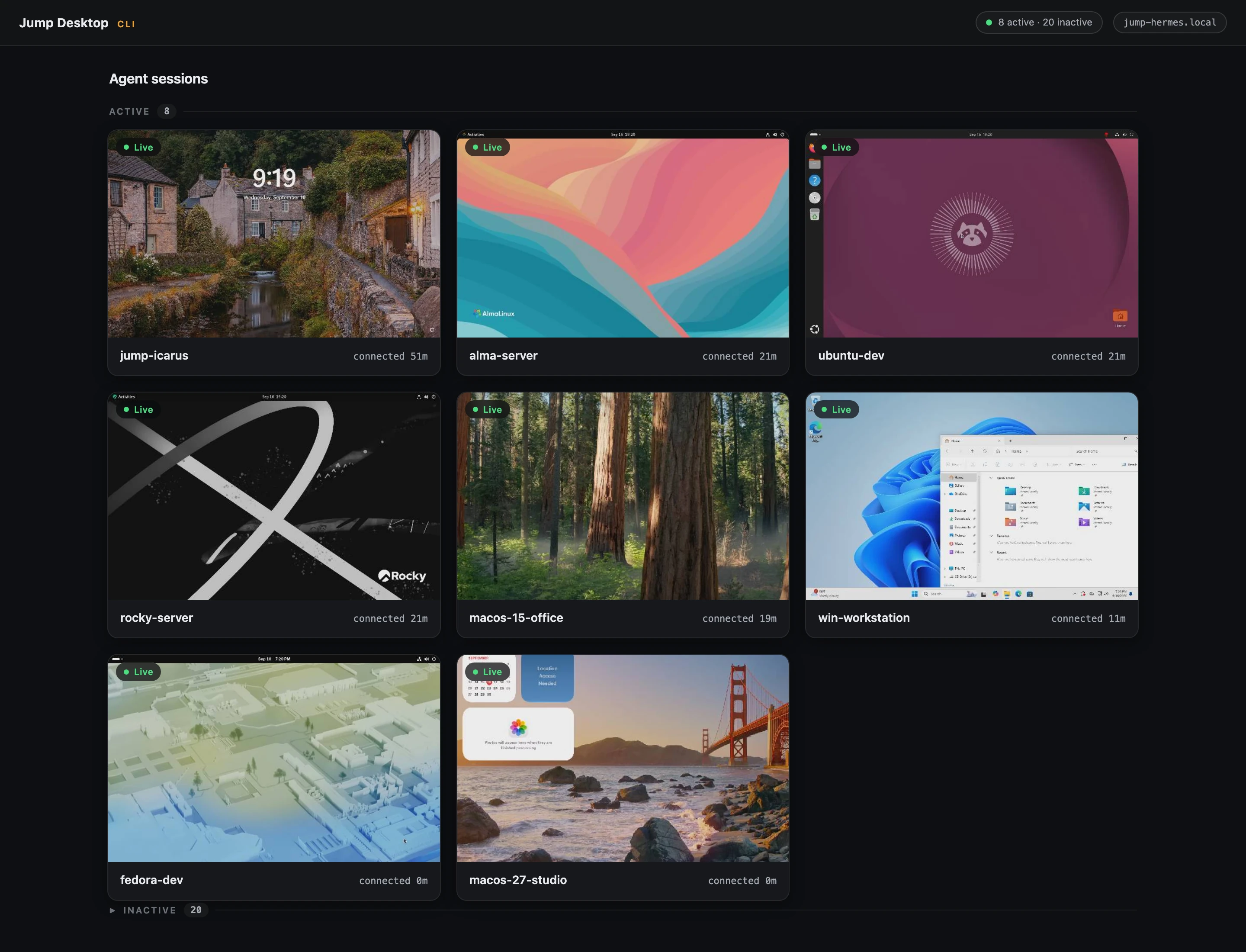
- Each card shows the host's live screen, the host name, and the connection duration. Sessions awaiting your sign-in are listed first, under Needs sign-in.
- Suspended · idle means the host paused screen updates to reduce bandwidth usage because nothing changed for the period set by
--idle-suspend-timeout. Screen updates resume as soon as the agent acts again. - To open a session, click its card.
Watch what the agent does#
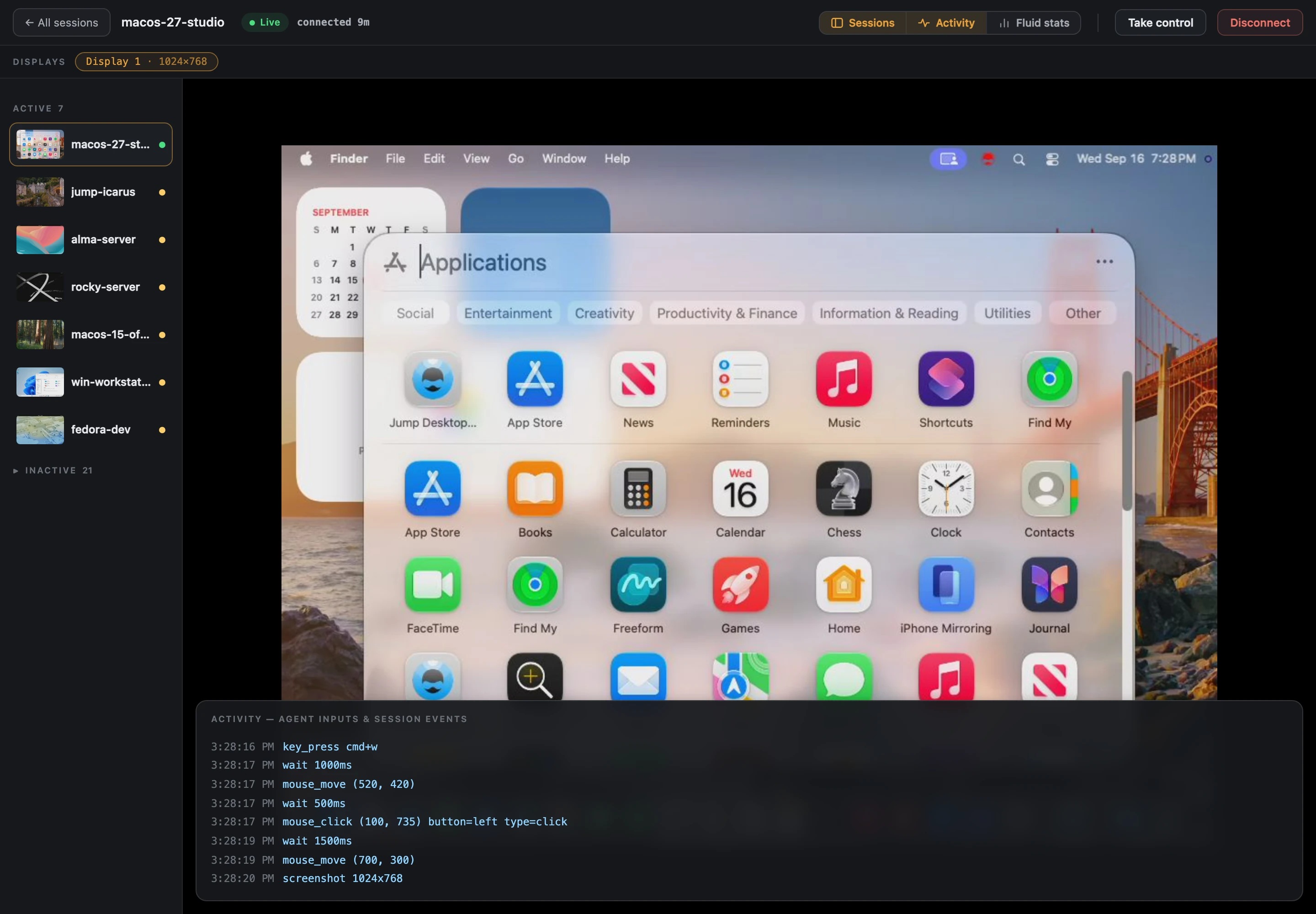
To review the agent's actions, click Activity on a session's page. The Activity panel lists each click, key press, and screenshot with its time, and events such as a sign-in or a transfer of control to you. Fluid stats shows the connection's statistics. When the host has more than one display, select one from Displays.
Sign in without sharing passwords#
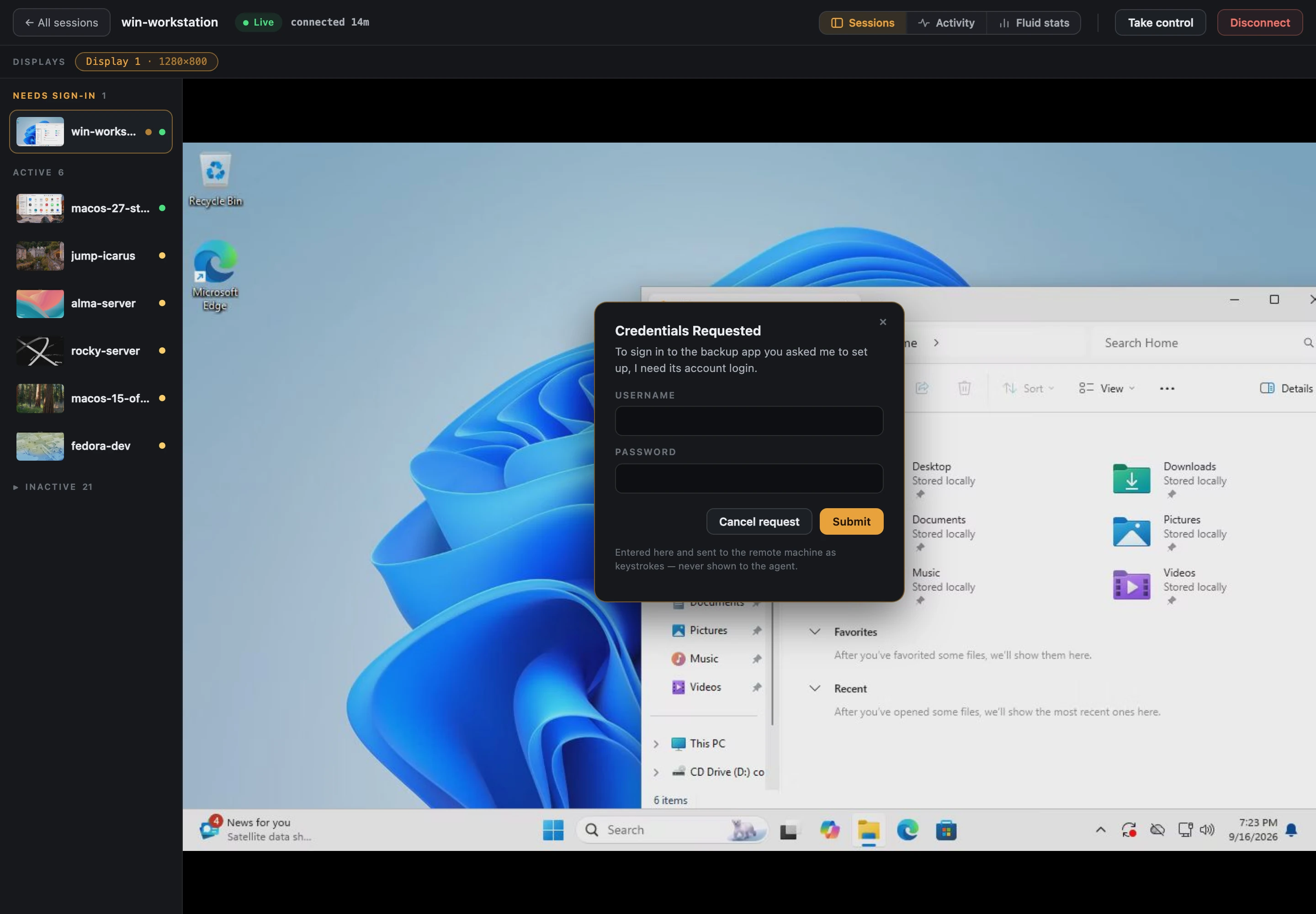
When a host or an app or website on the host requires a login, the agent requests the login in Mission Control. The session moves to Needs sign-in and displays a form with the agent's reason for the request.
- Enter the login and click Submit. To decline the request, click Cancel request.
- The login you enter is sent to the host as keystrokes and is not sent to the agent. The login is discarded when the session ends.
- Verify that the password field on the host hides the typed characters.
Take control#
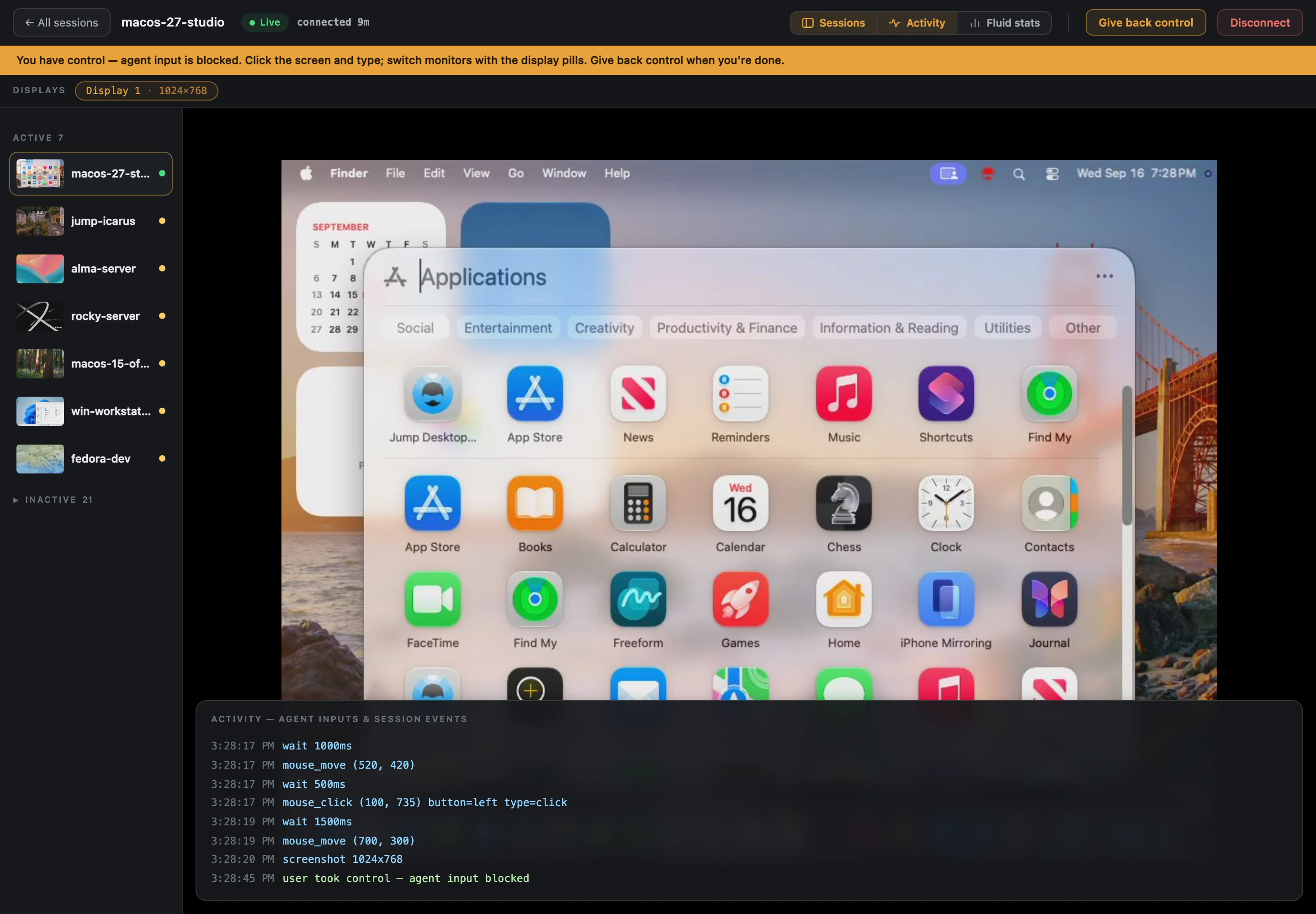
- To use the host yourself, click Take control. While you have control, the agent's input is blocked, and you can click the screen and type. If you click the screen while the agent is in control, Mission Control asks for confirmation before taking control.
- When you finish, click Give back control.
- To end a session, click Disconnect, and then click it again to confirm; the agent loses its connection to that host.
Security#
Where your data goes#
- Jump Desktop cannot view your hosts' screens. The connection between Jump CLI and a host is end-to-end encrypted, like every Fluid connection. Jump Desktop servers and relays forward the encrypted connection but cannot decrypt it.
- The agent can view screenshots of the host's screen. It can also read the host's clipboard and record the host's audio. This data is sent to the AI model the agent uses. Your model provider determines whether the data is stored and for how long.
- Before you connect an agent, close or hide any content on the host that should not reach the model provider, and review that provider's data policy.
Stay in control#
An agent connected through Jump CLI can perform any action available to the signed-in user on the host.
- Use a viewer token. An API token also permits team administration. To restrict the agent to viewer access, run
jump-cli auth api logout, do not setJUMP_TOKENfor the MCP client, and then runjump-cli auth viewer login. Running ateamorconnect bootstrapcommand afterward saves a new API token. - Restrict the hosts the account can access. The agent can connect to every host your account can access. Consider a separate Jump Desktop account limited to the hosts the agent requires. On a team, use Access Groups.
- Treat host content as untrusted. Text on the host's screen or clipboard can contain instructions targeting the agent.
- Do not give passwords to the agent in chat. Enter passwords in Mission Control when the agent requests them.
- Keep Mission Control on this computer and its URL private. Anyone with the URL can view the host's screen and control the host.
- Clean up. Screenshot and clipboard files are removed when the session ends or Jump CLI exits. To revoke access, run
jump-cli auth logoutorjump-cli tokens revoke <token-id>.